
| 2. Creating an application that displays "Hello World" | 4. Executing applications through BrightBuilder |
BrightBuilder provides the option to run applications straight from BrightBuilder in order to see what your application looks like and what it does before you deploy your applications to devices. BrightBuilder does this by running BrightForms on your desktop, so you will need to have BrightForms installed.
There are 2 ways to run your application in BrightBuilder.
Simply click
the project in the Projects
window to highlight the project (E.g.  ) and
press
) and
press  in the top menu bar.
Or you can also right-click the project and press ‘Execute’.
When we execute the application, BrightBuilder validates the application by checking for errors within the project. If errors were found, they will be displayed in this ‘Output – Validation’ dialog box. The below screenshot will appear when there are no errors.
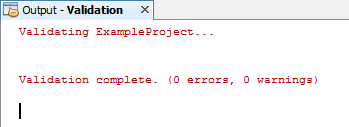
Once validated, BrightForms will open showing the form you have just made. The form will have the dimension specified earlier (‘Default Form Size’ property).
Simply press the button we created and see what happens.
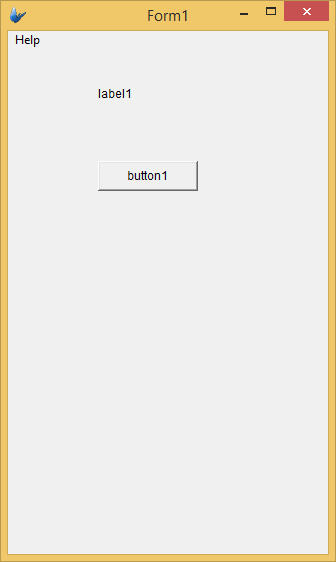
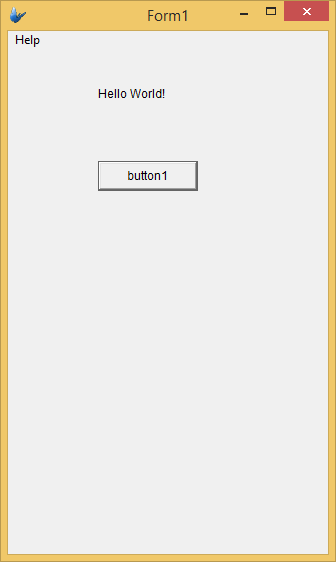
You have just created a mobile application on BrightBuilder. To run your application on an Android device go to Getting Started Tutorial 4.
| 2. Creating an application that displays "Hello World" | 4. Executing applications through BrightBuilder |