
Using Queries
Contents Hide
Queries are defined in BrightBuilder to return a set of records from the client tables of a device. While designed in BrightBuilder, the recordset returned by a query will depend on the database on the device at any given time.
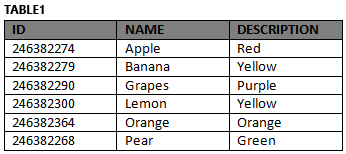
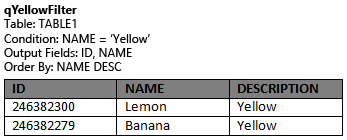
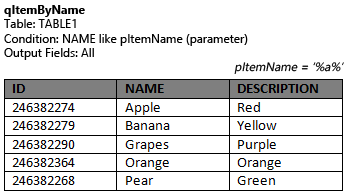
Any information to be viewed, changed or analysed from the database must be executed via queries, with execution performed when they are used in conjunction with a range of project elements and definitions. Namely, they may be assigned to controls, used in expressions, form data binding or sync rules, specifying sets of records present on the device, or to be retrieved from the server.
This chapter will detail how queries may be utilised across these project elements in BrightBuilder.
Controls
Record data may be displayed within a form layout via the ComboBox and Listview controls - the ComboBox displaying a single column for selection from the query's output on drop down, and the Listview control displaying numerous columns in a grid for viewing, selection and even editing.
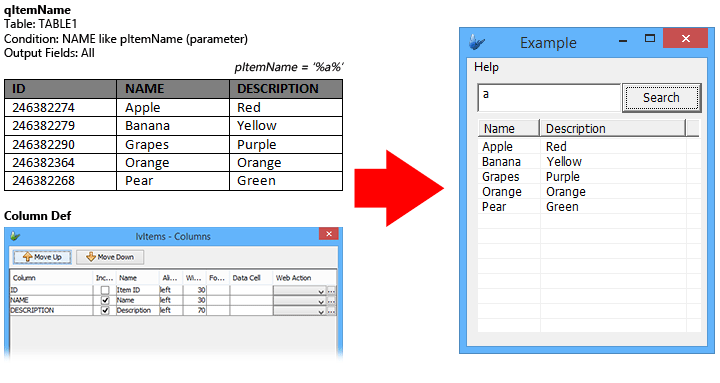
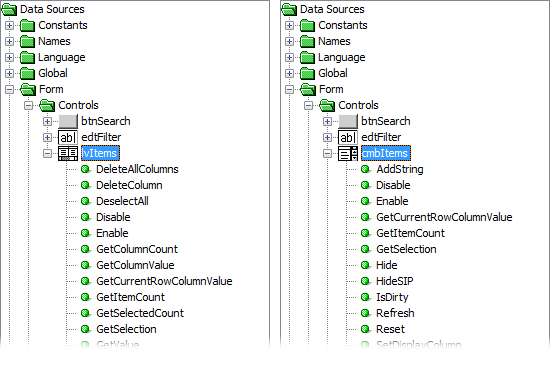
These controls will load the records as defined by the query on form load, and/or when the Refresh() method is called. The records will be ordered as also defined by the query. Each control also has a range of methods which may be used in expressions to retrieve values for other columns selected by the control.
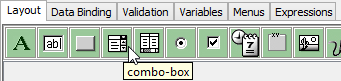
Combo
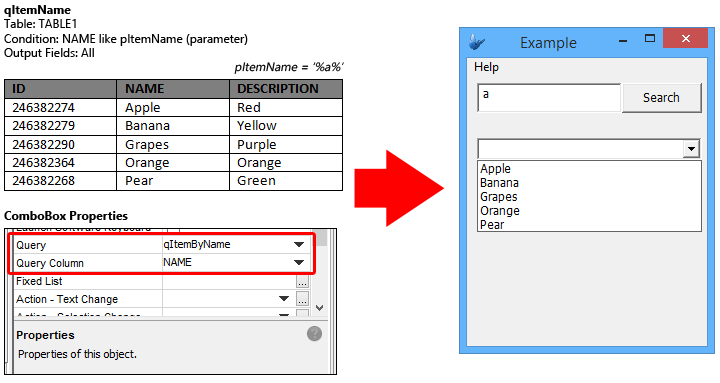
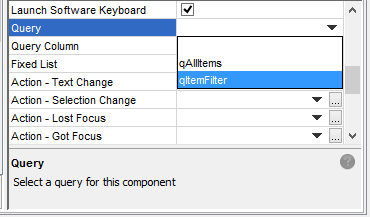
While combo boxes may exist without a query assigned, assigning a value for the 'Query' property will specify the query to load for the control on form load and/or Refresh() calls. This list of values may also be appended to, using the AddString() method.
This query is used in conjunction with the 'Query Column' property, which specifies the list of strings which will populate the control.
The value of the selected column will be loaded into the control when the drop down is closed. It may then be referenced in expressions as is, returning this string value.
ListView
The query whose records will display in the control is also specified by the 'Query' property. Unlike the combo box, a listview cannot exist without query data, therefore every listview must contain a query. An error will occur on project validation if the query does not exist for any listview control.
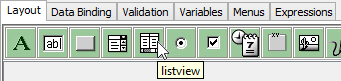
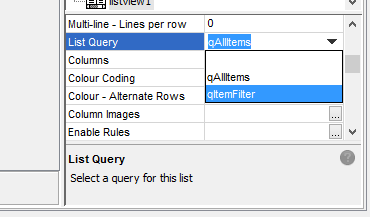
In conjunction with the query, the 'Columns' property is then used to define the displayed columns for the listview. Using this dialog, columns may be included or excluded from the view, have their default widths and headings modified or have formatting applied.
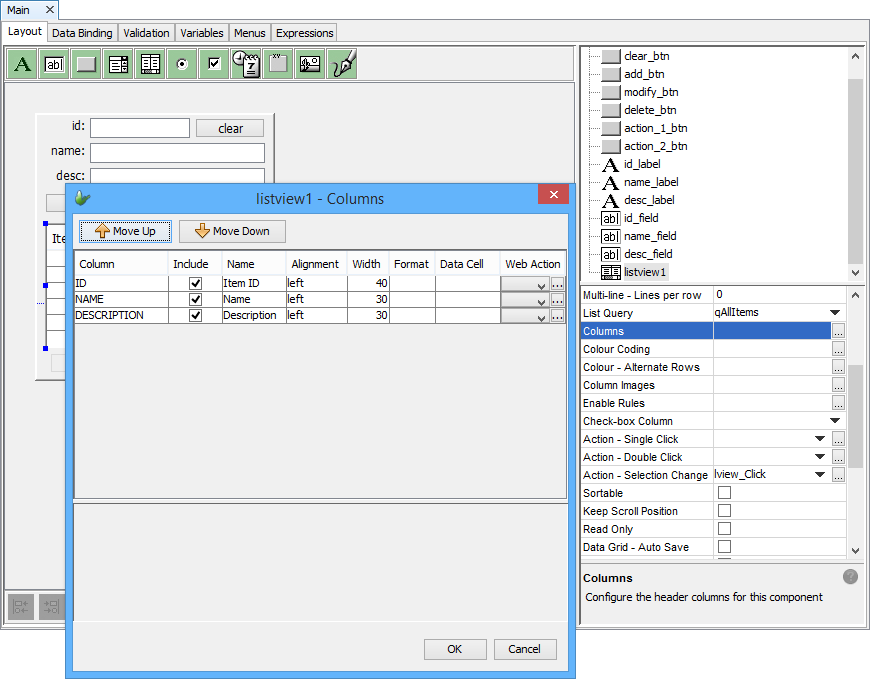
Furthermore, these columns may be set as editable by assigning values to the 'Data Cell' column in this dialog. When data cells of a column load, the assigned control will render for each row, populated with query data. Utilising this feature, a Button data cell may be used to quickly jump to a record's details, while controls such as Drop Down and EditControl may be used to quicky edit records on the same screen, vaildated with their with additional properties.
Once editing of data has been completed, the listview's Save() method may be called in an expression to save the values entered. Alternatively, the data may be specified to be saved to database immediately, using the 'Data Grid - Auto Save' property of the listview.
Parameters
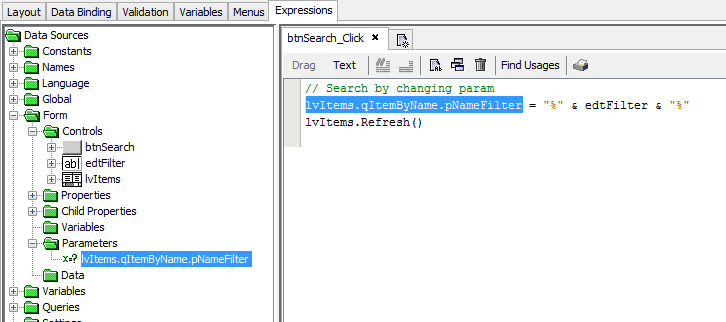
If the query specified is parameterised, parameters may be assigned via a form's Parameters node in the DST. This may be assigned via expressions, taking effect when the control next refreshes. These may also be specified as the form initialises, using the Form Open Definition Dialog.
Expressions
Query Data
In the data source tree, the Queries node may be opened to display a list of queries available in the project. Expanding this node will display output fields, parameters (if any) and methods for the query.
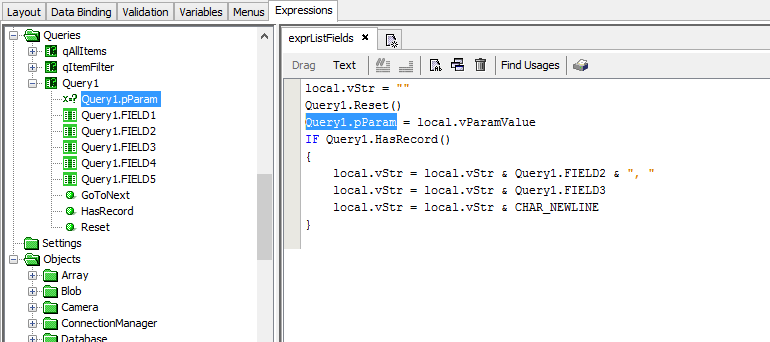
When an output field is referenced, the query will run on the device, and a recordset will be retrieved from the client database, with any parameters (if necessary) in effect. The query's output data sources may then be used as read-only operands in expressions, pointing initially to the first record in the recordset. The records may then be iterated through, using the query's methods located in this node.
If the query returns no records, or if its parameters are not fully set, referencing an output field will return NULL.
The methods of the query are used to iterate through the set of returned records via expressions. They are as follows:
GoToNext() : Navigates to the next record in the recordset.
HasRecord() : Call this method as you iterate through record to record to learn whether you have more records in the recordset to process. Returns true if there are more records to process; otherwise if you are after the last record, it returns false.
Reset() : Forces the query to be executed again - ie. sets the current record which would be returned by query fields to the first record in the recordset.
These methods may be used independent of other queries, such as in nested loops, if necessary.
Query Methods
The query object under the Objects node of the data source tree may be used Iterate through a set of records, similar to the Queries data node. While the data node may have multiple queries operating simultaneously, such as in nested loops, the Query object will only operate on one query at a time.
However, as these methods utilise string values for query and field specification, it may be useful for more complex data operations and in some code reuse scenarios.
An example of query method use is as follows:
local.vStr = "";
Query.SetQuery("Query1");
Query.SetQueryParam("pParam", local.vParamValue);
IF(Query.HasRecord())
{
local.vStr = local.vStr & Query.GetColumnValue("FIELD2") & ", ";
local.vStr = local.vStr & Query.GetColumnValue("FIELD3");
local.vStr = local.vStr & CHAR_NEWLINE;
}
Database Object
Queries are used to modify and delete records using the database object methods. Using the UpdateRecords() method with a project's query and any parameters, changes to the record set may be performed using AddColumn(), then updated for all records returned by the query.
Database.Reset();
Database.SetQueryParam("pItemID", id_field);
Database.AddColumn("NAME", name_field);
Database.AddColumn("DESCRIPTION", desc_field);
Database.UpdateRecords("qItemFilter");
listview1.Refresh();
Similarly, matching records of the query passed to DeleteRecordsLocally() or DeleteRecords() method will be deleted from the database, and server on sync respectively.
Database.Reset();
Database.SetQueryParam("pItemID", id_field);
Database.DeleteRecords("qItemFilter");
listview1.Refresh();
If a query with both parent and child tables are specified for updating or deletion, the method will only act on the parent table of the query.
Form Data Binding
Queries are also used in conjunction with forms' Data Binding feature.
This feature will link the query's recordset to the form, and fields if necessary, then expose query columns for reading/writing purposes in the Form > Data node of the DST. Within this set of records, a form will load a single record each time, with records being able to be iterated through using the cursor navigation toolbar, or via custom expressions using Form.MoveFirst() methods.
Furthermore, records in the query's recordset may be jumped to and loaded on open, or using the Form.Jump() method with Form.Refresh().
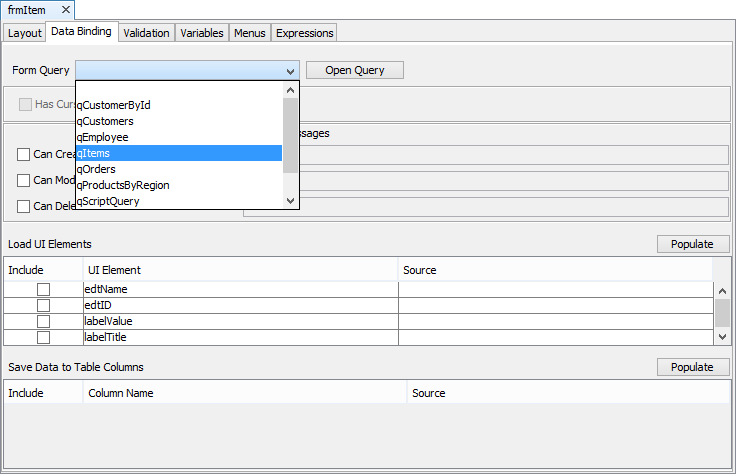
Parameters are set via the Form Open Definition Dialog, or via the Form.SetChildFormQueryParameter() method before Form.OpenChildForm() is called in an expression.
Once the form is open, the data binding parameter may also be set via the Form > Parameters node of the DST. After this value is set, the Form.Refresh() method must be called to refresh the form data.
For more information regarding the databinding process and methods, please refer to the BrightBuilder > Data Binding section of this document.
Reports' records are also managed with similar binding principles; with the query's recordset able to be iterated through, with each record entry being mapped to each report entry in the editor. Parameters for the Report may be set via the Report.SetQueryParam() method. For more information, please refer to the BrightBuilder > Reports section of this document.
Sync Rules
Queries are used in conjunction with sync rules to define the set of data which is to be sent to, or retrieved from the BrightServer instance. In addition to the query, sync rules also contain a direction and a parameter value.
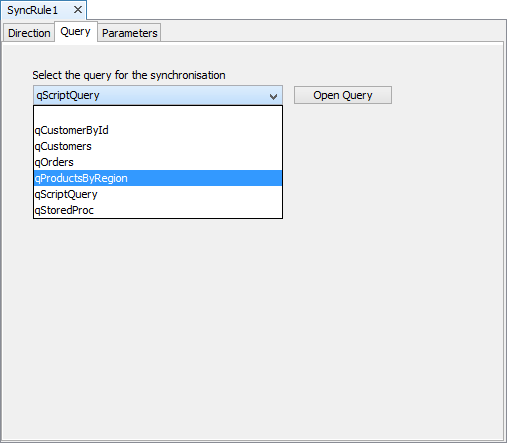
Once defined, these sync rules are subsequently used in conjunction with the Synchroniser.ExecuteSyncRule() or Synchroniser.EnableSyncRule() methods in expressions.
In both directions, all records matching parent and child records of the query will be retrieved from or sent to BrightServer. For synchronisation to the server, any records created on the device for the sync query will be removed if the table's 'Auto Delete' property is set to true.
For more information please refer to the BrightBuilder > Sync Rules chapter, or the Tutorials > Implementing Synchronisation chapter of this document.