
User Interface
Contents Hide
Upon opening BrightBuilder, the main window will display showing the main menu bar at the top and the various toolbars arranged below the menu bar. The menu bar has a number of associated drop-down menus. These menus provide access to the various program commands that manipulate BrightBuilder windows and any open projects.
This main window acts as a container for all other windows displayed by BrightBuilder, this arrangement is known as a multiple document interface (MDI).
The main window can be thought of as the development environment window. All of the application development work is carried out in this window. This window is subdivided into four main views namely Projects, Properties, Output and Editor; refer to the image below.
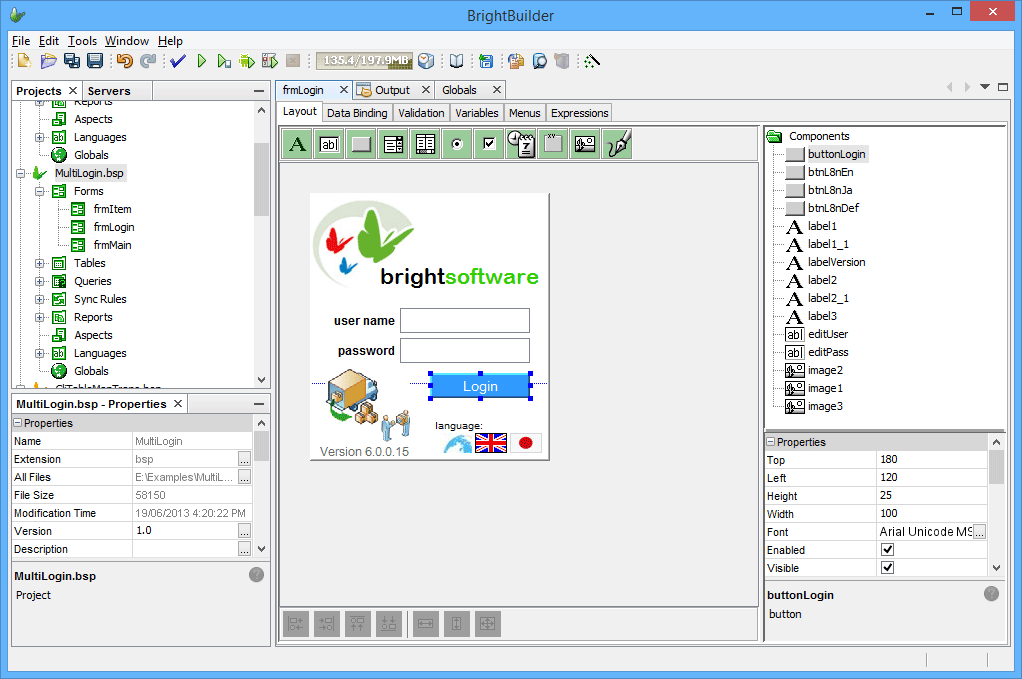
The Properties window area exhibits the properties of the different directories, projects and project elements that are created in BrightBuilder. The image above displays the form properties.
The following image is a sample Properties window of the BBTestProject.
Right-clicking on the properties area will show a popup menu containing the Properties window options as shown below. From here the user can choose the sort method of the properties and also select whether to show the property descriptions at the bottom of the window.
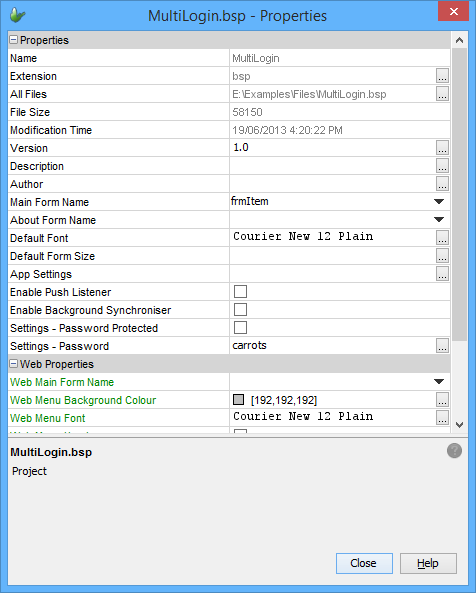
Refer to Appendix B for a list and description of properties for directories, projects, elements and components.
Output Window [Validation] upon Validation of a project, this window appears and displays any validation errors or warnings found in the project. If none is found, it simply declares: Validation complete. (0 errors, 0 warnings). Refer to the following image.
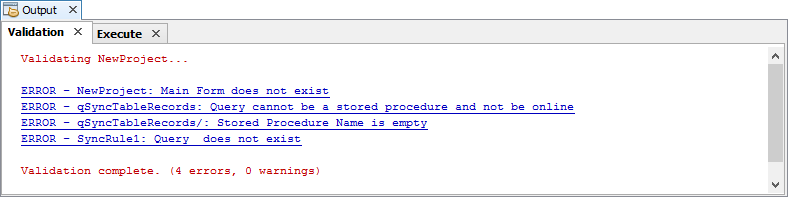
 Project Validation is a built-in feature of BrightBuilder that
verifies project correctness. Each warning and error now acts
as a link to the specific elements or properties that the error
occurred on. Thus when a form property validation error is clicked,
that form's property will display and have focus.
Project Validation is a built-in feature of BrightBuilder that
verifies project correctness. Each warning and error now acts
as a link to the specific elements or properties that the error
occurred on. Thus when a form property validation error is clicked,
that form's property will display and have focus.
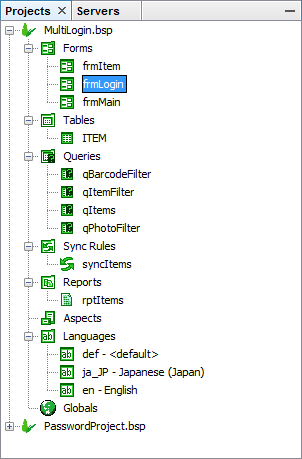
The Projects Window is used to display the different projects the user is working on. This is also where the application elements such as Forms, Tables, Queries, Reports, Languages and Sync Rules are initially created and selected for modification as shown below.
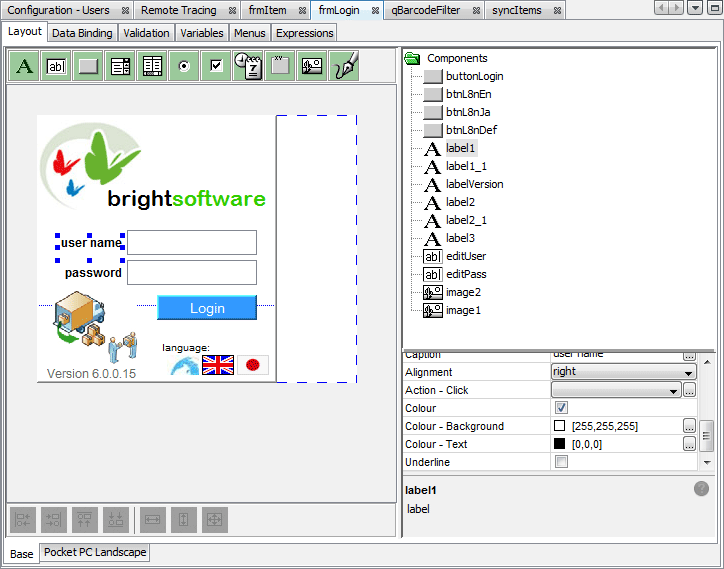
The Editor window this window displays the various application elements like forms, tables, queries, reports or sync rules that have been created in the project. Through this window, modifications to the said elements can be made to satisfy the application requirements. Each element has a different interface and can all be aligned in the Editor. Simply move from project element tabs to another to view and modify project elements.
The image below shows a Editor with frmMainMenu in focus. When an element is on focus, the user can modify any of the fields on it. Each element can be closed by clicking on the close button beside the element name.
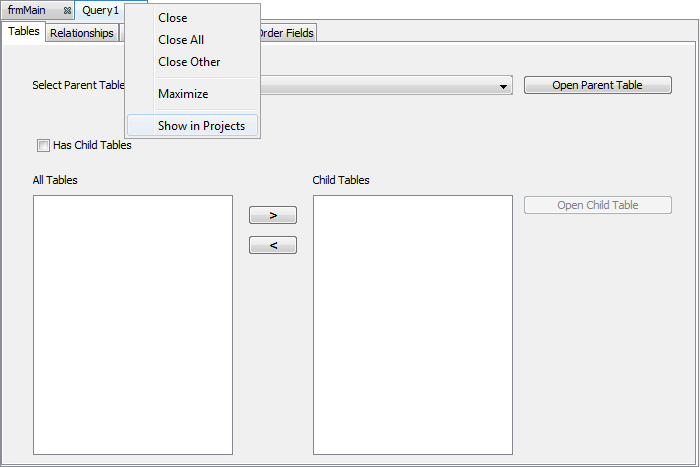
Furthermore, right clicking on an element's tab in the editor allows the user to manage other tabs which are open, or show the opened element's node in the Projects panel via the 'Show in Projects' feature.
For more help on the different elements' interfaces, please refer to the following topics
Screen Management
To make the development environment window user-friendlier, interface windows can be customised to the developers needs. Moving, resizing and docking windows are just some of the ways the user can create their own development environment window.
Groups of elements may be docked, such as the servers and projects panel, or freely grouped, such as the editor panels.
Moving elements and panels within the BrightBuilder window, the outline of the dock will determine which type of grouping will occur. This is also dependant on the current state of the element - for example, if a docked element is moved with a solid outline it will also be docked, however if a lighter outline is displayed, the item will be grouped freely when placed. Similarly, a freely grouped item may be arranged to create a different group (solid) or docked (light outline).
Any changes to panel sizes and positions will be persisted across BrightBuilder sessions. The Window > Reset Windows option in the file menu may be used to restore BrightBuilder and its element panels/groupings to its initial state.