
Upgrading BrightServer
Contents Hide
This topic details how to upgrade BrightServer versions from an older version of BrightBuilder on the same machine.
 Please
ensure all steps below are performed on the version of BrightBuilder
matching the version of the server to be installed.
Please
ensure all steps below are performed on the version of BrightBuilder
matching the version of the server to be installed.
Backing up the Server Configuration
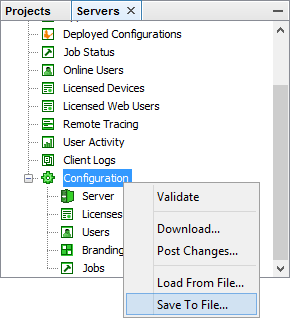
Before upgrading BrightServer, capture a backup of the server configuration by connecting to the server instance, then right clicking the server configuration node and selecting 'Save To File'. A BRC file will be saved in the location specified, containing details on the Server, Licenses, Users, Branding and other features under the 'Configuration' node. This file may be used to recover BrightServer's configuration, via the 'Load From File' option.
Testing/Preparing the New BrightServer Instance
It is recommended to first test and pre-configure the new BrightServer instance with existing apps and/or server configurations before completing the upgrade process. To do this, install the new BrightServer instance on separate ports, via the steps in the chapter Installing Multiple BrightServer Instances, then deploy and test the application BSP and BEPs to the server.
Installing the BrightServer instance on the same machine will have the added benefit of not requiring a reinstall on a production machine.
 Please
note, that later versions of BrightServer may operate using differing
concepts to previous versions. In particular, note the support
for multiple BEP server configurations for BrightServer 8 compared
to 7 and earlier. For more information, please review the Multiple
Configurations chapter of this document.
Please
note, that later versions of BrightServer may operate using differing
concepts to previous versions. In particular, note the support
for multiple BEP server configurations for BrightServer 8 compared
to 7 and earlier. For more information, please review the Multiple
Configurations chapter of this document.
Performing the Upgrade
Once confirmed to be successfully working, upgrading may be performed via the following steps. A valid license for the new BrightServer (with correct version and port numbers) is required.
Performing these steps will cause a short service outage, so it is recommended to perform them when there is no traffic to/from the server. Deactivating all users prior to this process, then reactivating them after it is completed is recommended prior performing the steps below.
The steps differ from whether BrightServer has been set up with default internal databases, or if external ones are used (such as SQL server).
 After
these processes, existing licenses on the Server may not have
been generated to be compatible with the installed BrightServer
to be used. If this is the case, register and deploy any new licenses
where necessary.
After
these processes, existing licenses on the Server may not have
been generated to be compatible with the installed BrightServer
to be used. If this is the case, register and deploy any new licenses
where necessary.
From default configuration
Stop the previous BrightServer, and install the newer BrightServer if tested on a different machine.
Change the newer BrightServer instance to operate on the previous server's ports.
If not already deployed onto the new server, deploy any project BSP and BEPs to the server.
Restore the previous server's BRC configuration with the 'Load From File' option in the configuration node. Make adjustments for project versions and server configurations accordingly.
Post the configuration changes to the server.
Disconnect from, and restart the new server. The upgrade will be complete after server restart.
From Server configuration
Install the newer BrightServer if tested on a different machine.
Run the latest BrightServer.
Create new System databases for the new server such that they are independent of the previous server. This is due to structure for applications and server configuration(s) potentially changing between versions.
Connect to the server, then locate the System Databases node. Enter in the new system database(s), then upload changes to the server.
Restart the server for the changes to take place.
After restarting, connect to the server once more, and restore the previous server's BRC configuration with the 'Load From File' option in the configuration node.
Redeploy project BSP and BEP files, and reconfigure users within the system.
Post the configuration changes to the server. The upgrade will be complete once this posting has been completed.