
Query Analyser Tool
Contents Hide
The Query Analyser Tool may be used to query server tables based on a database connection, and view and query records in these databases within BrightBuilder, without needing any additional software. The databases registered are equivalent to those registered for Create/Import Tables, and in opened BEPs. In addition to these servers, local SQLite databases may also be specified to be queried.
 To
connect with custom JDBC drivers in BrightBuilder, the drivers must
be placed in BrightBuilder's install directory. For more information,
please refer to the Appendix
> Using Custom Database Connections topic.
To
connect with custom JDBC drivers in BrightBuilder, the drivers must
be placed in BrightBuilder's install directory. For more information,
please refer to the Appendix
> Using Custom Database Connections topic.
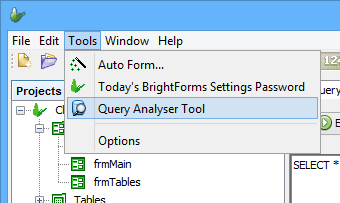
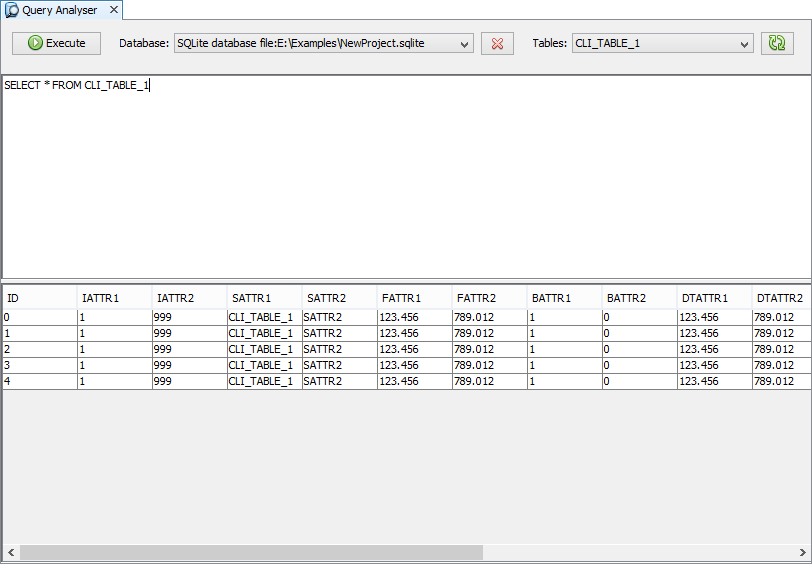
To open the tool, click on the Tools > Query Analyser Tool option in BrightBuilder's menu, or click on the Query Analyser Tool icon in the toolbar.

Connecting to a Database
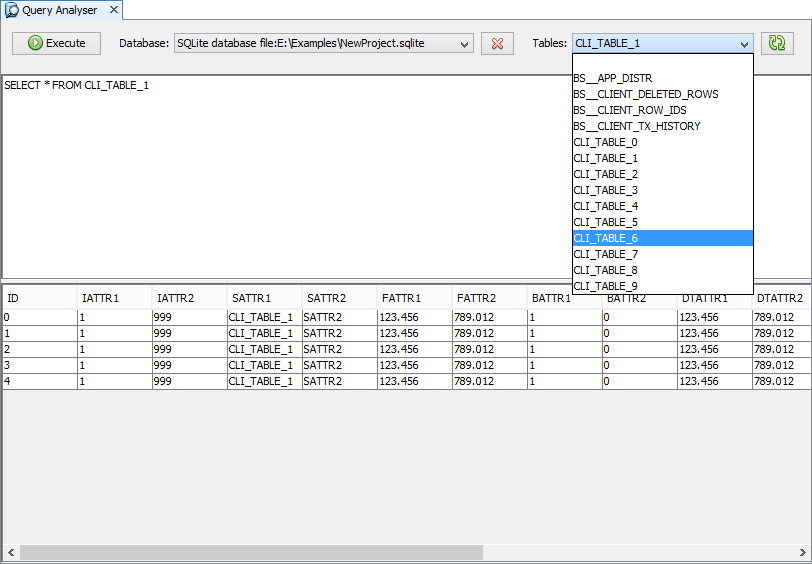
To connect to a database, select an existing entry or specify a new database connection under the 'Database' drop down. Upon opening, the list will load with Database data accessors found in any opened BEP files, and any previously registered databases. If not in the list, a new database may be specified via the 'New Database Connection ...' option.
Furthermore, registered databases may be removed using the  button.

The tool may also be used to load and view a local SQLite database, via specifying a 'SQLite database file' as the database type, with path.
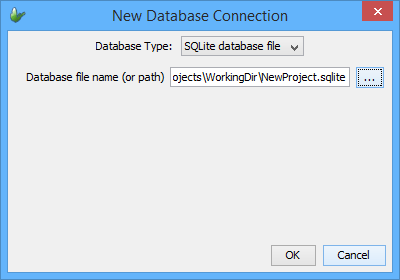
After selection, the dialog will retrieve any tables in the database
then populate the 'Tables' drop down. The list of tables may also
be manually be refreshed by clicking the  button.
Selecting Tables
Selecting a table from this list will run a SELECT * statement on the table, and populate the table below with the results.
The result set will display in the table below in a read-only state. Records may be sorted by tapping on column headers.
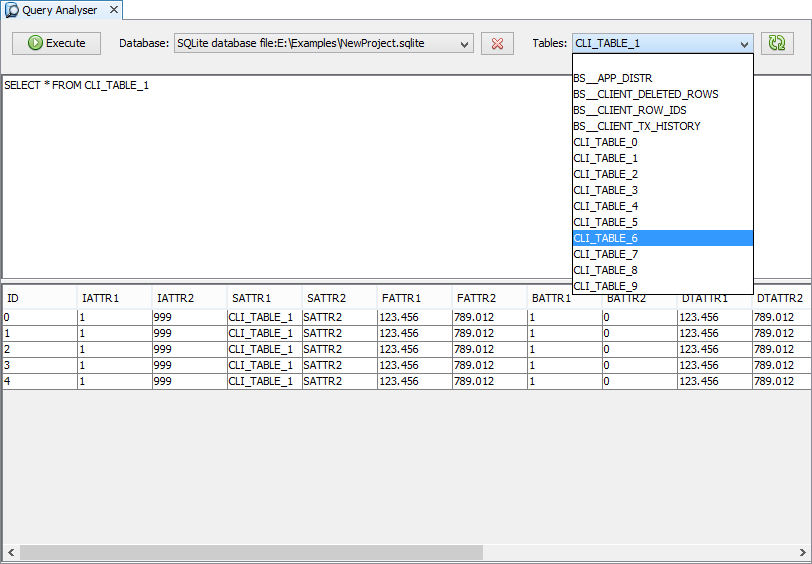
Other queries may be run via changing the text in the query editor, and tapping 'Execute'.
While the database is being queried, a progress bar will display on the bottom right of the screen. Results are loaded as the query takes place.

 Note that the cells of the list displaying the query result can be
double-clicked to display the string contained in the column. This
is especially handy when the cell contains a large string. On mouse
double-click, a small pop-up window will be shown.
Note that the cells of the list displaying the query result can be
double-clicked to display the string contained in the column. This
is especially handy when the cell contains a large string. On mouse
double-click, a small pop-up window will be shown.