
Login Dialog
Contents Hide
Login Dialog 
The Login dialog is tasked in providing login capabilities to the application. By entering a user name and a password, these credentials will be checked before allowing further access to the application. There are many options in which the user credentials can be verified. Through the login dialog's editor, what the entered user name and password is compared to, can be defined. These values can be compared to the credentials entered when logging into the BrightForms app or even checked against persisted application defined settings from setting dialogs. Fixed values can also be used to compare the entered password credential.
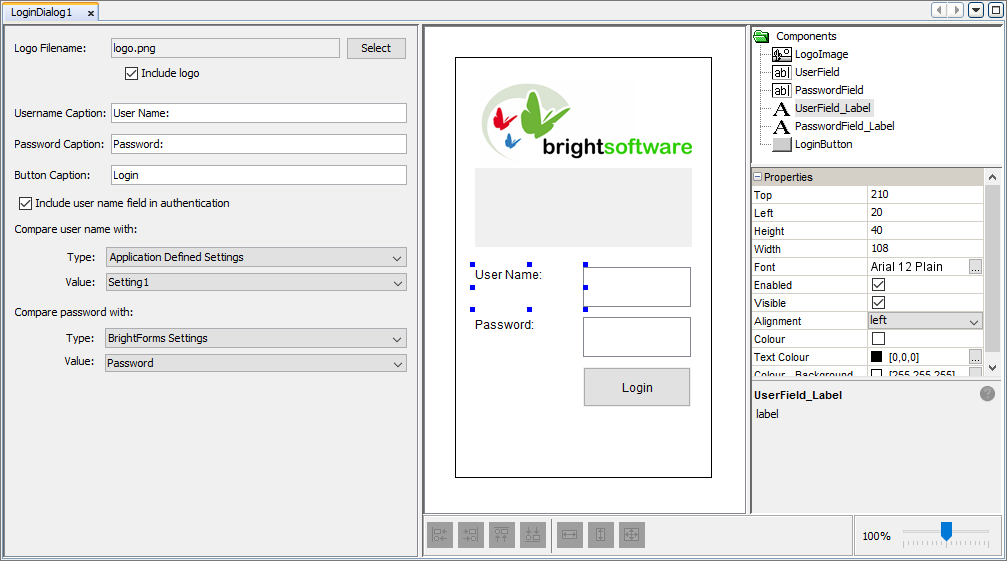
In the WYSIWYG window, you can change the layout and size of the components in the form. By pressing on each component the Properties panel will be populated and also have the ability to edit the component's properties.
Logo
In the login dialog editor, you have the option of adding a logo that is to be displayed on the form. By pressing the 'Select' button you can choose the image you want to display on the login form. There is also a check box in which you can tick to include or untick to not include the logo on the form. When 'Logo Filename' is set to an image, the WYSIWYG window will display the image. In this window you can click on the 'LogoImage' component to change the properties of the image such as its size and style.

Captions
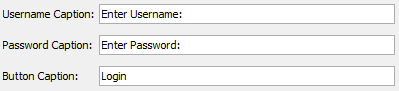
The login dialog window also allows you to change the captions that appear next to the edit controls 'UserField' and 'PasswordField'. These captions/labels are added to ensure the user knows which edit control to enter their credentials. As you type into these fields, the WYSIWYG window will reflect the changes made.
Login Button and Authentication
Within the login dialog you will find one button. The purpose of this button is to submit the entered user name and password in the form and check its credentials. In this section, we will teach you how to set the functionality of this button to authenticate if the user name and password are valid.
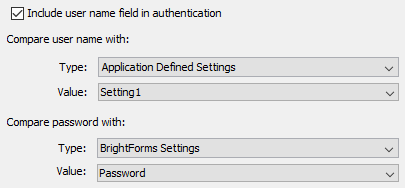
Using these option we can specify what to compare the user name and password with. Here a 'Type' drop down menu is used. Essentially 'Type' will specify where the user name/password to compare with will come from. These values can come from two types:
BrightForms Settings: The user name/password entered will be compared with the BrightForms user name/password configured in BrightForms' settings. They are the same user name and password used when synchronising the application to BrightServer. Once this type is set, the values available are 'User Name' and 'Password'.
Application Defined Settings: Details that the user name/password inputted will be compared with a setting defined by the application. These settings can be defined through a Settings Dialog. Refer to Settings Dialog section to learn more about these dialogs. If this type is used, the 'Value' drop down menu will be populated with the settings available from the application (i.e. all settings defined within Settings Dialogs).
Fixed Value: The fixed values type can be used when developing the application to specify a fixed value for the user name and/or password. Once selected, the value field will change to a input text box where the fixed value can be entered as a string. Currently only available to be used in comparing the password credential entered.
The login dialog editor has the option to 'Include user name field in authentication', indicating to include authentication of the user name entered ('UserField'). If this is unticked, then the user name controls will be removed from the form and only the password will be needed to authenticate the user of the application. What is done after the user credentials are checked is defined in the Application Panel where we can create form links. As part of the logic of the application, the login window should open another form after the 'LoginButton' is pressed which can be done through creation of a form link. You can find out how to open another form here.
Form Values
The following table describes the form values included in every login dialog.
| Form Value Name | Description |
| UserField | Contains the user name entered and authenticated |