
Form Links
Contents Hide
This section will in detail explain what form links are and how to connect dialogs together through them.
Form dialogs are connected by lines with a directional arrow which represents a form link. A form link is a connection between two form dialogs indicating one form will open the other. The parent dialog is the dialog that will open the other connect dialog or its child dialog. Through the Application panel, form links are displayed using arrows as visual representation. The child dialog to be opened is shown through the arrowhead of the arrow pointing towards the dialog while the other end of the arrow represents the parent dialog that will open the child dialog.
These connections represent the flow of the application by showing what form dialogs can be traversed. For example, a line from a login dialog to a menu dialog indicates that the login dialog will open the menu dialog. To perform this functionality (i.e. form opens another form) an action will need to be set. For each directional arrow at least one action must be specified to detail the action to be performed in the parent dialog for the connected child dialog to open.
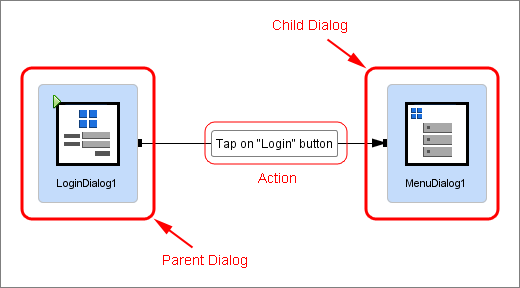
Forms links can be created through simple keyboard and mouse presses through the Application Panel. Through form links, it allows the flow of the application to be defined in a non-programming way and through visual representations. Through form links can also specify data flow between dialogs to allow dialogs to be opened with specific contexts such as opening a list dialog to display a subset of items.

Create a Form Link
Form links dictate which form dialogs are involved and what needs to occur from the parent dialog to cause the child dialog to open. A form link can be created by first holding the 'Ctrl' button, left clicking the parent dialog and holding the left click. By holding the 'Ctrl' button, then left-clicking and dragging the mouse from the parent dialog to the intended child dialog, this will create an arrow to connect the two dialogs indicating the parent dialog will open the connected child dialog, further reinforced through the directional arrow displayed. The dialog that is connected with the arrowhead pointing towards it represents the child dialog, while the dialog on the other end with no arrowhead is the parent dialog.
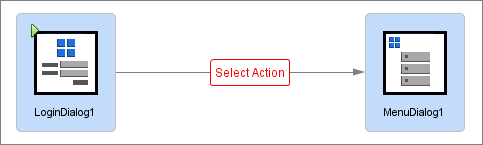
The initial connection will display  , indicating
the form link is not complete. The form link needs to be specified
with an action that needs to be performed in the application by the
parent dialog. When the action is performed within the parent dialog,
this will cause the application flow to change and open the child
dialog as a result. By double clicking , will open
the form link editor window
where the action/s from the parent dialog can be chosen to open the
child dialog. The window will display the possible actions that can
be used to open the connected dialog.
, indicating
the form link is not complete. The form link needs to be specified
with an action that needs to be performed in the application by the
parent dialog. When the action is performed within the parent dialog,
this will cause the application flow to change and open the child
dialog as a result. By double clicking , will open
the form link editor window
where the action/s from the parent dialog can be chosen to open the
child dialog. The window will display the possible actions that can
be used to open the connected dialog.
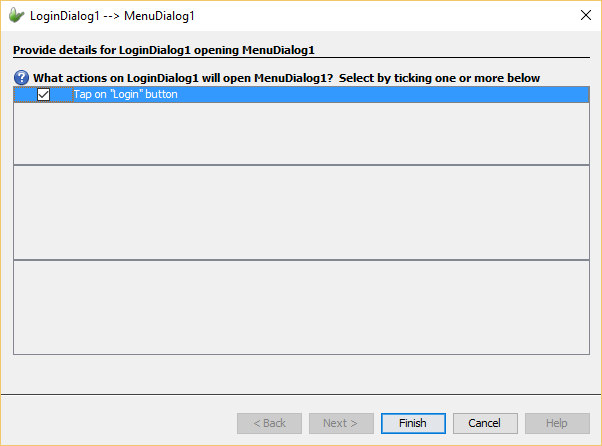
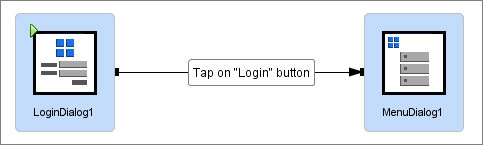
Once an action is been chosen and the 'Finish' button is pressed, it will update the connection with the selected action that will cause the flow of the application to change. From the form link above, LoginDialog1 will open the menu dialog 'MenuDialog1' when the 'Login' button is tapped.
List Dialog Form Links
List dialogs can be given more context when another form opens it from a form link. Once the data table has been set in the list dialog, the form link to open the dialog will require more context to either display all items or specific items from the data table. Through form links, list dialogs can be used in a flexible and easy manner in order to add advanced functionality to mobile applications through simple visual steps. Through the form link editor window the details required for the form link can be specified. List dialogs can be opened to:
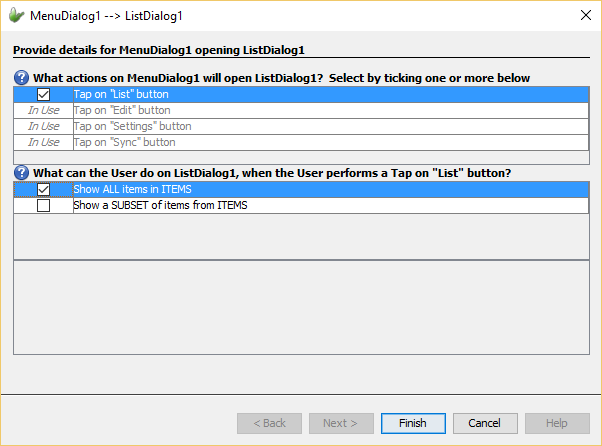
By giving the form link this context, once the action is performed the list dialog will be opened to show all items in the data table. From the image above, when the button "List" is pressed it will open the form to display all items from the assigned data table in the listview control.
The list dialog can also be opened to display only a subset of items from the data table. In order to do this, filter values are required in order to produce the subset of items to be displayed.
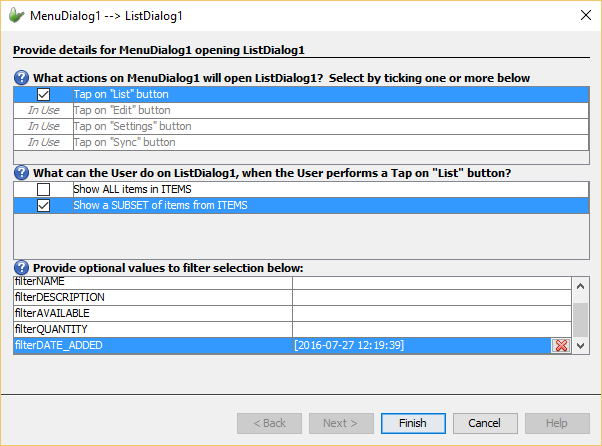
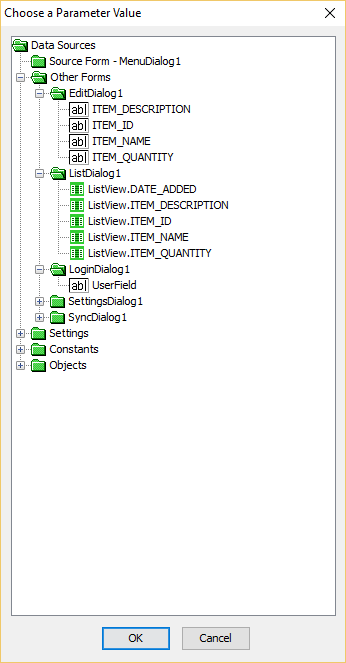
Once the action is set to display a subset of items, a list of optional values that can be used to filter the items from the data table. There will be a filter value for every column within the data table with the name 'filter<COLUMN_TABLE>'. These values can be set by clicking the field which will open the 'Choose a Parameter Value' window.
Filter values will be used to query the data table to gather all the items that match the filter values and create the subset of items to be displayed in the listview. From the 1st image above, when the 'List' button is pressed from MenuDialog1, ListDialog1 will be opened to show a subset of items where each item has their DATE column equal to the 15th June 2016 12am (2016-06-15 00:00:00).
Edit Dialog Form Links
More complicated form links can also be created that involved data tables in edit dialogs. Once the data table has been set within an edit dialog, the dialog will need to be given more information on what it can do to the assigned data table when the action is performed. Essentially we are specifying the context in which the edit dialog will be opened. Each context may require more information in order to open the edit dialog for example, the record to be modified will need to be set before opening the dialog in the context of modifying an existing item. The form link editor window provides an easy and visual method of setting all the required information for the form link. For an edit dialog, it can either:
If it is set to create a new item in the data table, the edit dialog will open with all fields with initial values. The purpose of opening the edit dialog with this context is to allow the user to add a new record into the data table.
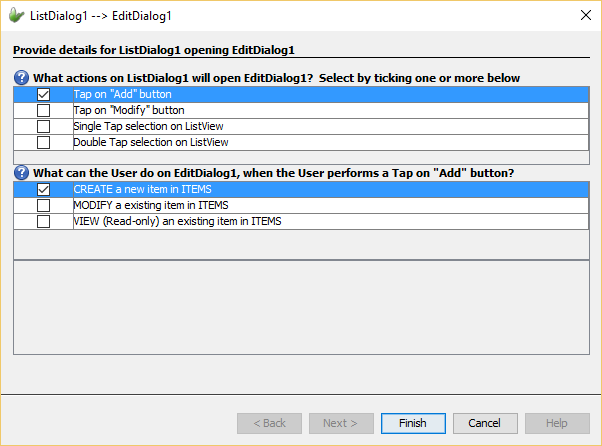
From the image above, when the 'Modify' button is tapped from ListDialog1, EditDialog1 will be opened with the intent of creating a new item in the ITEMS table. In order to save a new item into the data table, an action button with type 'Save Record' will need to be present on the edit dialog form. When that action button is pressed, it will save the entered data into the table.
However if the edit dialog is to be opened for modifying an existing item in the table, even more information in required. Information is needed to indicate which record in the table will be modified and populate the fields in the edit dialog. The form link editor window will display all the values needed to be set to specify the item to be loaded usually stated through the unique record identifier of the data table. By pressing on the field, it will open the 'Choose a Parameter Value' window. In this window, the value to query the data table can be set. These values can be form values from the project, application settings, user defined constants or Object method values.
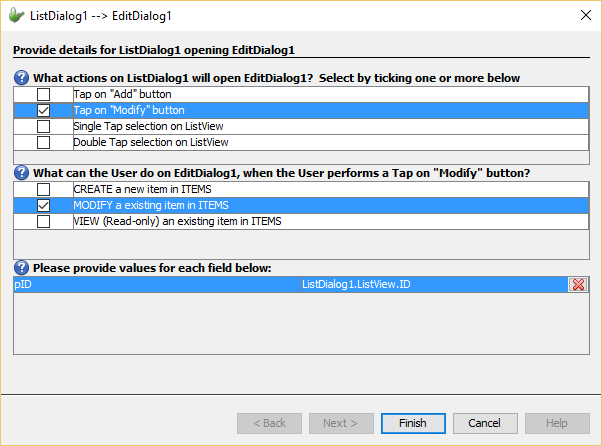
From the image above, the pID value is set to the form value 'ListDialog1.listview.ID'. This form value is the current value of the column ID from the currently selected item in the listview. Hence when the modify button is pressed or the selected item in listview is double tapped, the edit dialog form will be opened to modify the currently selected item in the listview. Similarly to adding a new record into the data table, a action button is required with the 'Save Record' type to carry out the saving functionality into the data table.
The edit dialog can also be opened to only view an existing item in the data table. If this is set, the edit dialog's controls will be populated with the data within the existing item. It will also be opened in a read-only state meaning the user can not edit any of the form controls and hence cannot edit the existing records data.
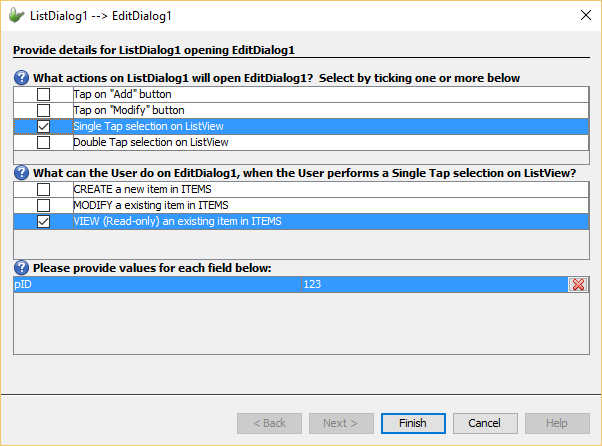
From the image above, 'ListDialog1' will open 'EditDialog1' when a single tap occurs on a selected item in the listview. The edit dialog will be opened to view an item in the data table where their unique record identifier is equal to '123'.
Multiple Form Links
Between two form dialogs, there can be multiple actions that can be specified in order to open the connected dialog. Through multiple actions we can specify more than one way for the child dialog to open and in different contexts as well. For example, a list dialog may have an 'Add' button to add a new item to the data table and it may also have a 'Modify' button to edit an existing record in the data table. You can create multiple actions through the form link editor window. Within this window, a list of actions will be present that can be performed to open the next dialog and all the required information can be detailed for the form link to be valid.
By ticking the check box next to the action, this will activate the action to perform the open. Each action can be selected to specify the context in which the connected dialog will open if it is required and any further information required for the form link (e.g. for list and edit dialogs).
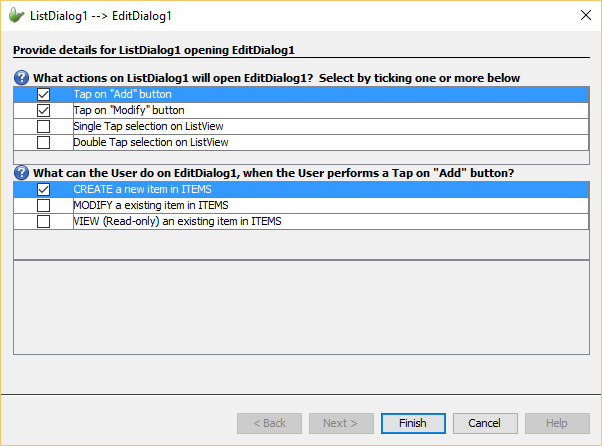
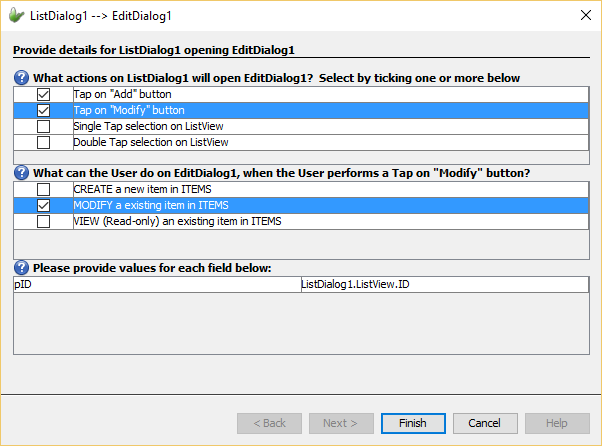
From the images above, ListDialog1 will have multiple actions to open EditDialog1. The first action is by tapping the 'Add' button in which the edit dialog will be opened to create a new item in the data table. While the second action to open EditDialog1 will be through tapping the 'Modify' button which will open the edit dialog to modify an existing item that satisfies the pID/unique record identifier value (i.e. open dialog to modify currently selected item).
Different actions can also open the same form in the same context. For example, you can set multiple actions to open an edit dialog to create a new item in the data table.