Data Tables
Contents Hide
This chapter will discuss in detail data tables within BXP projects.
A data table is a table that will contain the data used within the application. Essentially data tables are exactly the same as Table elements in mobile applications projects and server configuration projects. However data tables are differentiated within the BXP designer in order to present them in a visual way to make the creation and modification of data tables easy to do without any prior technical knowledge.
These tables are essential to an application if data is to be stored as they will be used on the device to hold the data and be used for synchronisation for sending and receiving data. They are a collection of data about a specific topic, such as items or employees.
These data tables are the tables used for organisation and storage of data within a database. Data tables are similar to normal database schema and require a primary key or unique record identifier. Each column can also be specified to allow nulls meaning the value is not required in a record in the data table. Data tables will be used throughout the project within the application and data flow elements. Within the Application element, data tables are mostly used within list and edit dialogs where they can be create and modified. Sync dialogs also utilise currently defined data tables to indicate the data set to be used within synchronisation. While in the data flow element, currently defined data tables will automatically be added as client table nodes.
Additionally, tables can be created, modified and deleted through the data flow element. Changes made to a data table in one element (i.e application or data flow) will remain consistent throughout the application hence caution must be taken when altering data tables. For more information on data tables through the data flow element, refer to the Client Tables section in the Data Flow chapter.
Create a Data Table
There are currently multiple methods of creating a data table within a BXP project. Once such was is through the Application element within list and edit dialogs. By using the drop down menu provided and selecting '<Bind to New Table...' will open the 'Create Table' window.

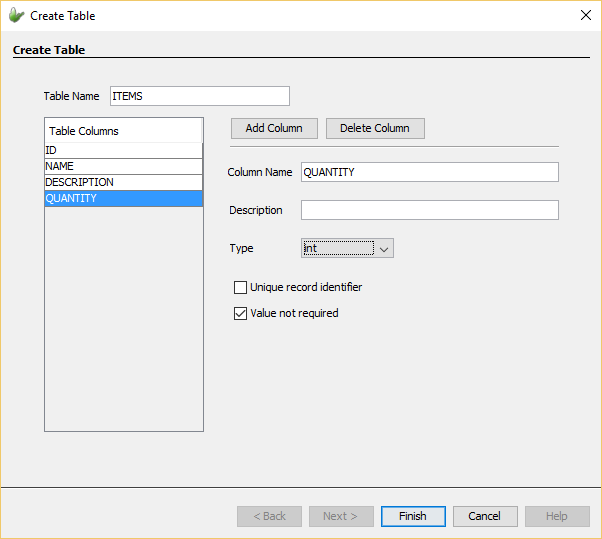
This window allows users to enter the details of a new table. The name of the table can be set here and should be set to something meaningful and related to the tables contents. Usually it is good database practice to name your relational tables with nouns. Here you can also add columns and delete columns. By clicking on a column under the Table Columns list, the properties of the column can be edited. The column name can be changed and a description of the column can be added here. The type of the column can also be set. A column type can either be string, boolean, int, double, dateTime or base64Binary.
There are also two check boxes:
'Unique record identifier': Columns with this property ticked indicate the column will uniquely identify the records in the table. Each table is required to have at least one column as its unique record identifier/primary key. If the table is attempted to be created without a unique record identifier, then the window will display an error message and refuse to create the table.
'Value not required': Columns with this property are not required to have a value within a record of a data table. Essentially they may be left null.
Once all these details are filled and the table has at least one column as the unique record identifier, by pressing 'Finish' the table will be created and can be used within the project.
Additionally, data tables can be defined through the Data Flow element in BXP projects. By dragging and dropping the client table icon onto the data flow canvas, new data table definitions can be created. Initially this table will be an empty definition hence the client table node created on the canvas should be double-clicked in order to open the required client table editor. Through the client table editor, the table definition of the newly created data table can be edited and completed.

Modify a Data Table
Data tables can also be modified through the list dialog editor and the edit dialog editor. The bottom section of the list and edit dialog editors includes a panel where columns can be added and/or removed. On top of being able to modify data tables through form dialogs, the option to edit data tables are available through the Data Flow element of BXP projects. Through the data flow panel, table can be modified by double-clicking on client tables to bring up their table definitions where they can modified.
Adding data columns
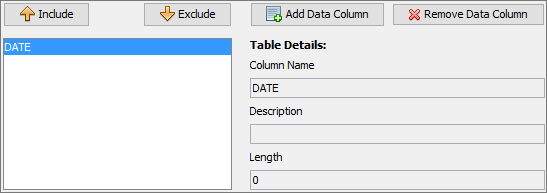
Through the bottom panels on list and edit dialog editors, new data
columns can be added to the definition of a data table. By pressing
the  button, the
'Update Table' window
will appear with a new column added to the table definition. Here
you can specify the properties of the column such as the column name,
description and type.
button, the
'Update Table' window
will appear with a new column added to the table definition. Here
you can specify the properties of the column such as the column name,
description and type.
Through the data flow panel, adding data columns can be done by
double-clicking the client table nodes to open their table definitions
in the table definition editor. The ability to add columns to the
table definition can be simply done by pressing the  button. The newly added
column definition can be altered through this editor.
button. The newly added
column definition can be altered through this editor.
Deleting data columns
Through the bottom panel on list and edit dialog editors, data columns
can also be deleted. It should be noted that only excluded data columns
from that appear in the excluded columns list can be removed from
the data table. By clicking on the chosen excluded data column, the
column can be removed from the data tables definition by pressing
the  button.
The table definition editor can be used to delete data columns within table definitions. This editor can be opened through the data flow element and by double clicking on the required client table node. By right clicking and pressing the 'Delete Column' option in the menu, the selected column will be deleted.
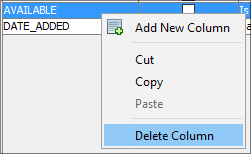
Modify a data column
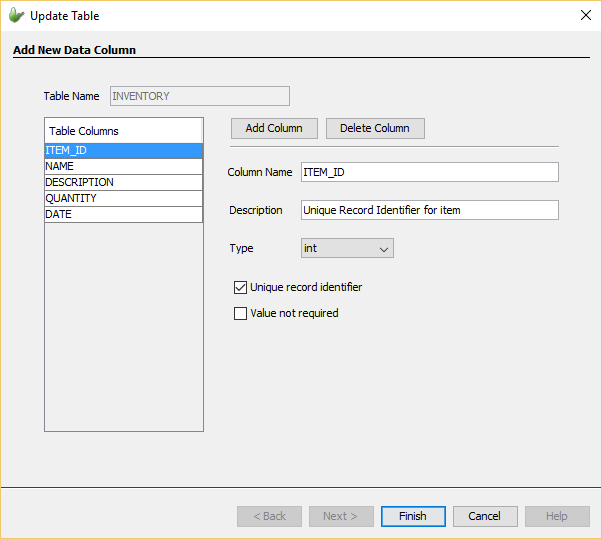
A data column definition can be modified through the 'Update
Table' window where this window can be accessed when the button pressed in list or edit
dialogs. When data columns are selected from the list of defined columns
in the data table, their definitions will appear in the definition
fields. Through these fields, the definition of the column can be
altered and saved by pressing the 'Finish' button in the window.
Alternatively data columns can be modified through the data flow panel in the BXP project. By double-clicking on client table nodes, the tables definition can be opened in the table definition editor. The editor will display the current table definition where each field (e.g. type, length etc) can be changed and saved.
Delete a Data Table
An important aspect to BXP projects is the Data Flow element. Through the data flow panel, the flow of data when synchronisation is performed can be detailed. This element requires data tables to specify the client's data table to be synchronised with. With addition to adding and modifying data tables in the project, data tables can be deleted through the data flow panel. There exist two ways a data table can be deleted. By simply clicking on the client table node and pressing the delete button on the keyboard, the data table will be deleted. Another method of deletion is through right-clicking the node and selecting 'Delete' from the displayed menu. When deleting a confirmation dialog window will appear to ensure the decision to delete is desired.
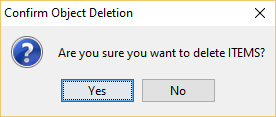
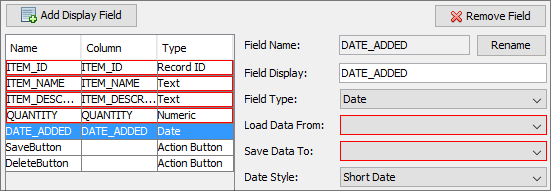
However caution should be taken when deleting tables that are currently being used within the application as this can break the logic of the application and cause errors. These errors can be identified throughout the application by the distinct red highlighting around fields and options that are now broken within the project. Additionally validation will fail as long as these errors exist within the application preventing deployment onto the server and on devices.