
BrightBuilder How To
Contents Hide
This section will act as a reference guide for how to perform miscellaneous task with BrightBuilder. It is sorted in alphabetical order.
Changing Fonts (project, form components)
Fonts are used within the projects form layouts i.e. controls and tabs. Fonts can be set in the following object properties.
Project - Default Font
Form Tab Font
Control type Font
Once set, the Project - Default Font is used throughout the project form layout, all subsequent form tabs and controls will have the same default values. If you want to use a different font in the form tabs, then you set the Form Tab Font property. And if you want a specific control, lets say a label; to display a different font then you have to set the Label Font property. In any case, here are the basic steps to follow for changing fonts.
Do one of the following:
If changing the Project Default Font, select the project in the Projects panel. The project's properties will be listed in the Properties panel of BrightBuilder. Alternatively, right click on the project and select 'Properties' to open a floating dialog. In this panel, locate the Default Font project property, and tap on
 to specify
the font required.
to specify
the font required.If changing the Form Tab Font, select the form name under the Forms node of the project. The form's properties will be listed in the Properties panel of BrightBuilder. Alternatively, right click on the form and select 'Properties' to open a floating dialog. Locate and tap on the Tab Font form property's
button to specify the font for the form.If changing the control font, select the control in the open form layout docked in the Source Editor view, where its properties will be listed in the Component panel. Locate the Font control property in this panel, and tap on
to
specify the font required..
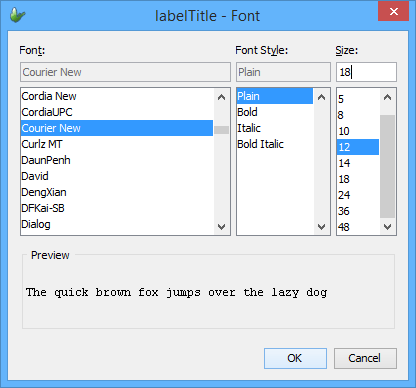
The font editor dialog will display, allowing selection of the Font, Font Style and Size. A preview of the font will be displayed for the font selection. Click on OK or press ENTER to commit the change. Refer to the image below.
Modifying the database using Expressions
You can modify any of the tables in your database using an expression, but you must know the attributes of the tables and queries linked to the tables you want to modify.
Assume that you have
TABLE1 with two columns, FNAME and LNAME both have string data type.
Query1 with TABLE1 as parent table, FNAME=? Condition with ?=prmFName, FNAME and LNAME as output fields.
Form1 layout has two edit controls renamed to efFName and efLName respectively.
This will guide you through the process one step at a time.
Create a new expression.
Reset the database for modification. Select Reset() from Data Sources/Methods/Database and drag to the top of your expression.
You can do any of the following to make changes to the database:
Create a new record, do the following:
Use the AddColumn function to add columns to a temporary record that BrightBuilder creates. Repeat this step until all table columns have been added to the temporary record.
HOW? Select AddColumn(???,???) from Data Sources/Methods/Database and drag to the expression window. Drag the table column name (Data Sources/Names/Tables/[table name]/[table column]) to the first parameter of the function. Then drag the data source value to be saved to the table column on the second parameter.
Use the AddRecord function to add the temporary record you created from the above step to the table you specified.
HOW? Select and drag AddRecord(???) from Data Source/Methods/Database to the expression after the add column lines. Select and drag the table name as parameter to the function.
Using the assumptions given and you want to add a record inputted by the user through the edit controls in the form layout, your expression should look like this:
Database.Reset()
Database.AddColumn(FNAME,efFName)
Database.AddColumn(LNAME,efLName)
Database.AddRecord(TABLE1)
Update a record . To do this, you must use a query to access the database record specified by the query parameter condition. Do the following:
Set the query parameter by selecting and dragging SetQueryParam(???,???) method from Data Sources/Methods/Database to the expression. Select and drag the query parameter name from Data Sources/Names/Queries/[query name]/[parameter name] to the first parameter of the method. Then select and drag the parameter value from the data source tree to the second parameter of the method.
Use the AddColumn functions to create a temporary record that will specify the fields you want to be updated.
Update the table record physically in the database by selecting and dragging the UpdateRecords(???) function from Data Sources/Methods/Database to the expression. Select and drag the query name to the UpdateRecords parameter.
The following is the sample expression to update the record from the given assumptions
Database.Reset()
Database.SetQueryParam(prmFNAME,efFName)
Database.AddColumn(LNAME,efLName)
Database.UpdateRecords(Query1)
Deleting records . You will also need a query to specify which record is to be deleted.
Use SetQueryParam function to set the query parameter.
Select and drag DeleteRecords(???) method from Data Sources/Methods/Database to the expression. Select and drag the query name from Data Sources/Names/Queries subtree to the method parameter.
This is what your expression should look like:
Database.Reset()
Database.SetQueryParam(prmFNAME,efFName)
Database.DeleteRecords(Query1)
For more information, please refer to the Using the Database Object tutorial in this document.
Viewing the Property List
There are two ways to view the property list, do one of the following:
In the Projects panel, select the project or any project elements you want to view; the properties will be listed on the Properties panel, which may be docked under the Projects/Servers panel. See the following image:

Right-click on the project or any project element and select Properties from the popup menu, a new Properties window will appear as displayed below.

Modifying a dateTime Variable
DateTime values are represented in seconds. In Expressions, you can use the addition operator (+) or the subtract operator (-) to change the date.
To increment the date by one day you simply need to add the number of seconds to the dateTime variable.
Therefore, to assign a date two days in the future, the following expression may be used:
// Initialise the datetime control with the current time and date
datetime_picker1 = DateTime.Now()
// Go two days into the future
// There are 86400 seconds in 24 hours
datetime_picker1 = datetime_picker1 + (2*86400)
Furthermore, Datetime values in BrightForms applications may be compared using comparison operators (such as >, <=, ==), and also subtracted from one another in expressions, returning the positive integer number of seconds between two dates.
Setting Radio Buttons
Radio Buttons can be set by user selection within a form layout, or programmatically from within expressions.
In BrightForms projects, radio buttons must be defined in groups, with each radio button in the group having its own unique value. With this system, the radio buttons' selection results in the group's value changing. Similarly, this is true for assignment and reading radio button values. If the value does not exist as a radio button in the group, no radio button will be selected, but the group will still hold the value.
Assigning to any radio button control in a group will change the group's value. For example, if radio_button1 and radio_button2 are in the same group, and radio_button1 has the value of 0, and radio_button2 has the value of 1, they may be set in an expression as follows:
// Select radio_button1
radio_button1 = 0
// Select radio_button2
radio_button1 = 1
Note - it does not matter which radio button is actually assigned to, as assignments are group-based; not individual.
Parameterised Query Data
Values may be assigned to query parameters for both listviews and form queries, via expressions. An example, assigning a value to the listview parameter, is as follows:
listview_name.query_name.parameter_name = ???
This variable may be drag and dropped into any expression window, or used as a data source, found in the following location of the Data Source Tree:
Form > Parameters
Items listed under this location are all form scope and form control specific i.e. query parameters for form, listviews and combo boxes. If there are no items in the project using parameters, there will be no data sources under this node. After assigning values to these parameters, refreshing the form or form control will run the query again for the new result set.
This differs from using methods such as the Database.SetQueryParam(???,???) method, which specifies the query parameter for an update, insert or delete SQL statement on the database. For more information regarding parameters with the database, please refer to the Object Definition Reference Manual's Database section.