
As of BrightServer 7.2.0, users with the necessary privileges may access the management console and configure BrightServer instances remotely via a browser window. Using this console, the configuration of a BrightServer instance may be viewed and modified, allowing the status and configuration of the BrightServer instance to be viewed and edited in the same manner as BrightBuilder's Server panel. Excluding critical configuration parameters, a BrightServer instance can be monitored and configured entirely by using the BrightServer management console. The minor differences in functionality and capabilities between BrightBuilder and the management console are listed later in this section.
The Web Management Console of BrightServer may be accessed via the server's BrightServer Mobile Data Gateway login page.
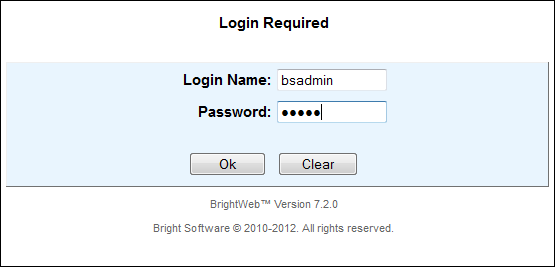
Provided 'Web Access' and 'Web Management Console' settings are ticked for the user, and there is no application associated with their account, the Web Management Console will appear upon logging in to BrightWeb. For new and existing users, these settings are disabled by default. For the bsadmin user, these values are set to true by default.
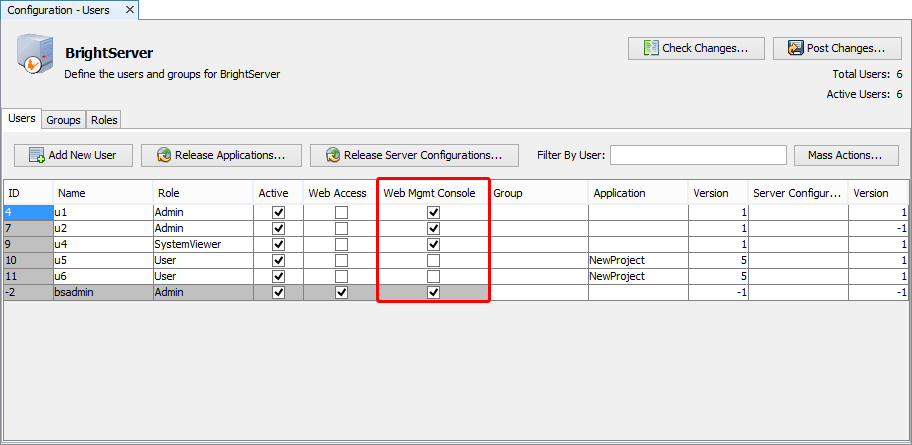
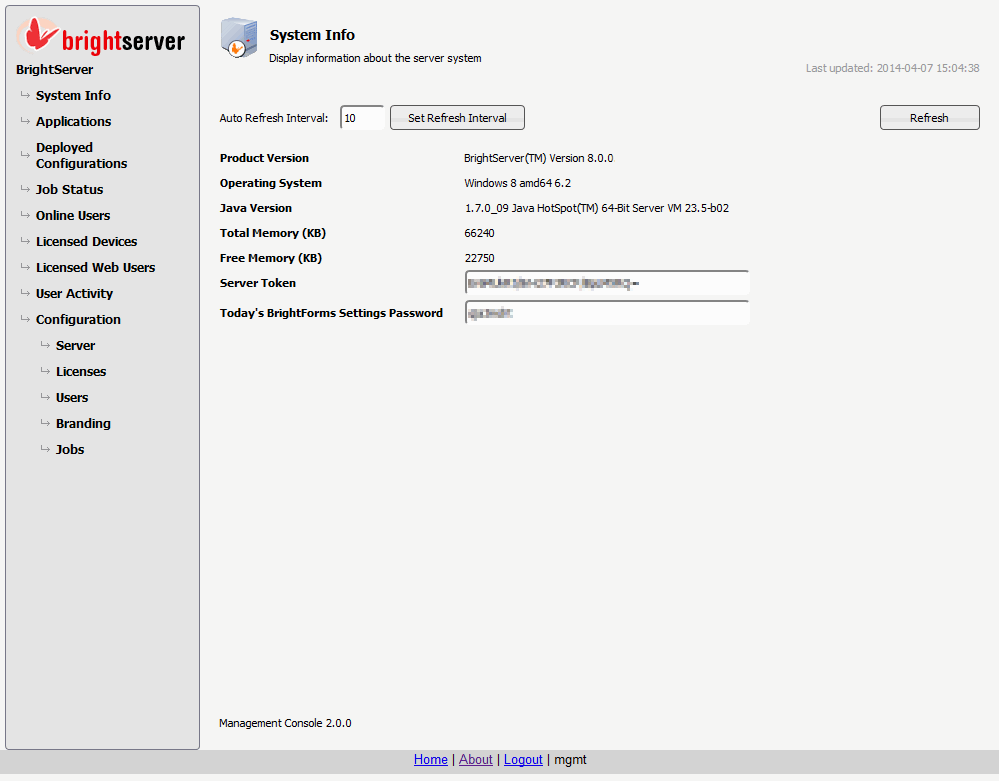
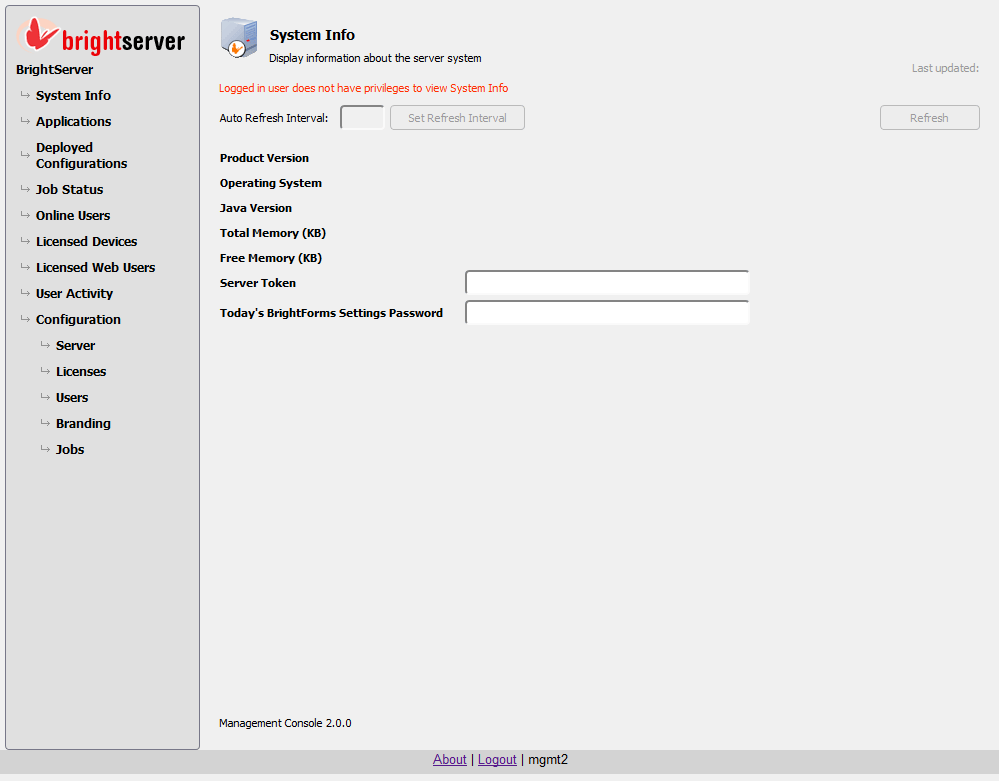
As with BrightBuilder, features displayed accessible to users is determined by their user privileges set in BrightBuilder. If the user has the system viewer privileges, for example, then they will only have access to limited functionality in the console, similar to BrightBuilder. Full functionality is granted to users with applicable roles registered on BrightServer with the built-in or manually defined user roles . By default, the 'Admin' user role has all the rights for the management console.
Navigation is achieved by clicking on the links on the left hand side of the screen. These are equivalent to nodes of BrightServer Instances which are registered under the BrightBuilder Servers tab.
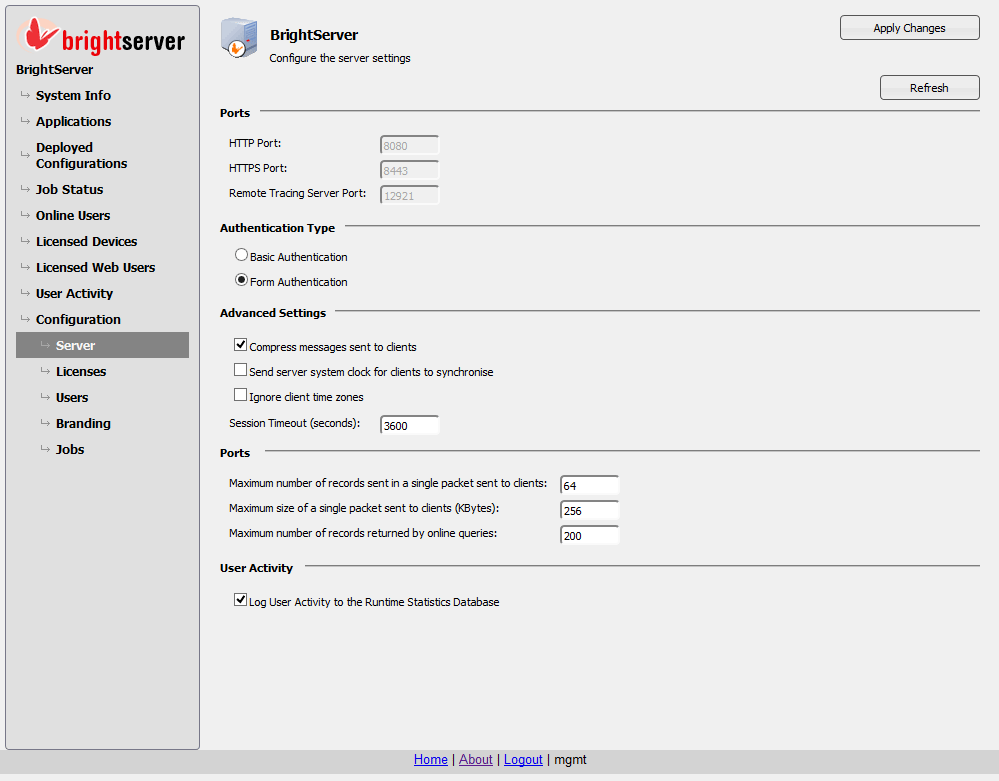
Where available, the BrightServer Web Management console replicates the functionality found in BrightBuilder within any browser window. However, performing features such as adding, editing and deleting users are handled by sub screens, rather than context menus provided by BrightBuilder. As such, all options for editing values are shown in the editing panels, without context menus requiring to be accessed. Changes to the users or licenses tables in this fashion will take place immediately on the server after submission.
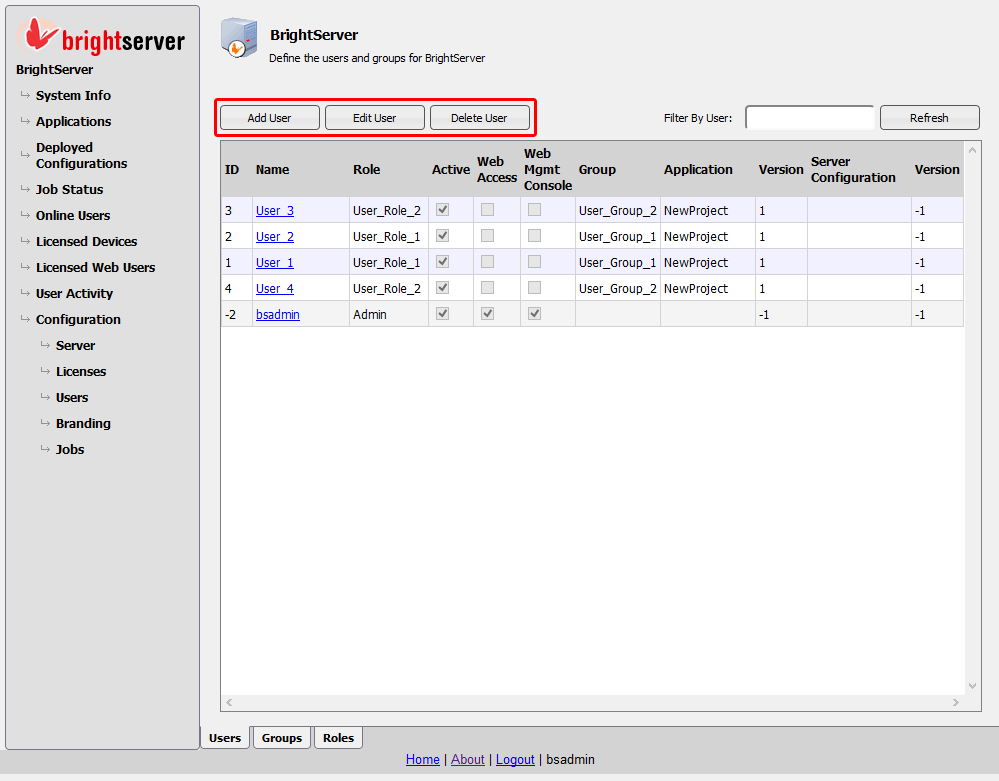
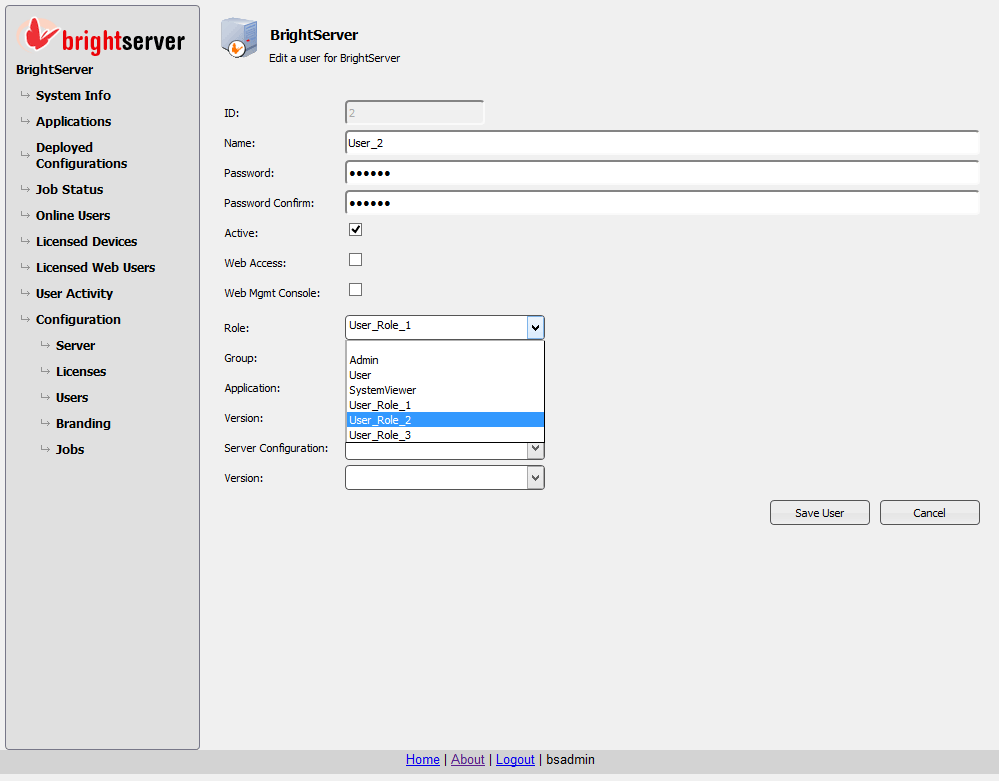
Single screen editable fields are confirmed via the 'Apply Changes' button in the top right corner, where applicable. Otherwise the changes will be lost when moved another screen within the Management Console.
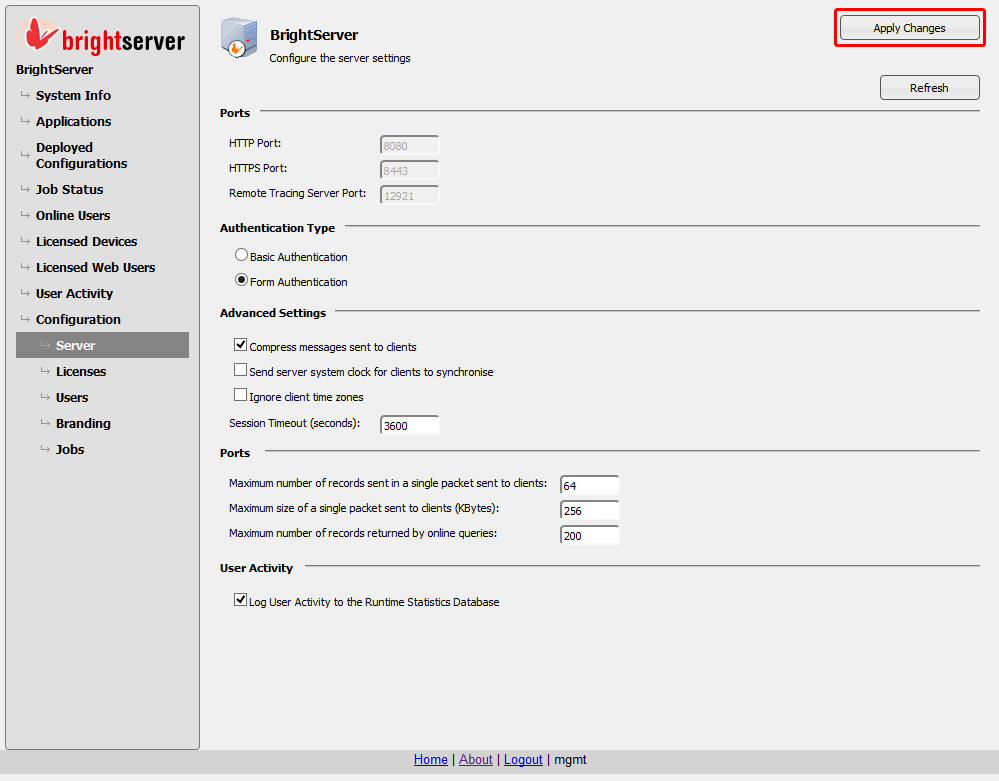
Once confirmed via this 'Apply Changes' button, all changes will also take place on the server immediately.
 Please note that there are also a number of features which are
not supported via Web console access. These are as follows:
Please note that there are also a number of features which are
not supported via Web console access. These are as follows:
Server port numbers cannot be configured
System Databases cannot be configured
Remote Tracing facility is not supported
Client logs cannot retrieved or viewed
Downloading deployed applications is not supported
Downloading deployed server configurations is not supported
Multiple Release/Mass operations are not provided
New user roles cannot be defined
In the Jobs node, once uploaded to the server, server script files may not be modified
Sorting of tables is not supported
Connecting to the server via BrightBuilder is necessary to access the features listed above.