
Starting and Stopping BrightServer
Contents Hide
Starting and Stopping BrightServer as a Service
After installing BrightServer as a service, it will be registered under Windows Services panel with the 'Manual' startup type.
To start and stop the service manually, perform the following steps:
Under Windows Services window, locate the BrightServer service.
Right Click on the service, and select Start from the context menu.
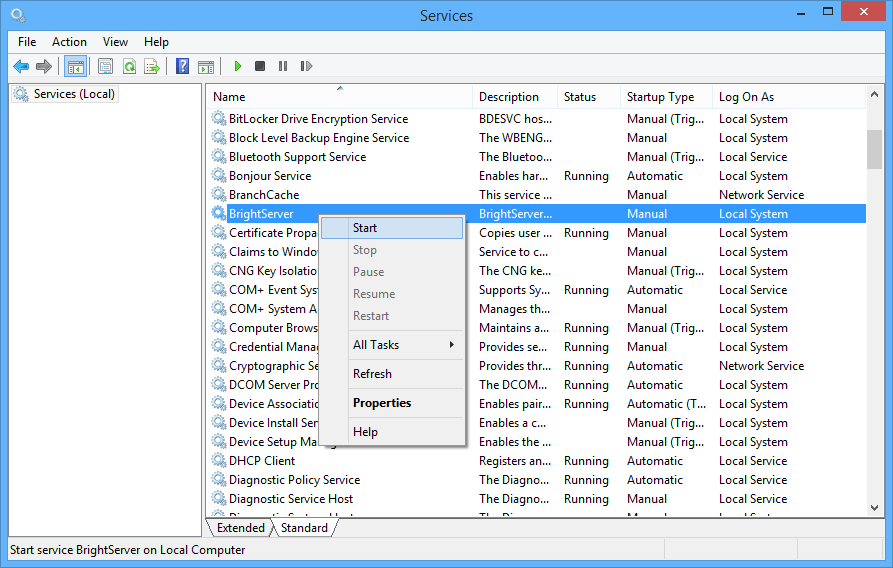
Similarly, BrightServer may be stopped while started using the 'Stop' command from the menu.
BrightServer will now start up on the machine as a service. If any errors, such as the port not being available for use, or system databases inaccessible, an error will occur, and the service will appear as stopped on refresh.
If you have problems when trying to start BrightServer as a Windows service, the ./service/RunBrightServer.bat may be used to run BrightServer in a command line interface and check the errors and fix the configuration issues that may be preventing BrightServer from running as a service.
The "wrapper.log" file in the log directory (../log) may also be referenced to pinpoint any errors.
Automatically Starting BrightServer as a Service
The BrightServer service may be set to start up automatically with Windows, using the Windows' Services panel. This may be performed by the following steps:
Under Windows Services window, locate the BrightServer service.
Right Click on the service, and select 'Properties', which will open the Properties dialog.
Change the startup type to 'Automatic', then tap OK.

With this set, subsequent Windows startups will start BrightServer automatically. The service may still be start and stopped as described above.
 If BrightServer is configured to access local databases for its
System configuration, the 'Automatic (Delayed Startup)' startup
type is recommended, such that local resources are may be initialised
prior to BrightServer's startup.
If BrightServer is configured to access local databases for its
System configuration, the 'Automatic (Delayed Startup)' startup
type is recommended, such that local resources are may be initialised
prior to BrightServer's startup.
Starting and Stopping BrightServer as an Executable
If BrightServer is not available to be installed as a service, the following may be performed to start BrightServer:
Locate BrightServer's installation directory
Navigate to the 'service' sub-directory of this installation directory
Run the RunBrightServer.bat executable in this directory
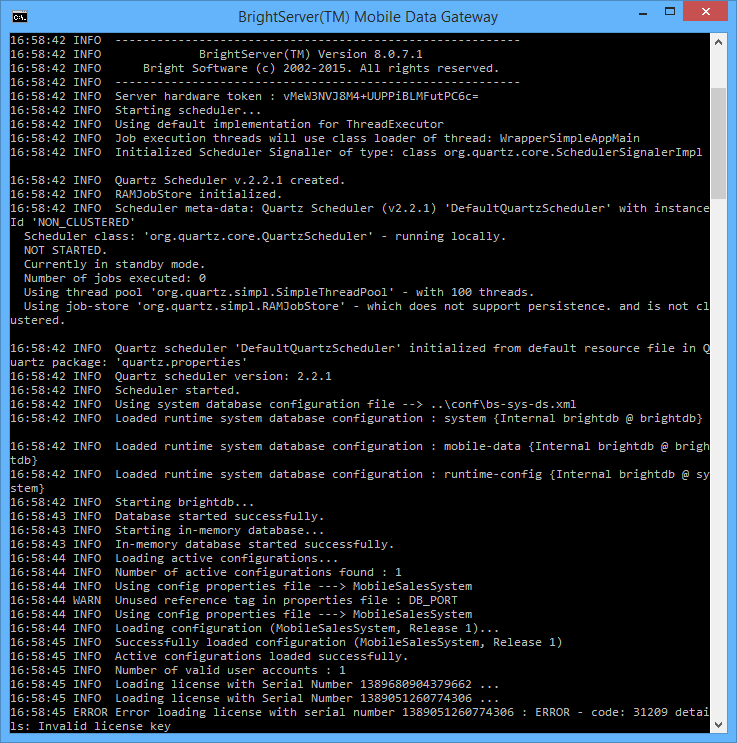
BrightServer will be running as long as this executable is running on the system. Stopping BrightServer run this way may be performed via pressing Ctrl+C in the running window, and verifying exit.
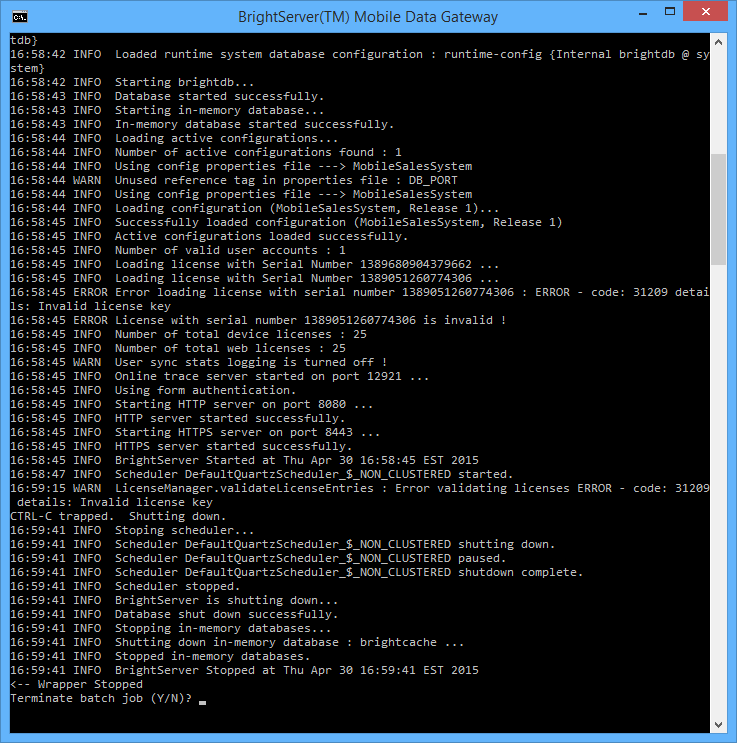
Please note that this method is only available by calling the batch file manually, and cannot utilise Windows Service features such as automatic startup. It is advised to only run BrightServer via this method for development purposes.
If BrightServer is installed as a service after using this executable file, the configuration will remain the same.