
Migrating BrightServer
Contents Hide
This topic details how to migrate to a new BrightServer from an existing BrightServer instance.
Preparing for Migration
To migrate a BrightServer instance, the current BSP and BEP (with any Configuration Property Files), a BRC backup of the existing BrightServer configuration, and new licenses are required. This style of migration may be used for all BrightServer instances, and may also be performed for upgrading to newer BrightServer versions.
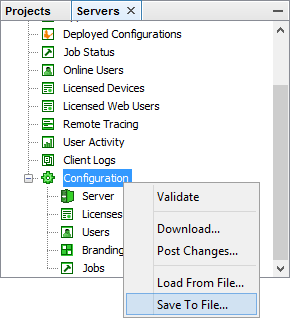
A BRC backup is a file which contains the details of a BrightServer configuration node. To create a backup, connect to the server instance and right click the server configuration node. From this context menu, select ‘Save To File’. A BRC file will be saved in the location specified. This file contains a copy of the server’s ‘Configuration’ node, detailing the server configuration.
This BRC file may then be used via the ‘Load From File’ option on the new server to restore users, system database locations, and other BrightServer runtime values, however it will not restore any deployed BSP/BEP files, nor previous deployments.
For migrations which have both new and old servers on the same version and using the same type of System databases, a system database copy may be performed, which will migrate deployments and client images, along with the server configuration. For more information, please refer to the Migration via Copying System Databases section of this topic.
A new license file with a new token and/or ports must also be generated for the new server for either type of migration.
Performing the Migration
Once a valid license is available or if the valid license is contained within the BRC file, migration can begin. Performing these steps will result in a fully configured BrightServer from its initial state.
The steps for migration differ from whether BrightServer has been set up with default internal databases, or if external ones (such as SQL server) are to be used.
From Default Configuration
Install and run the new BrightServer instance.
Open BrightBuilder, and connect to the new BrightServer instance.
Restore the previous server’s BRC configuration using the ‘Load From File’ option in the ‘Configuration’ node.
Deploy any project BSP and BEPs to the new server.
Configure users to the new BSP and BEP releases, if required.
Remove any existing licenses, and then apply the new server’s license under the Licenses node.
Post the changes to the server.
From Server configuration
Create new System and BrightDB external database(s) which differ from the existing BrightServer instance.
Install and run the new BrightServer instance.
Open BrightBuilder, and connect to the new BrightServer instance.
Under the Configuration node, locate the Server > System Databases tab, then enter in the details of the new external database(s).
Restart the server for the changes to the database to take place.
After restart, connect to BrightServer once again.
Connect to the server and restore the server’s configuration using the BRC file and the ‘Load From File’ option in the ‘Configuration’ node.
Deploy any project BSP and BEPs to the new server.
Configure users to the new BSP and BEP releases, if required.
Remove any existing licenses, and then apply the new server’s license under the Licenses node.
Post the configuration changes to the server. When previewing the configuration changes, deselect the database related changes under the Server node before applying the changes to the server.
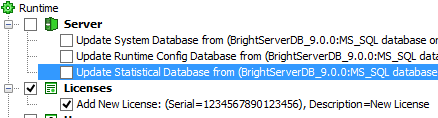
Right-click the configuration node, and then select ‘Download…’ to retrieve the latest configuration.
 Ensure
that the database is not changed back to the previous server’s
configuration if the previous BrightServer is active. This may
result in both servers using the same external database at the
same time, leading to unexpected behaviour.
Ensure
that the database is not changed back to the previous server’s
configuration if the previous BrightServer is active. This may
result in both servers using the same external database at the
same time, leading to unexpected behaviour.
Migration via Copying System Databases
The following steps may only be performed if both versions of BrightServer are identical, the existing system database types match the new server, and the server deployments, and client images are to be kept in-tact. If this is not the case, please use the more general method above.
Once again, these steps will differ if BrightServer is using an internal or external database. A license file for the new server is required for both cases.
From Default Configuration
1. Install the BrightServer instance, but do not start the server or service.
2. Copy the existing instance’s brightdb and system folders (located in the BrightServer directory).
3. Remove the new BrightServer’s brightdb and system folders, and replace it with the copied one.
4. Run the new BrightServer instance.
From Server configuration
1. Backup any databases used under the Configuration > Server > System Databases tab of the existing BrightServer instance, and then restore it to a new location accessible to the new BrightServer machine.
2. Install and run the new BrightServer instance.
3. Open BrightBuilder, and connect to the new BrightServer instance.
4. Change the Configuration > Server > System Databases settings of the new server to point to the restored backup.
5. Restart the new BrightServer instance.
After both these processes, reconnect to the new BrightServer instance and in the configuration node, right click and select ‘Download…’ to re-download the server configuration. After this is done, remove the previous instance's licenses, and apply the new BrightServer licenses accordingly.
 For
both Internal and External database configurations, if using BrightServer
Version 7 or lower, after restarting the servers, the BEP configuration
must be deployed to the new BrightServer instance. Please also
ensure that Configuration
Property Files are in the conf directory of the new BrightServer
Instance.
For
both Internal and External database configurations, if using BrightServer
Version 7 or lower, after restarting the servers, the BEP configuration
must be deployed to the new BrightServer instance. Please also
ensure that Configuration
Property Files are in the conf directory of the new BrightServer
Instance.