
Mappings
Contents Hide
The purpose of a mapping is to map data from a data source to a table defined in a BrightServer which in turn maps to a table in the field device database (i.e. a BrightForms table). It defines how data is arranged in a data source and how it represents records which BrightForms consumes. In other words, the mapping is used to take the raw data from data sources such as files, and convert that data into a structured format, so that it can be made available for remote clients to synchronise.
A mapping can be one of three types:
Query Mapping - Maps a device table to a server table or script, or vice versa.
CSV File Mapping - Maps a device table to a file containing character separated values.
Fixed Length File Mapping - Maps a device table to a file containing fixed length value.
Creating and Assigning Mappings
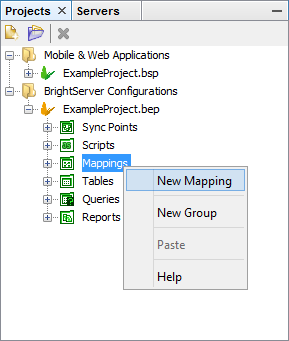
The Mappings project element allows us to view mappings defined for a project. To create a new mapping, mouse right click on the “Mappings” project element and select the 'New Mapping' menu option.
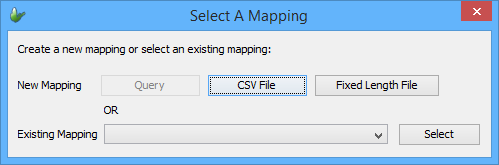
Alternatively, a mapping component of a client table may be tapped, which allows the assignment, but also creation of mappings from the selection dialog. Creating a mapping this way will also automatically assign it to the associated client table. These values may then be edited or removed via the 'Input/Output Mapping' properties panel of the sync point.

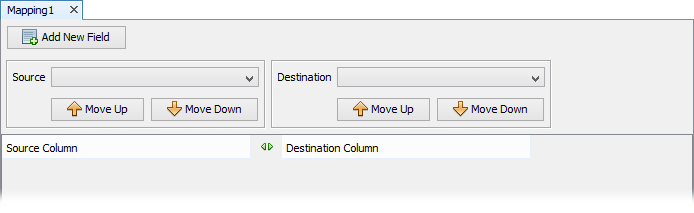
When a new mapping is created, it will be created in the “Query Mapping” mode with no entries in it.
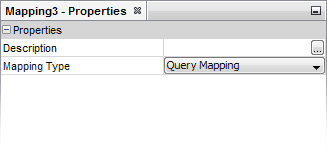
Every mapping has a Mapping Type attribute that allows the user to switch between different types of mappings. Select the mapping type from the drop down list. Note that if you switch between different mapping types, you will lose all the mappings entry fields created.
Finally, Mappings may be assigned by creating a Mapping sync element in the Sync Points editor then assigning the mapping definition via double clicking and selecting from the drop down list in the 'Select a Mapping' dialog. Alternatively, they may be assigned it via the mapping element's 'Mapping' property.
Opening and Editing Mapping Definitions
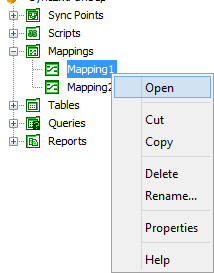
All the mappings for the project are listed under the Mappings project element. To view a desired mapping definition, either double click on the mapping object on the project tree, or mouse right click to display the mappings pop-up menu, and click on the Open menu option.
If a mapping exists in the sync point panel, and has been assigned a definition, double clicking on the element will open it for editing.
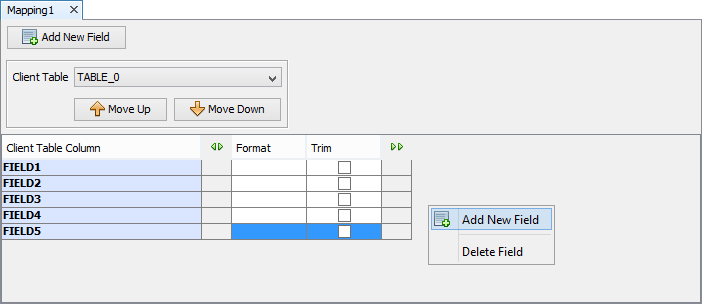
You can click mouse right button to bring up the pop-menu to add a new field or delete the selected mapping field.
Query Mappings
Query mappings are an optionally designed and connected map of client and server column pairs, used to map a BrightForms client table to a server table at the backend, or map server data to client tables when records are synchronised to the device. Through mappings, column values may be easily assigned or removed between client and server tables during the synchronisation process.
If no mapping is provided between client tables and databases accessors, a default mapping consisting of a 1:1 mapping between server and client columns will be assumed for the connection. More complex operations may also be achieved using Transformation scripts for the client table.
To define a mapping, select the client table under the 'Source' drop down box. Upon selection, the columns of the table will be displayed, initially with no mapping. From here, the 'Destination' drop down may be selected, populating the table with the selected table's columns. The client and server table column names may then be altered, or moved up and down using the 'Move Up' and 'Move Down' buttons under their respective columns. Fields may also be edited to produce a subset of the client table via the context menu's 'Add New Field' or 'Delete Field' options. The 'Add New Field' button is also present on the UI.
Changing the client table name will reset all mapping values, while changing the server table will change destination fields.
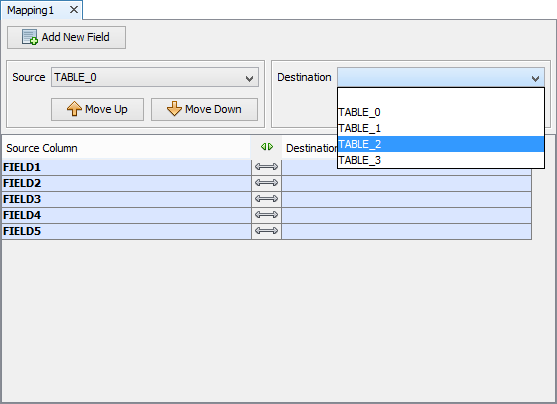
Setting up Query mappings does not involve additional attributes apart from the Mapping Type attribute which is set to ‘Query Mapping’.
Every query mapping field has the following options that need to be defined.
| Field | Description |
| Source Column | If outgoing from the client table, the name of the client table's columns. If incoming, this will may to the server table's columns. |
| Destination Column | If assigned outgoing from the client table, this specifies he name of the server column to be written. If assigned incoming, this will specify the client columns to be written. |
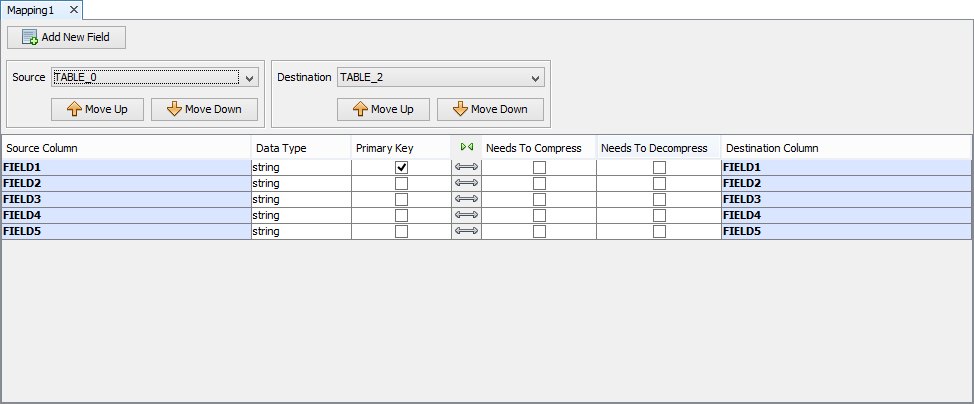
Another use of query mappings is for the decompression/compression
of data between server and client. This is accessed through the mapping's
advanced options, as follows. To view the advanced options, click
on  and to close the advanced options, click on
  .
.
| Field | Description |
| Data Type | The internal data type of the field that closely matches the column data type |
| Primary Key | If this mapping is a primary key field or not |
| Needs To Compress | This is an instruction to BrightServer to compress
the field value when reading or writing.
If this option is selected, then when reading a binary file, the content of the column will be read and compressed before it is assigned to the field; when writing the content of the binary field it will be compressed before it is written to the destination column. |
| Needs To Decompress | This is an instruction to BrightServer to compress
the field value when reading or writing.
If this option is selected, then when reading a binary blob column, the content of the column will be read and decompressed before it is assigned to the field; when writing the content of the binary field it will be decompressed before it is written to the destination column. This typically needs to be set if saving compressed Base64Binary data from BrightForms to a Binary field on the Server's Database, such as when the Zip.ZipBinary() method is used, or when scribble data is saved as is. |
CSV File Mapping
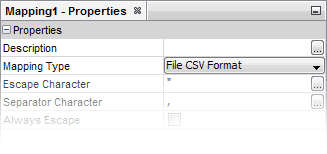
A CSV (Comma Separated Values) file mapping provides the details of a CSV file layout and maps them to the client table columns.
It has the following properties.
| Property | Description |
| Escape Character | Defines the character used to escape from the separator character. This is useful if the data itself contains the separator character. Defaults to double quote. |
| Separator Character | Defines the character that will be used to separate the values in the file. Defaults to comma. |
| Always Escape | If this property is set, then all the fields in the CSV output will be enclosed with the escape character specified by the “Escape character” property (See above). |
The “escape” character acts as a delimiter when the separator or escape character is embedded within the field values. The following rules are applied when inserting the escape character:
Each field may be enclosed in double quotes if you wish, i.e. write a field as the dog or “the dog”.
Any field that contains a comma must be surrounded by quotes.
Any field that contains double quotes (“) must be enclosed in double quotes and escape the double quotes in the field by preceding it with another double quote, e.g. the field big “brown” fox should be entered as “big ““brown”” dog”.
Spaces within a field are significant, i.e. the 2 fields the piano and the piano are not equivalent since the second one contains two spaces between each word.
If a field is quoted, there cannot be any spaces between the leading and trailing commas and the enclosing double quotes, i.e. the two consecutive fields the dog and the cat should be entered as “the dog”,”the cat” or the dog,the cat and not “the dog”, “the cat”.
For example, a table contains the following values:
| ID | NAME | NOTES |
| 1 | Jane | I have a cat, a dog and a bird. |
| 2 | John | He sang ”Moon River” |
| 3 | Grey | No notes |
If these records were exported using a CSV mapping with comma as the separator and double-quotes (“) as the escape character, the file will look like this:
1,Jane,"I have a cat, a dog and a bird."
2,John,"He sang """Moon River"""
3,Grey,No Notes
If the “always-esc” is set then the output would like as follows.
"1","Jane","I have a cat, a dog and a bird."
"2","John","He sang """Moon River"""
"3","Grey","No Notes"
The table which the CSV mapping applies to is set by the 'Client Table' drop down box. Once set, columns may be added or removed, and repositioned within the table.
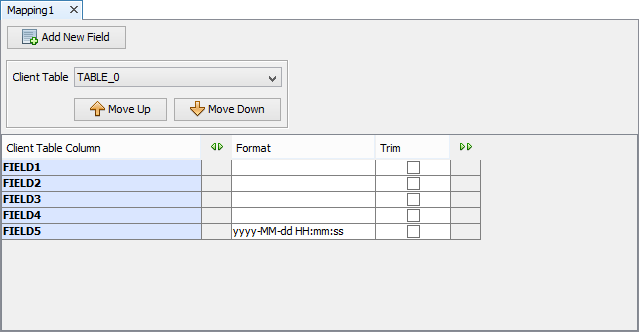
The following parameters may also be defined for the each table column:
| Field | Description |
| Client Table Column | The name of the column in the field device BrightForms table |
| Primary Key | If this mapping is a primary key field or not |
| Format | Format of the string value for mapping the string to other data types such as date or date-time (See BrightBuilder documentation for available formatting options) |
| Trim | Specifies if the string field value will be trimmed. |
The advanced options for the CSV File mappings fields are as follows.
These advanced fields do not have to be modified in most cases. To
view the advanced options, click on and
to close the advanced options, click on .
| Field | Description |
| Data Type | The internal data type of the field that closely matches the column data type |
| Needs To Compress | This is an instruction to BrightServer to compress
the field value when reading or writing.
If this option is selected, then when reading a binary file, the content of the column will be read and compressed before it is assigned to the field; when writing the content of the binary field it will be compressed before it is written to the destination column. |
| Needs To Decompress | This is an instruction to BrightServer to compress
the field value when reading or writing.
If this option is selected, then when reading a binary blob column, the content of the column will be read and decompressed before it is assigned to the field; when writing the content of the binary field it will be decompressed before it is written to the destination column. |
| External File | When selected, this option defines that this field
as sourcing/appending its data in an external file.
Please note, if this option is checked, and binary data is to be read for this column, the 'rawBinary' data type must be used. This functionality is not supported if the 'Is Dropbox File?' property is true. |
| External File Path | When ‘External File’ is selected, then this option defines the path containing the external files for this field. |
| External File Name | When ‘External File’ is selected, then this option contains the filename for this field with file-path. This filename may use the BrightServer value marker to create variable file names for each record. |
| File Path Embedded | Used only for writing. If ‘External File’ and this option are selected, then the file path to be used for this field is embedded in the main file being written. |
| File Embedded | Used only for writing. If ‘External File’ and this option are selected, then the file name to be used for this field is embedded in the main file being written. |
| File Must Exist | Used only for reading. If ‘External File’ and this option are selected, then if the external file for this field does not exist, a error will be generated. |
| Convert To Null | If this option is specified, then its string value is used to interpret null values. |
| Value to Convert to Null | Specifies a string value in the file, which when parsed, will equate to NULL for the field. This property requires 'Convert To Null' activated to take effect. |
Fixed Length File Mappings
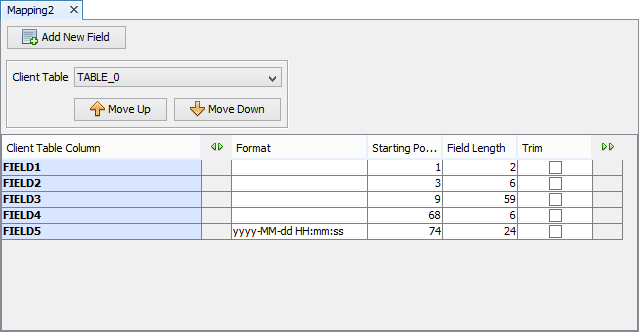
Fixed length file mappings are used to map a fixed length file layout to a device BrightForms table. Each mapping field specifies a section of a file line with a starting position and the length of the field. The fixed length file mappings do not have any additional attributes apart from the Mapping Type attribute which is set to ‘File Fixed-Length’.
Every fixed length file mappings field has the following options that need to be defined.
Every query mappings field has the following options that need to be defined.
| Field | Description |
| Client Table Column | The name of the column in the field device BrightForms table |
| Primary Key | If this mapping is a primary key field or not |
| Format | Format of the string value for mapping the string to other data types such as date or date-time (See BrightBuilder documentation for available formatting options) |
| Starting Position | Starting position of the field, with 1 being the initial position. |
| Field Length | Length of the field in characters |
| Trim | Whether the field needs to be stripped off its white character after it is read |
The advanced options for the Fixed Length Field mappings fields
are as follows. These advanced fields do not have to be modified in
most cases. To view the advanced options, click on
and to close the advanced options, click on .
| Field | Description |
| Data Type | The internal data type of the field that closely matches the column data type |
| Needs To Compress | This is an instruction to BrightServer to compress
the field value when reading or writing.
If this option is selected, then when reading a binary file, the content of the column will be read and compressed before it is assigned to the field; when writing the content of the binary field it will be compressed before it is written to the destination column. |
| Needs To Decompress | This is an instruction to BrighServer to compress the
field value when reading or writing.
If this option is selected, then when reading a binary blob column, the content of the column will be read and decompressed before it is assigned to the field; when writing the content of the binary field it will be decompressed before it is written to the destination column. |
| Padding Character | The character that is used to pad the field, should the data content be shorter then the length of the field. |
| External File | When selected, this option defines that this field
as sourcing/appending its data in an external file.
Please note, if this option is checked, and binary data is to be read for this column, the 'rawBinary' data type must be used. |
| External File Path | When ‘External File’ is selected, then this option defines the path containing the external files for this field. |
| External File Name | When ‘External File’ is selected, then this option contains the filename for this field with file-path. This filename may use the BrightServer value marker to create variable file names for each record. |
| File Path Embedded | Used only for writing. If ‘External File’ and this option are selected, then the file path to be used for this field is embedded in the main file being written. |
| File Embedded | Used only for writing. If ‘External File’ and this option are selected, then the file name to be used for this field is embedded in the main file being written. |
| File Must Exist | Used only for reading. If ‘External File’ and this option are selected, then if the external file for this field does not exist, a error will be generated. |
| Convert To Null | If this option is specified, then its string value is used to interpret null values. |
| Value to Convert to Null | Specifies a string value in the file, which when parsed, will equate to NULL for the field. This property requires 'Convert To Null' activated to take effect. |