BrightForms on Windows Phone and Store
Contents Hide
- Getting Started with BrightForms for Windows Devices
- Development for Windows Phone and Store Apps
- Running BrightForms on Windows Devices
- Device Screen Layouts
- Windows Phone Scaled Layouts
- Windows Phone Themes
- Colours in BrightForms
- Aspects
- Tabbed Forms
- Form Layouts and the Windows Keyboard
- ComboBox
- Resizing Listview Columns
- Scribble Panning
- Application Permissions
- Launching Applications via URI
Getting Started with BrightForms for Windows Devices
Installation via Windows Store
BrightForms on Windows Phone or Windows Store is available to download and install from the following link:
Windows Phone: http://www.windowsphone.com/s?appid=ad6caf8d-f1fb-4b8a-a2fa-97a3d576a9f9
Windows Store App: http://apps.microsoft.com/windows/en-au/app/615ae349-215a-409f-9dc3-1b68857facab
It may alternatively be found by searching for 'BrightForms' in the Store's search box, then installed by tapping the 'install' button, accepting any permissions prompted.


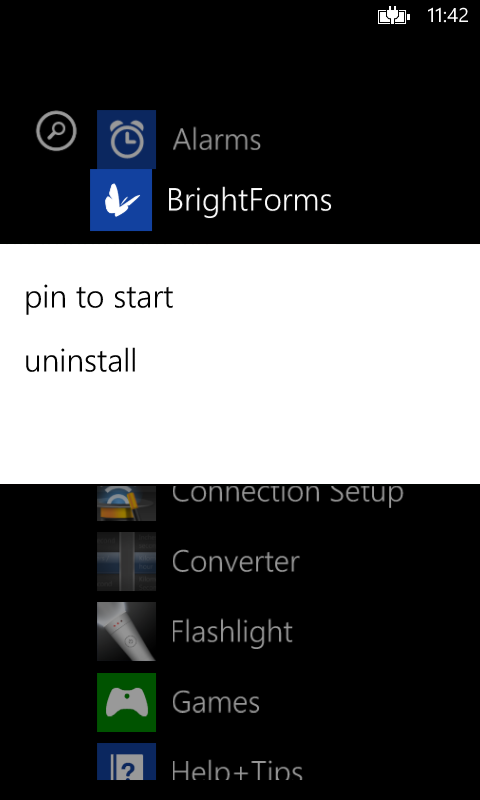
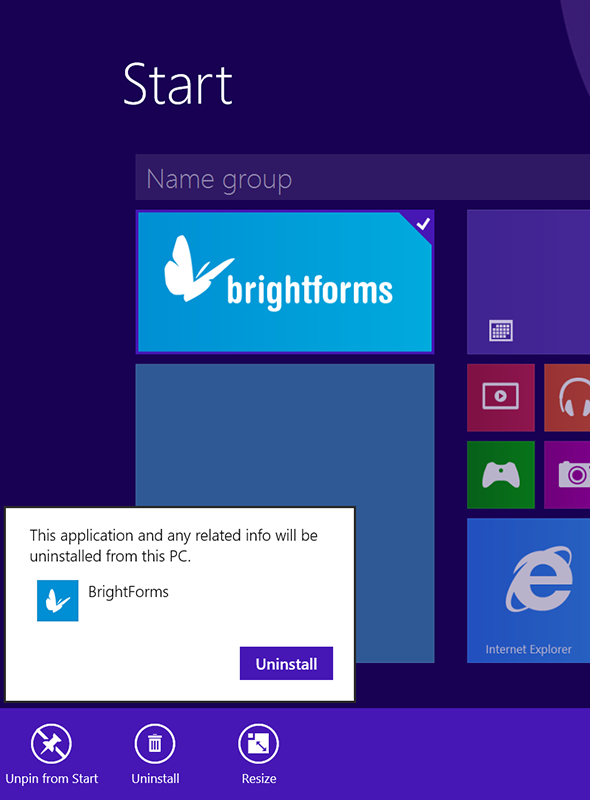
Once installed, a new BrightForms tile will appear in the device's start menu under 'All Apps' for Windows Store App devices, or app list. Tapping on the live tile will start BrightForms. This tile may be pinned to any device's start menu by long tapping the tile, then selecting 'Pin to Start'.
Initialisation
Upon opening the Windows Phone or Store version of BrightForms for the first time, the following activation screen will be shown:

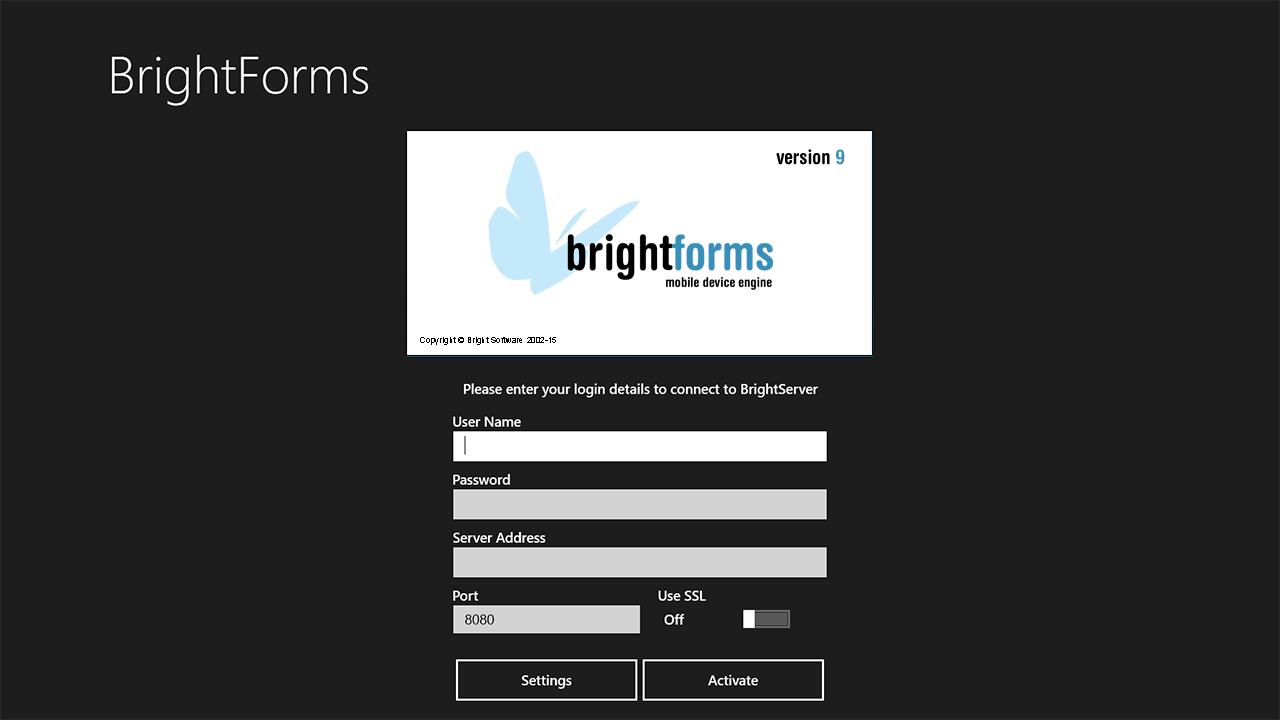
On this screen, server details, user name and password to log in to a BrightServer instance may be entered without having to go through the full settings dialog.
Changing any of these fields will alter the project's settings configuration to match. The full settings dialog may also be accessed from this screen via the 'Settings' button, or by using the ellipsis (on Phone) or swipe up gesture from the bottom of the page (for Store App) to access the Settings dialog.
Once configured, the 'Activate' button may be tapped to synchronise to the specified BrightServer instance, downloading the application assigned to the user credentials specified. On success, BrightForms will then automatically load this application, and display it in place of the activation screen.
Development for Windows Phone and Store Apps
Due to the sandboxed nature of Windows Store and Phone applications, execution via the Execute (F6) button in BrightBuilder is not possible for these platforms. As such, Application Distribution is generally used to deploy applications for both the development and production environments.
Similarly, tracing is typically performed remotely from the device to BrightServer, with any logs from the device requiring to be synchronised to the server to be viewed via BrightServer's Client Logs functionality. These logs may be cleared using the 'Delete all trace log files' option in BrightForms' settings.
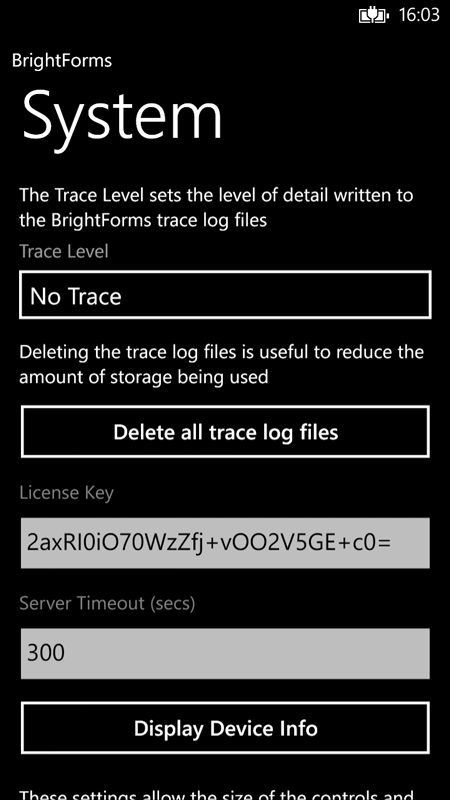
Alternatively, the device's file system may be inspected for these log files. In general, files for Windows Store and Phone Apps are sandboxed, with any BrightForms saved files stored and accessed relative to its Windows Store/Phone App install directory. As such, paths and references to files are all specified relative to this directory; for example, a directory named 'temp' created by the file object with CreateDirectory("temp"), and 'file.txt' written to this directory via SaveText("/temp/file.txt").
For Windows Store BrightForms, these files may be accessed via the 'BrightSoftware.BrightForms' (with suffix) directory in the local user's AppData/Local/Packages/ folder. The BrightForms project directory is the 'LocalState' folder. There is currently no way to access these files outside of BrightForms on Windows Phone, due to the OS's handling of files via isolated storage.
Running BrightForms on Windows Devices
Each form is rendered with title, which will display at the top of each form. Each form will also have an application toolbar, which may be used to access BrightForms' system menus, including synchronise, settings, help or about dialogs for BrightForms. This toolbar may be accessed via right click or a swipe up or down from either the bottom or top edge in Windows Store, or by tapping on the three ellipsis the bottom to expand the bar.
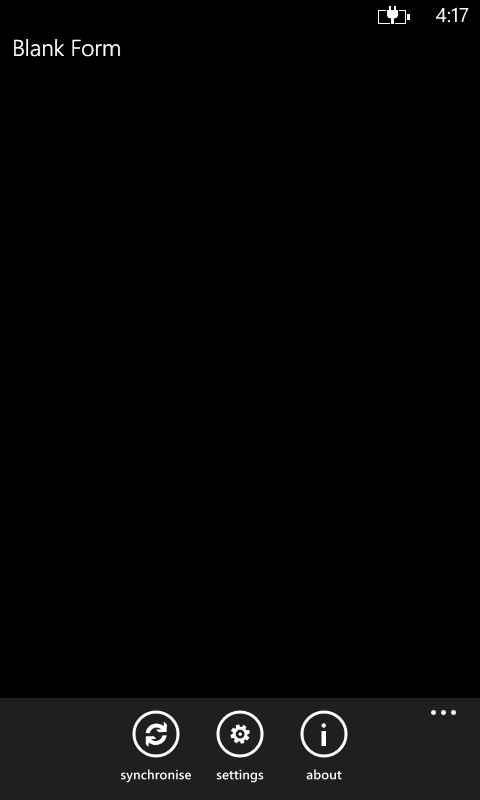
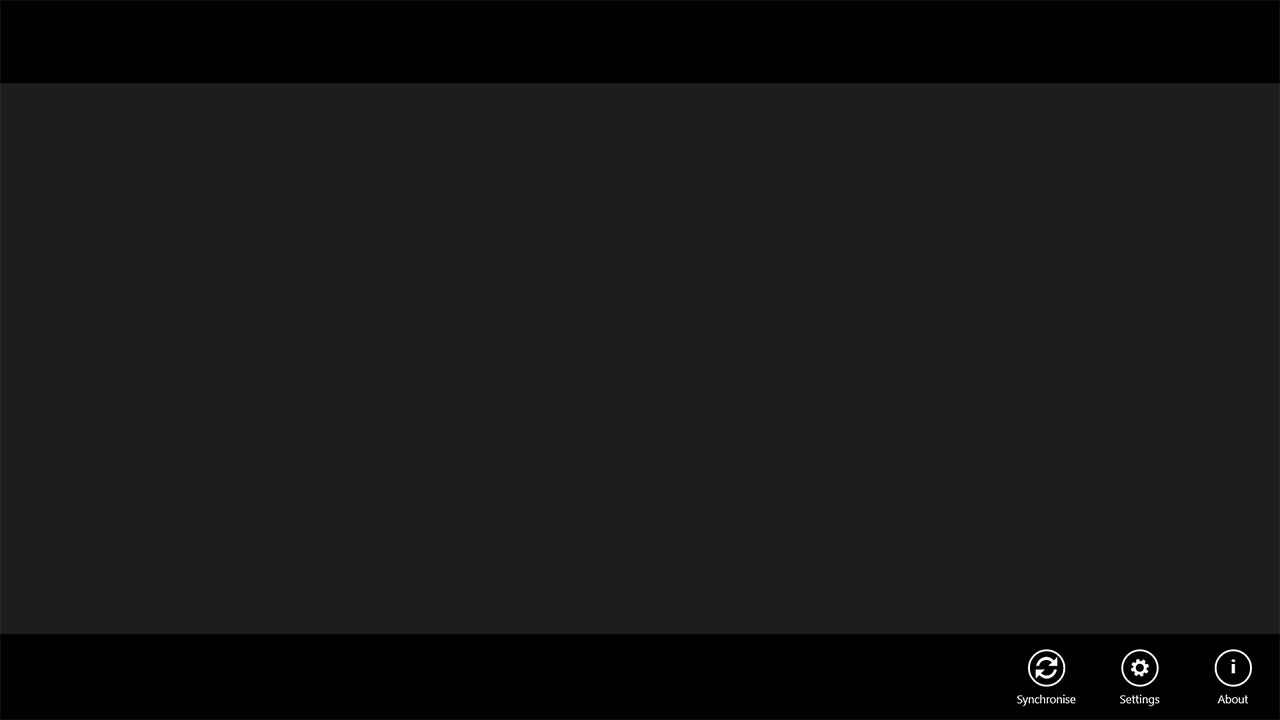
Closing forms within BrightForms is performed using the device's Back button on Windows Phone, or using the Back button contained in the form header for the Store App. Performing this action has the equivalent effect of tapping the OK button in a Windows Mobile application.

To close BrightForms on Windows Phone, the back button may be tapped from the project's main form. On Windows Store devices, BrightForms may not be closed, however, on application distribution it may be restarted tapping the reload button at the top left of the main form.

On Windows Phone and Store Apps, BrightForms will run in the foreground until the initial form of the project is closed, closing BrightForms. BrightForms may also move into the background of the OS if the device's start button is pressed, or if a different app is accessed via the operating systems' multitasking features.
While in the background, BrightForms is suspended until the user opens it up once more. When re-opened, BrightForms will resume running from when it was suspended. If suspended for too long, force quit via multitasking, or if the device restarts, BrightForms will no longer be on the device's memory, and therefore re-initialise itself on startup. During the time of suspension, expressions and BrightForms' application logic will not run on Windows Phone devices, however on the Windows Store version, Timers, Push Services and Synchronisation may run without BrightForms active.
Device Screen Layouts
Device screen sizes on the Windows Phone and Store App platforms incorporate scaling such that regardless of the screen resolution, standard logical pixel resolutions may be attained.
The usable screen space for phone devices in portrait are as follows:
| Device | Width | Height |
| WVGA (480x800) | 480 | 707 |
| WXGA (768x1280) | 480 | 707 |
| 720p (720x1280) | 480 | 760 |
| 1080p (1080x1920) | 480 | 760 |
In landscape, due to standard Windows Phone styles, the dimensions are as follows:
| Device | Width | Height |
| WVGA (480x800) | 656 | 449 |
| WXGA (768x1280) | 656 | 449 |
| 720p (720x1280) | 709 | 449 |
| 1080p (1080x1920) | 709 | 449 |
Windows Store Apps also operate with logical pixels, however, these pixels are dependant on the screen size, resolution and OS scaling of Windows.
For example, a Surface Pro 2 tablet would have a width and height of 1371x771 for default application size under 'Settings > PC and devices > Display' options, but when set to 'small', its dimensions would be 1920x1080. This is before factoring the header size of 90px.
This full screen resolution will be selected as BrightForms starts, however, at any time, a user would be able to snap BrightForms to a smaller Window. In this instance, the closest aspect to this snapped size will be selected for the smaller BrightForms screen area.
To retrieve the logical pixel measurements for the screen space available, the System.GetHeight() and System.GetWidth() methods can be used. Depending on whether BrightForms is operating in full screen mode, or if it is snapped, different values will be retrieved.
Windows Phone Scaled Layouts
Applications designed for other platforms may be up or upscaled via specifying a scaled layout.
These settings may be configured via the Help > System menu, under the Enable Control Scaling and Enable Font Scaling headings. With this feature, applications designed for other platforms may be up or upscaled via specifying scaling values. This may be increased or decreased via enabling control or font scaling, and then specifying a scaling factor.
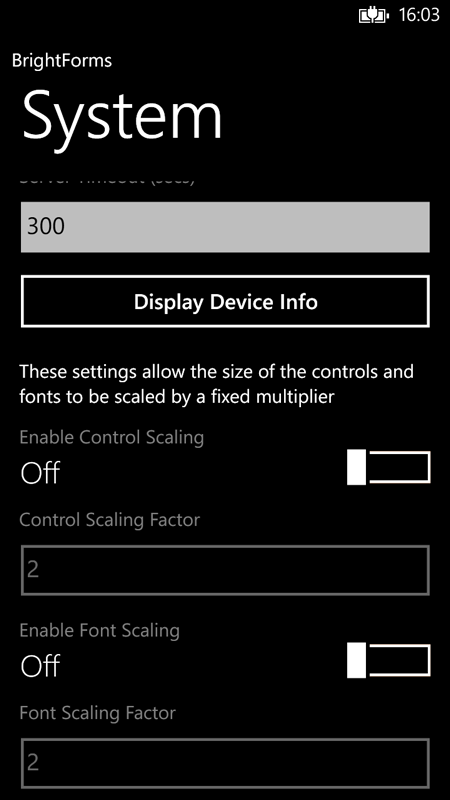
The effect of this will take place for forms which subsequently open in the project. This feature is provided to generally provide a starting point to run applications designed for Windows Mobile devices on newer Windows Phone devices. As such, the default Control and Font Scaling Factor values are 2x and 2x respectively.
Windows Phone Themes
BrightForms on Windows Phone supports light and dark themes of Windows Phone, such that not specifying colours for controls and/or backgrounds will render them conforming to the theme set for the device. If colours are specified for controls, they will render to that colour, regardless of theme.
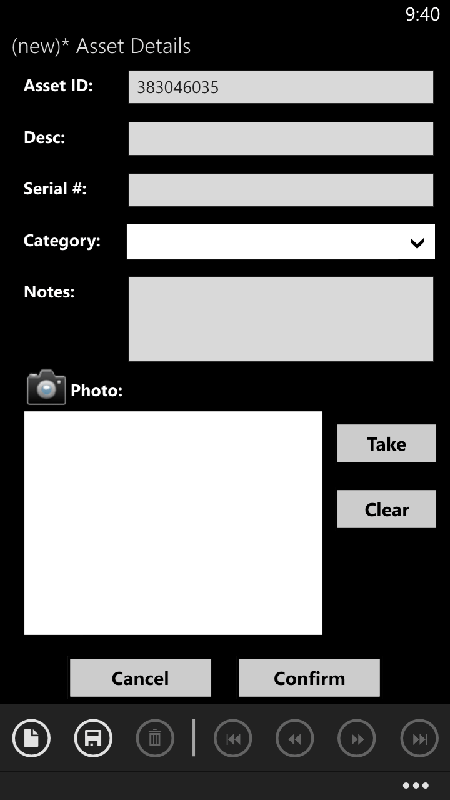
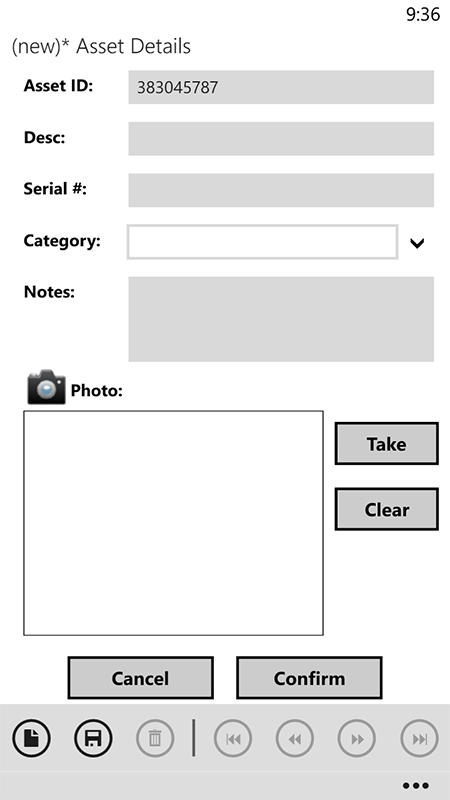
In the above example, buttons and edit controls have defined colours, and therefore are consistent between light and dark themes. Changes to themes will take effect on BrightForms restart.
Windows Store Apps do not feature themes; the application will always render with a 'dark' theme, with default backgrounds being dark, and the default font for headers and tabs being white. These settings may be changed via Colour, Background Colour and Text Colour form properties.
Colours in BrightForms
The default background colour will be used if there is no background specified for a form. This colour in Windows Store apps will be dark, in accordance with the Windows Store aesthetic. Similarly, on Windows Phone, the default background colour will be dark or light, in accordance with Windows Phone themes. If there is a colour specified, these defaults will be ignored.
Similarly, if controls have a colour specified, they will render in the form to that colour. However, if they do not have colours specified, BrightForms will detect the shade of the background and assign a contrasting light/dark font colour for them accordingly.
Aspects
Projects targeting a range devices or screen sizes may utilise the Aspects of a project to create layouts such that forms may display optimally, but maintain the same logic across all platforms. This is achieved via the Aspects node of the project in the Projects tree of BrightBuilder, which allows the creation of available screen resolutions for the project. These may then be applied by right clicking in the form editor window and applying the aspect via the 'Aspects ...' option.

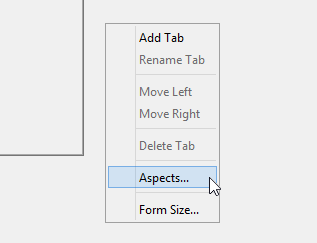
Once applied, controls may be resized and repositioned, and also have other cosmetic properties altered, as to best utilise the layout space.
At runtime, BrightForms on any device will detect the optimal Aspect to run on the device, based on the screen size. This is handled dynamically, for example, when a device is rotated, or window size is snapped smaller or larger (Windows Store App), the closest aspect layout will be calculated and arranged on the screen. For more information, on defining these aspects, please refer to the BrightBuilder > Form Aspects section of this document.
Tabbed Forms
Windows Store Apps
BrightForms for Windows Store will place each tab of a form adjacent to one another under the form's title. All tabs, when displayed, will be active in the form. The body of the form may be scrolled left or right across all tabs, with the left-most tab showing the most data snapped to the left of the screen.
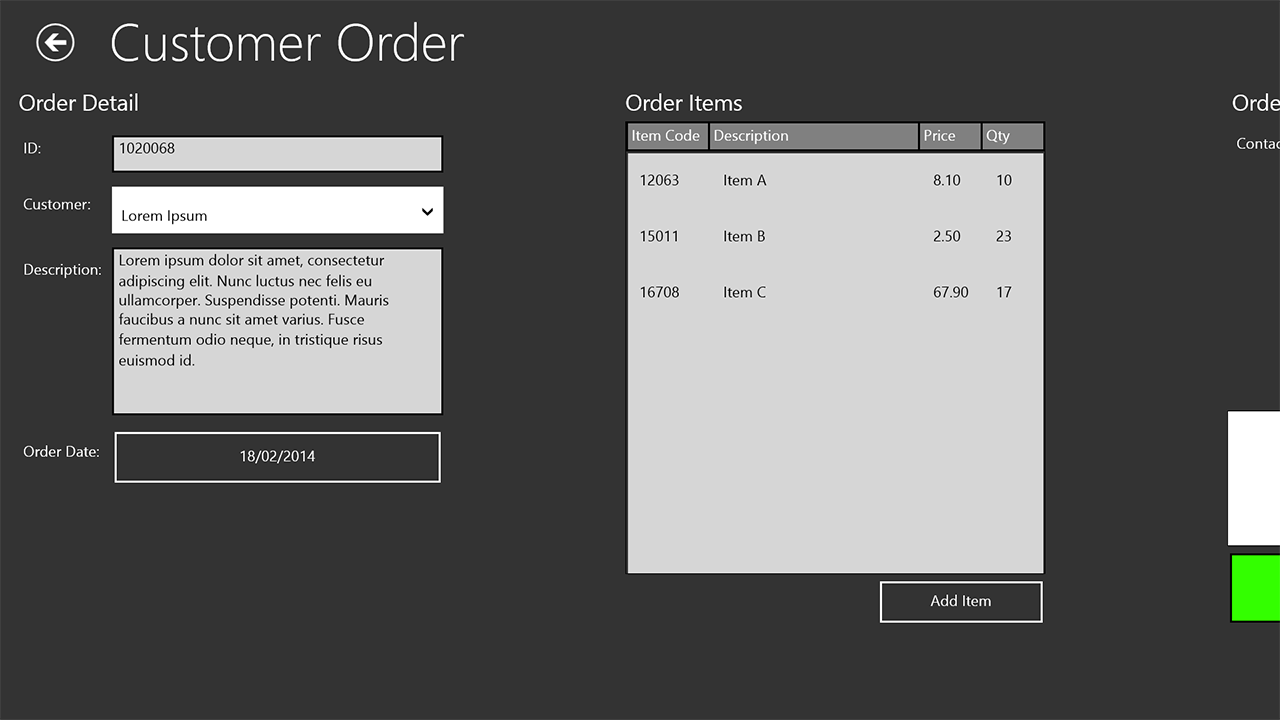
In a tabbed form, a swipe down or up from either the top or bottom edge of the device, will display buttons for all tabs accessible in the form in the top application bar. These buttons may be tapped to navigate between tabs accordingly.
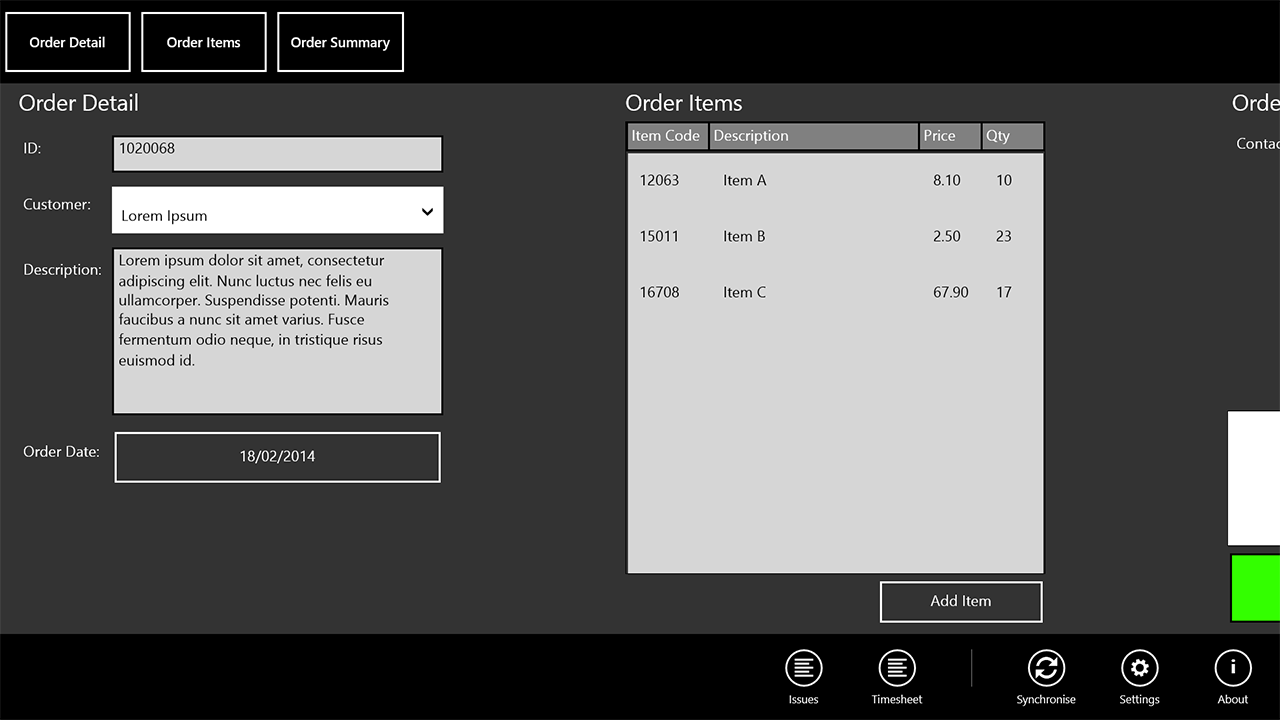
With this tab implementation, having tabs on a form which takes up the full screen width, traditional tab use of BrightForms may be replicated, with the ability to switch via application bar. However, a form whose width is smaller than a device's horizontal screen space will have multiple tabs on display for browsing, replicating the typical design language of Windows Store apps.
Windows Phone
Tabbed forms running on Windows Phone utilise a pivot, which detects user gestures to swipe between tabs, as standard by Windows Phone usability guidelines. The tab title is displayed at the top of each tab, and may also be tapped for the user to move between adjacent tabs.
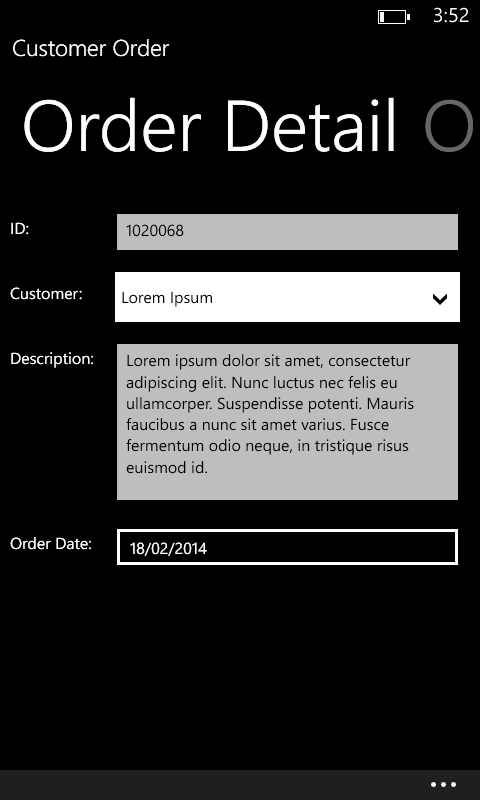
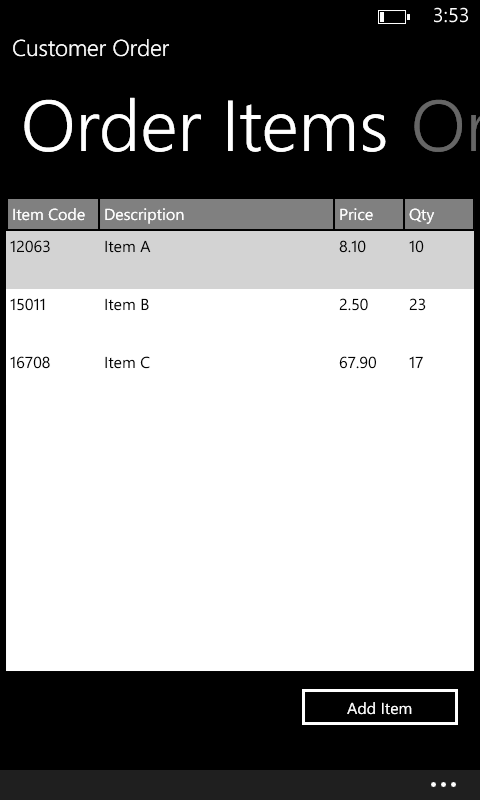
With this Windows Phone representation, it is typically advised to have a smaller number of tabs defined for forms and to have them accessible adjacently, however, non-adjacent access to tabs may be handled by the application with the ShowTab method, which will jump to the specified tab when called.
Form Layouts and the Windows Keyboard
Selecting an edit control or other area requiring user input, the Windows keyboard will display at the bottom of the screen for input. While open, the keyboard will always be displayed on the form, with the form's content displayed above the keyboard.
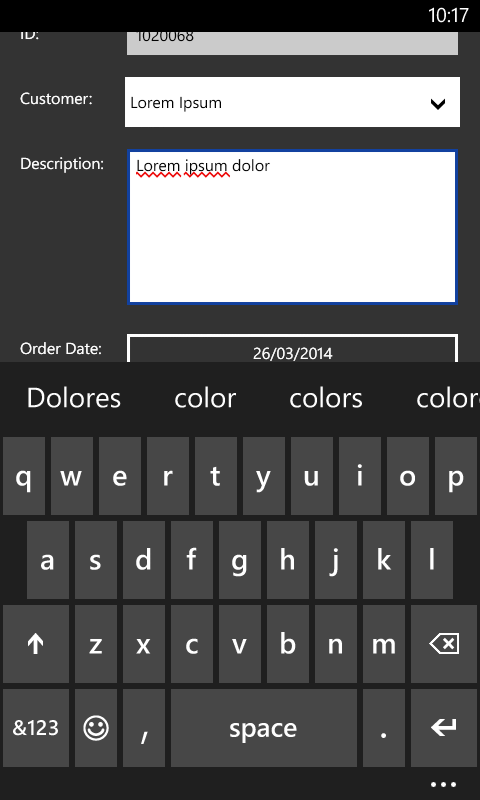
With the keyboard open, tapping on controls will automatically scroll them in view above the keyboard. Any tap-able control will have this effect, even if the keyboard is opened. If a control is obscured and inaccessible by the keyboard, the keyboard must first be dismissed before control selection.
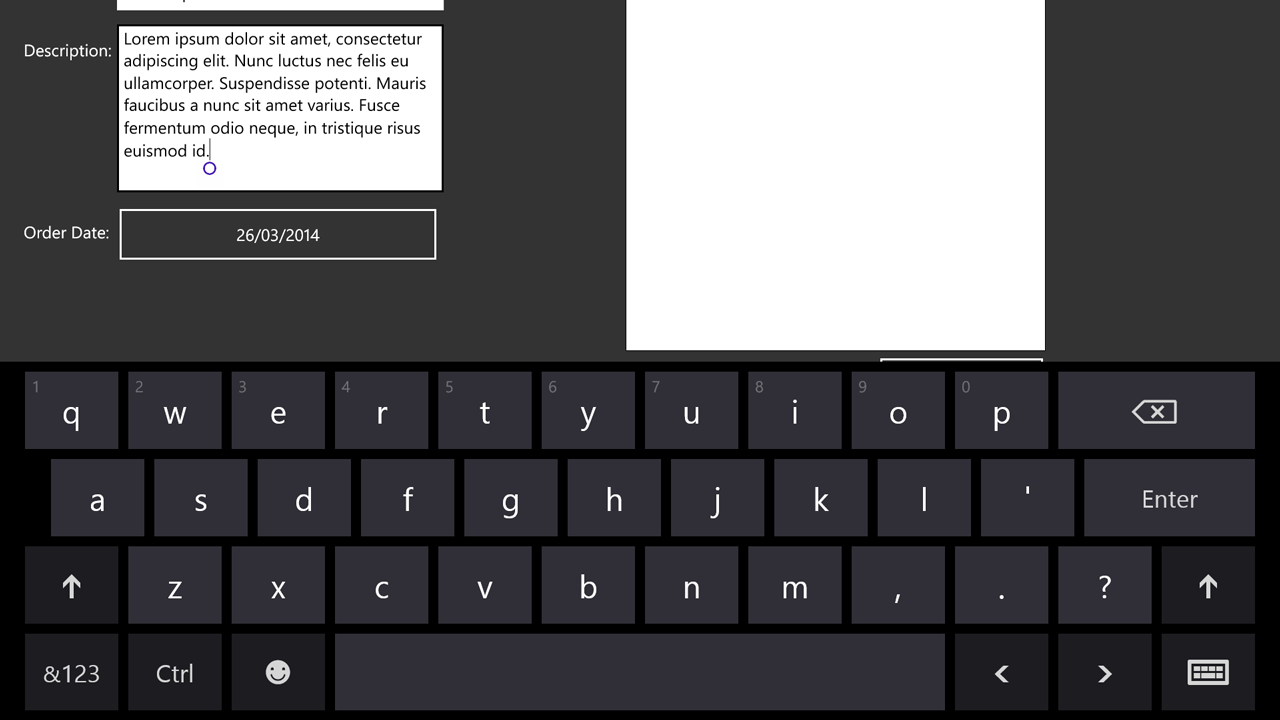
On phone, tapping back, or tapping outside the form will close the keyboard. On Windows Store devices, tapping outside the keyboard will also dismiss the keyboard. Alternatively, the keyboard's dedicated dismiss button may also be used.
ComboBox
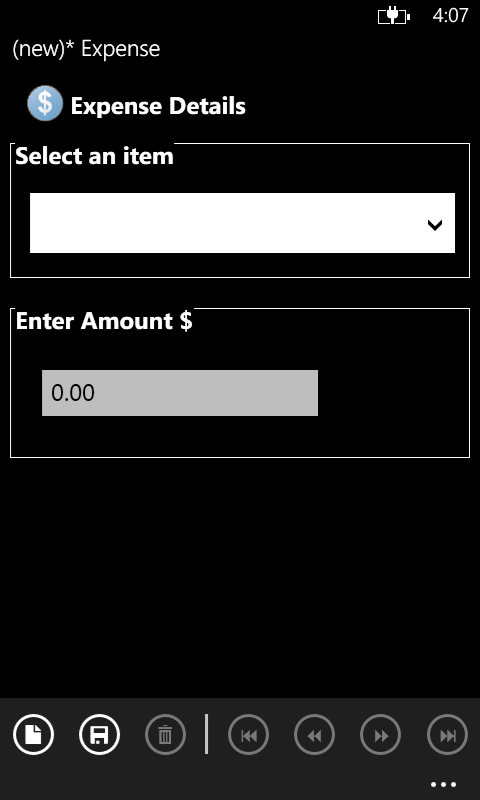
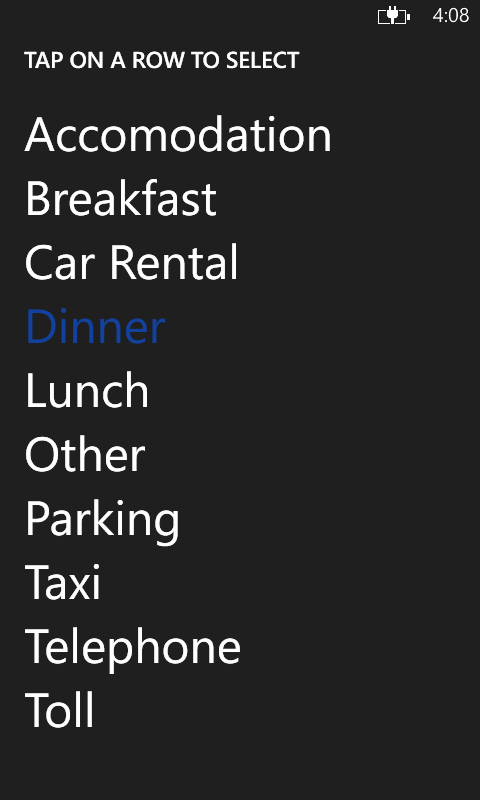
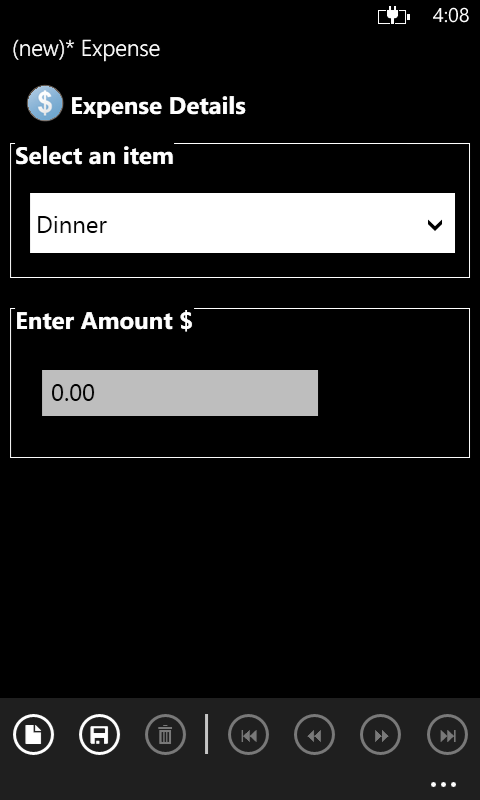
On Windows Phone, tapping the expander button of a combo box will open up selections in a list, with the item last selected highlighted. Tapping on any item on this screen will make the selection for the control, and exit the picker list. Tap back cancel any selection, and return to the previous screen.
Resizing Listview Columns
Listview columns may be adjusted for Windows Phone/Store Apps by long tapping the header of the column to edit, then making changes to the width as necessary:
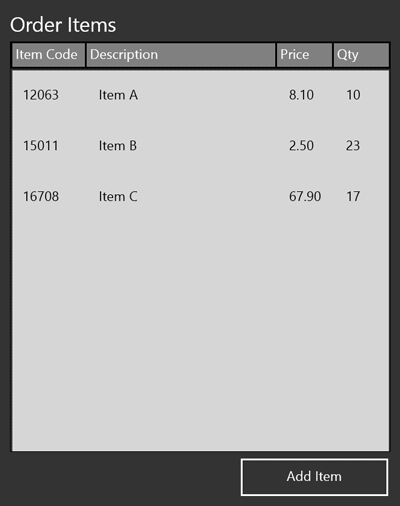
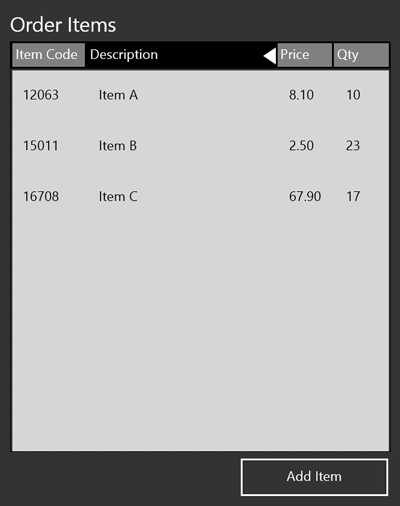
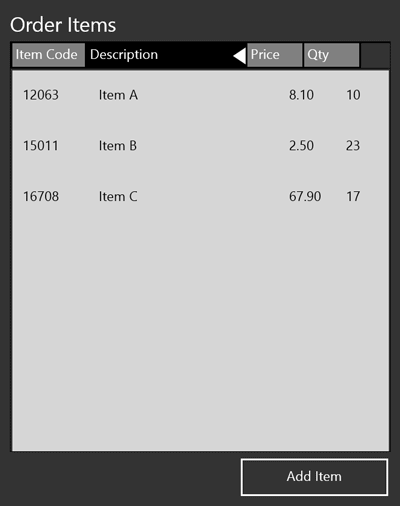
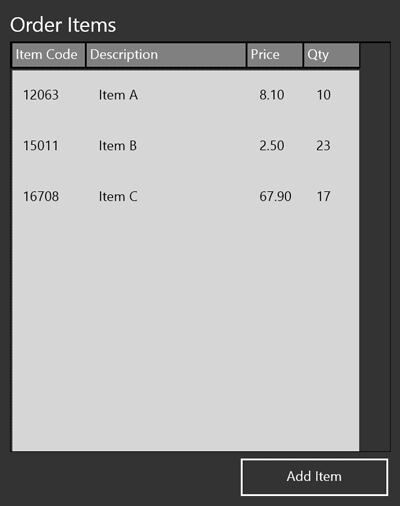
When the header is selected and held, it will appear highlighted with its separator marked. Moving the position of the cursor or tapping device left or right in this state will make the column width smaller or larger respectively. Once released, columns will render in line with the header width.
Scribble Panning
If a scribble contains an image which is larger than the available bounds, and its 'Has Scroll Bars' property of the control is set to true, the contents of the control may be panned by activating panning mode for the control.
To activate this mode, then edit the image, perform the following steps:
Long tap and hold within the scribble control, until its border turns red. This signifies that panning mode has been activated for the control.
Any subsequent tapping and holding movements in the control will then pan the image, instead of drawing to it.
Once the area of the image to edit is found, long tap and hold the control once more.
The control's red border will disappear. This will signify that panning mode has been deactivated; any taps in the control will mark up the image as a typical scribble control.
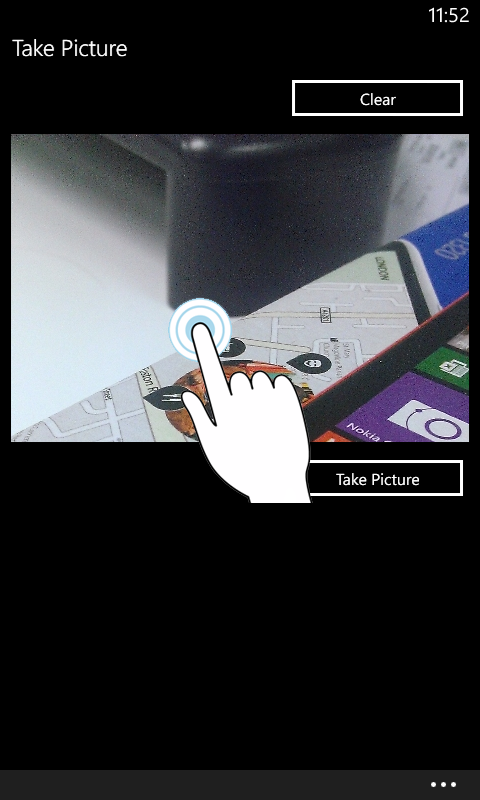
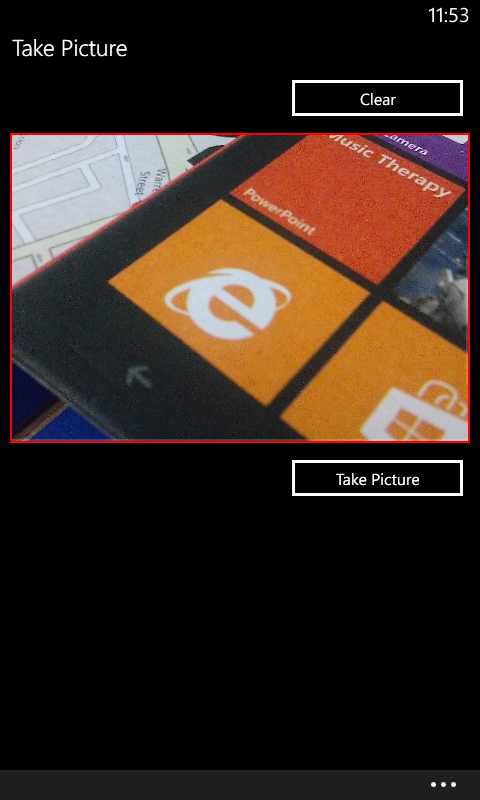
Please note, if the image size loaded into the control is equal to or smaller than the scribble dimensions, panning mode will not be available for the control. If in panning mode when a smaller image is loaded, the scribble control will revert to mark up mode.
Application Permissions
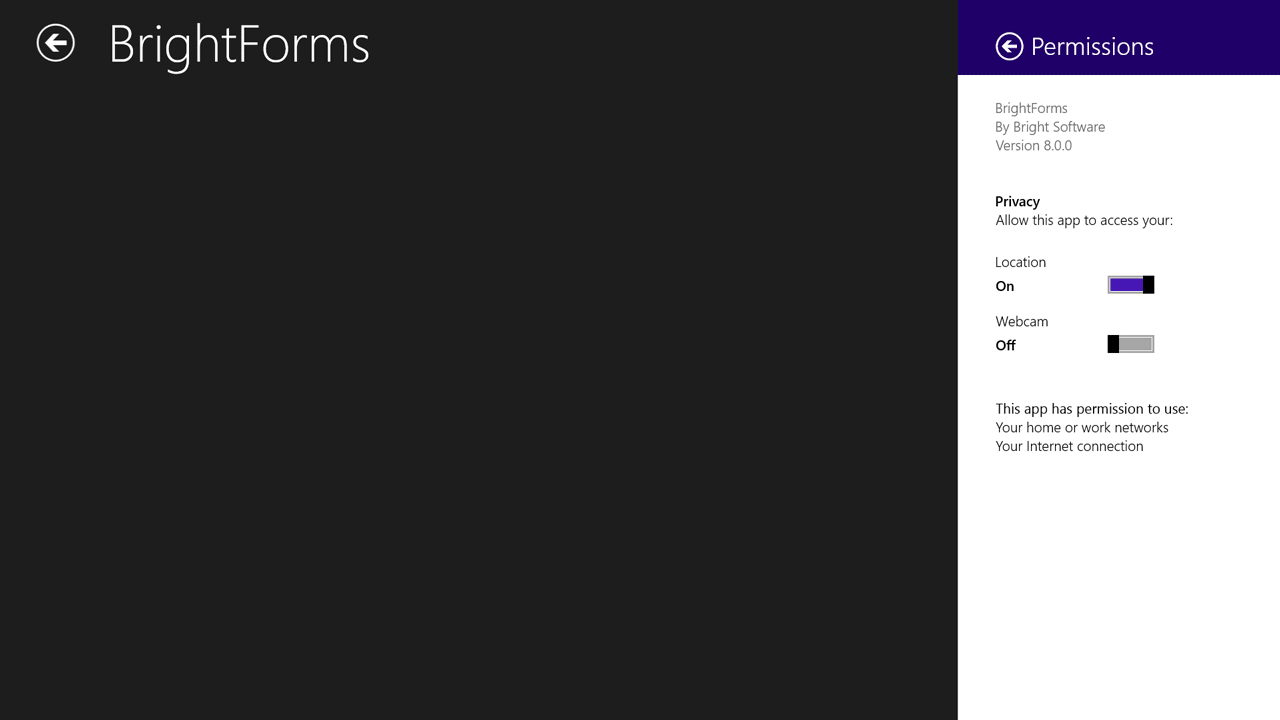
In the Windows Store version of BrightForms, when the GPS or Camera object is called within an expression, a user prompt will appear verifying permissions for the device being called will display on the screen, if the device is called for the first time.
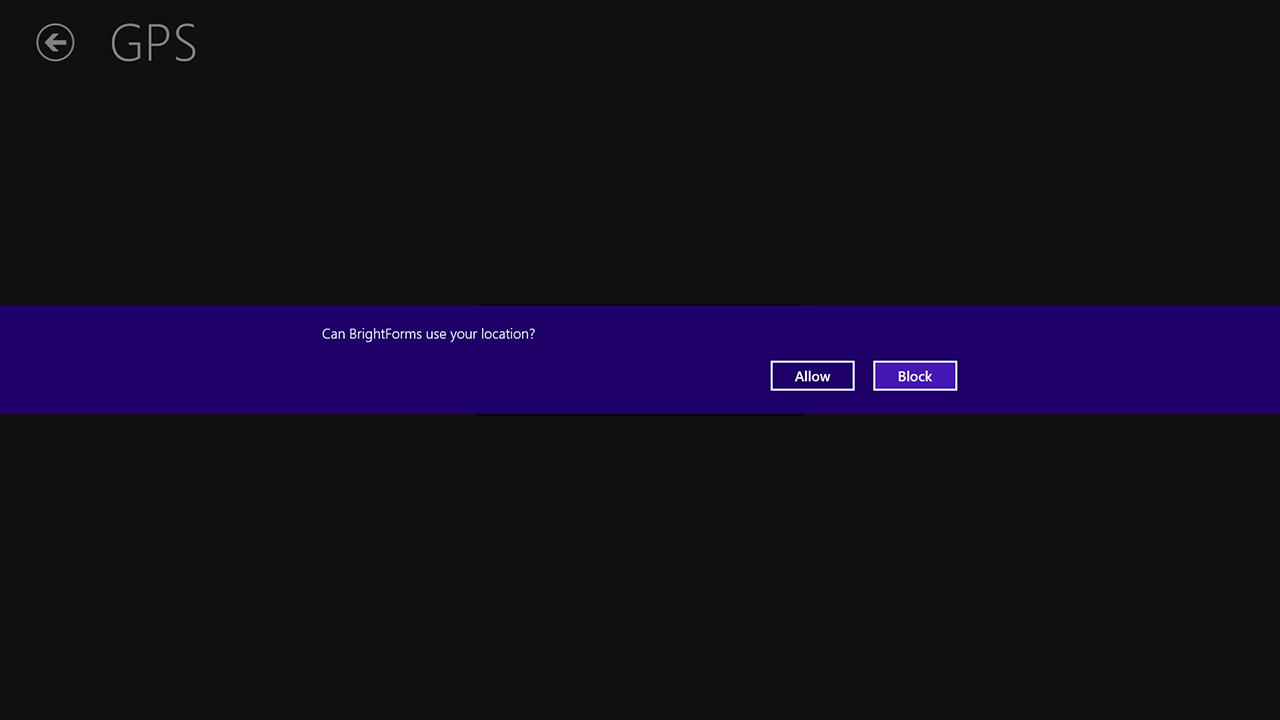
If permissions are not granted, the GPS will fail to open, and the camera will open with a placeholder alerting that permissions must be granted.
The permissions for either of these objects may be changed at any time, by using a right edge of screen swipe to access the Windows Menu > Permissions settings of the application.
System-wide, general permissions may need to be activated via the PC Settings > Privacy menu in Windows. Location settings may also need to be enabled via the Hardware and Sound > Location Settings dialog in the Control Panel.
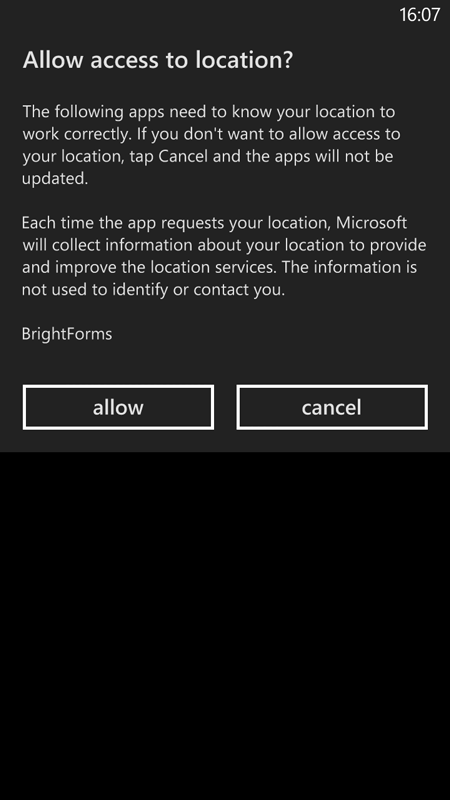
In the Windows Phone version, these permissions will be verified on application installation. If the device's location capabilities are subsequently disabled via Windows Phone settings, opening the GPS object will fail.
Launching Applications via URI
BrightForms is able to launch other programs on the device using a URI in conjunction with the System object's RunProgram() method. For example, Bing Maps for Windows Store may be invoked to open using 'bingmaps:', while Internet Explorer may be opened using the 'http:' URI scheme. This URI value is specified as the first parameter of the method; the second string parameter is not used.
This URI must contain all the necessary information to send to the application to load as required, to the specification of the URI handler. For example, using Bing Maps' URI scheme detailed at http://msdn.microsoft.com/en-us/library/windows/apps/jj635237.aspx, Bing Maps may be opened on a search with the following call:
System.RunProgram("bingmaps:?where=106%20Derby%20Street%20Silverwater%20NSW%20Australia","")
While it may also load with specific latitude/longitude values, name and zoom level using the following URI:
System.RunProgram("bingmaps:?collection=point.-33.8325_151.037_Bright%20Software&lvl=13","")
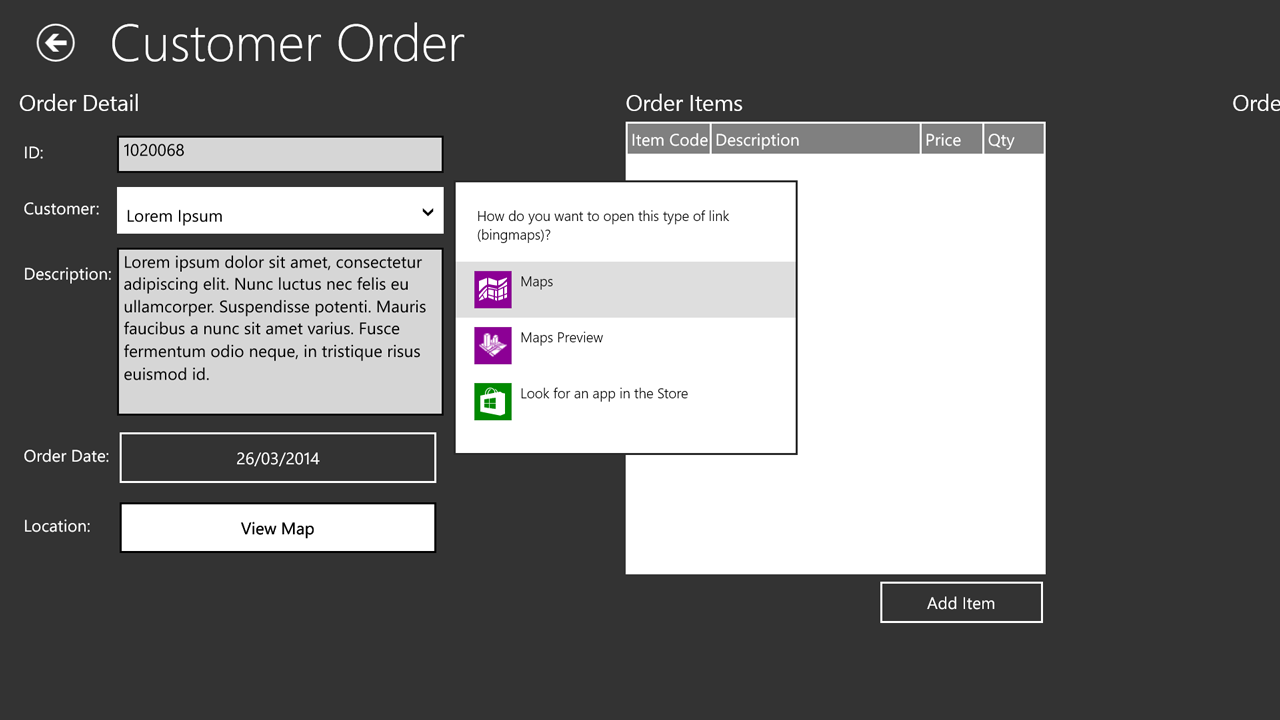
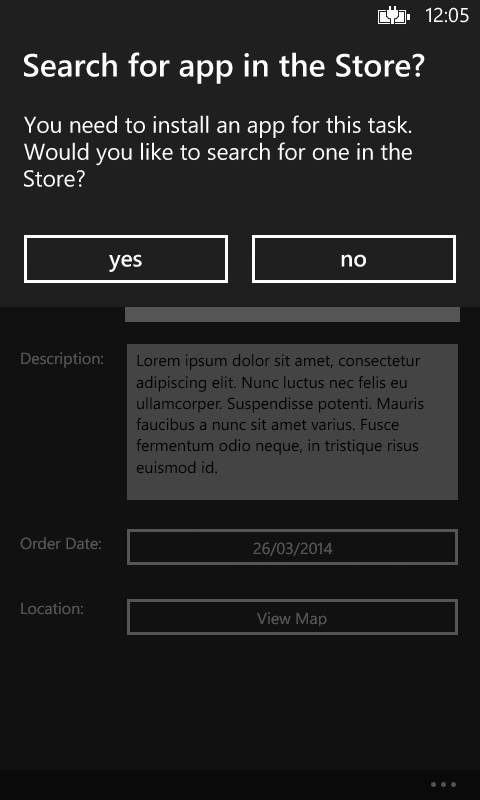
The opening of applications relies on having applications which handle the URI located on the device, and having a default for the URI set. If no default application to launch the URI is present, Windows will prompt the user to select an existing application and/or download a handling application from the store to handle the call.
After successfully launching, if the URI is associated with a modern Windows App, it will launch in a snapped view with BrightForms remaining active. If a snapped view cannot be performed, such as for portrait orientation, the application will place BrightForms in the background, and load in the foreground with the URI. Desktop applications will load with the desktop also taking BrightForms' focus on the device. This losing of focus will also apply for all applications launched on Windows Phone.