
Find Usages
Contents Hide
As a software project grows in size, keeping track of elements, variables and data within it becomes a difficult task to manage. This is a common problem with large software projects, especially those with complex and specific business logic.
The Find Usages feature of BrightBuilder solves this problem providing a powerful, project-wide search tool, providing developers to locate and identify features of the project with great ease. It presents a format which easily maps and matches BrightBuilders structured approach to application development, and is thus a valuable resource for developers and the refactoring process.
How to Find Usages
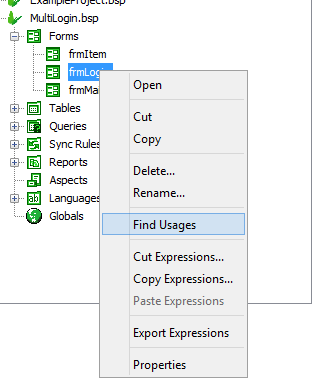
The find usages operation may be called simply by locating the data source or project element within the project, and right-clicking on it. This will bring up a context menu, where the option 'Find Usages' may be selected. This will then initiate the search for the project at the time which it is called. If anything is changed in the project after the search is completed, find usages will need to be called again to provide accurate results.
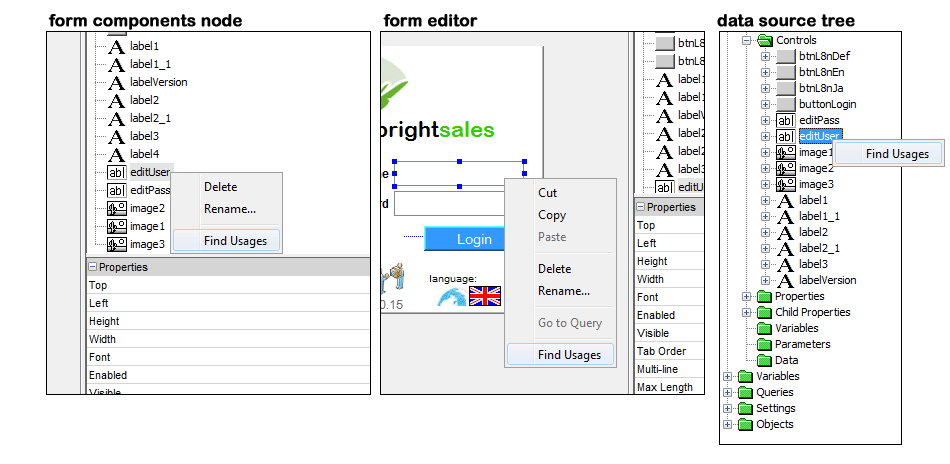
There may be more than one access point for these values depending on the scope and usage of the item. Below is an example of the points you can access the 'Find Usages' option for a given edit control - 'editUser'; it can be accessed in all areas of the project, giving freedom to look up the control at any time.
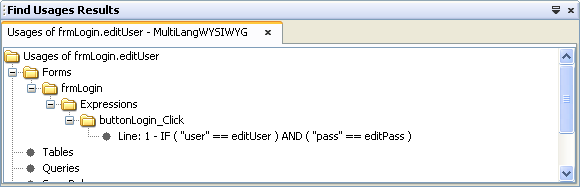
Once clicked, the Usages window panel will appear, displaying the results of the search.
Find Usages Results
Results of the Find Usages function are displayed in a tree view, which provides a structured, collapsible interface represent matching usages. Each initial node in the search corresponds to a project element, and subsequent nodes represent the respective sub-components of their parents. Using this hierarchical view, usages are located and browsed with ease.
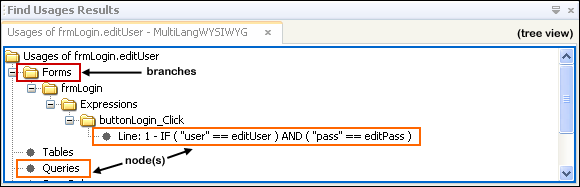
Below is additional features of the find usages results' organisation:
Project elements containing found usages are represented by folders in the results panel (red).
Grey nodes represent the lowest depth of the search (orange).
If the depth of the search ends at a project element, there are no results.
There is also a project properties node, which, while not a project element, which references forms and app settings if applicable.
Locating Elements with Usages
Double clicking on an identifier in the search will result in BrightBuilder opening the relevant hierarchal structure, and focusing on the element it references to.
For example, searching for usages of a user defined language resource:
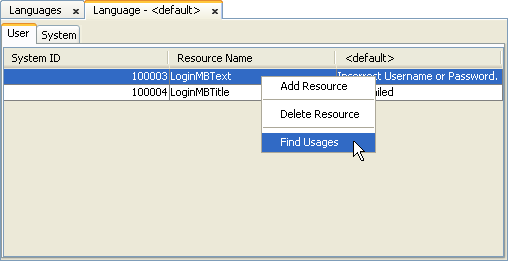
The usage results are as follows:
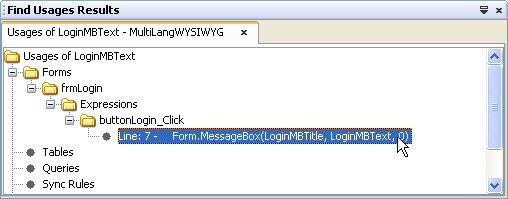
Double clicking on an identifier will result in the following workspace change:
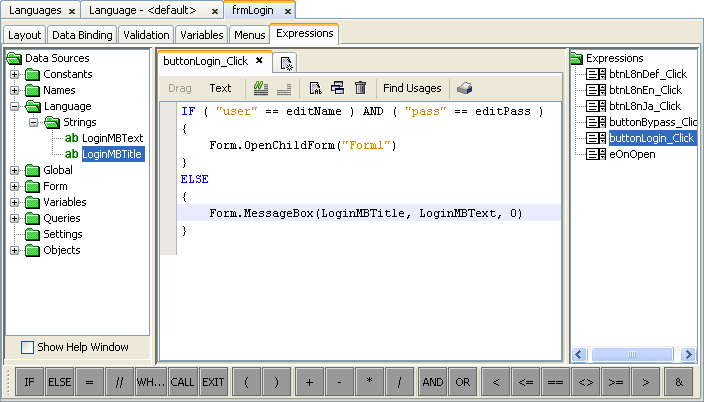
The form is now open at the matching expression, the is element focused in the data source tree and the line number highlighted, corresponding to the search results.
 Note: Once opened, the project element may also be located in
the Project's tree by right clicking the element's tab title and
selecting 'Show in Projects'.
Note: Once opened, the project element may also be located in
the Project's tree by right clicking the element's tab title and
selecting 'Show in Projects'.
Safe Operations
Find Usages is also used when performing delete and rename operations on project elements. When deleting or renaming a particular element, the following dialogs will appear to the user:
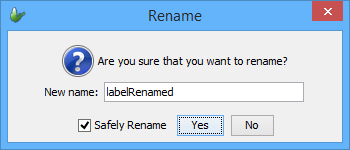
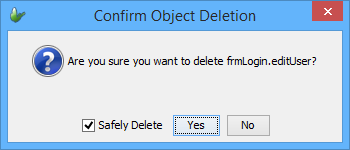
The "Safely Rename" (or "Safely Delete") option is given to provide information on how the operation will affect the control. If checked, a find usage check will run on the control or element. Depending on if it was a rename or delete operation, the following will occur:
On rename, all instances of the control will be changed to the new name specified. This ensures all dependencies of the control are kept in tact, and all project functionality is the same after the renaming process.
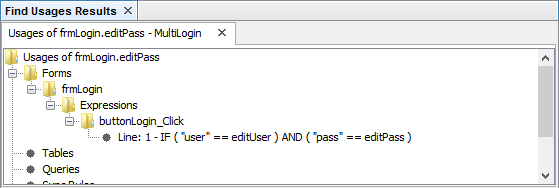
On delete, a secondary dialog with the usage information will be displayed, detailing the dependencies the control or element has. This ensures that the developer is aware of the effect the delete operation will have on their project.
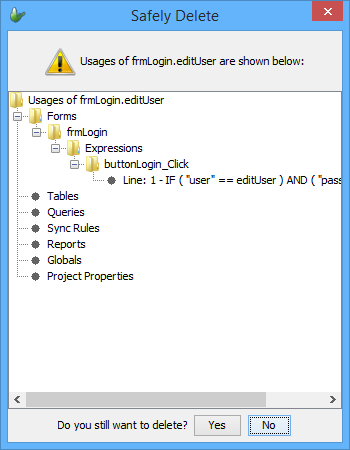
If the "safe" options are unchecked, the delete and rename operations will execute regardless of the usage of the control/element in the project.