
Persisting values using Settings Dialog
Contents Hide
Description
This section will describe in detail how to persist values throughout a BXP application using Settings Dialogs.
Introduction
In BrightBuilder projects, data is stored and accessed in memory through variables which are present on differing levels throughout the project. However there are instances where values are required to be saved and/or reused throughout the application or when the application is restarted. Settings can be used to hold data that is to be persisted and used throughout the application. Settings defined in settings dialogs are similar to App Settings in BSP projects in which they behave similarly to global variables that are persisted to file instead of memory. This allows BrightForms to retrieve and access these values to be used within the application even when BrightForms is closed.
Settings dialogs provide the functionality to add and modify settings within the dialog. These settings can be used to hold data that is to be persisted and used throughout the application. The settings dialogs also provides a form where the setting fields values can be set and edited. Settings have a global scope in which they are available anywhere within the application that requires a data source. Within the data source tree, exists a settings branch which will be filled with the various settings defined through the settings dialogs of the application. Where data sources are required such as giving form links more context and in formulating calculated phrases, these settings values can be used. Settings can also be used in login authentication as part of login dialogs. These settings can be used to compare the login credentials.
Create a Settings Dialog
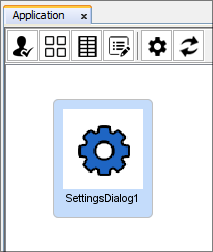
Settings dialogs can be created easily through the Application panel.
Through the application panel, dialog nodes can easily be created
in a visual way. By simply dragging and dropping the settings dialog
icon ( ) onto the application
canvas, a new settings dialog node will be created.
) onto the application
canvas, a new settings dialog node will be created.
Add Settings
Settings defined in setting dialogs work and act similarly to global variables in BrightBuilder, however they differ in being persisted to file than in memory. Evidently this allows the BrightForms app to access and retrieve the persisted values even when BrightForms is closed. These settings can also be used within the application where data sources are required such as within a calculated phrases, form links and login authentication.
By double-clicking on the newly created node, the specific editor
for the settings dialog will open. Now initially the settings dialog
will appear empty with no settings and nothing on the form. Settings
can be added by simply pressing the  button.
By selecting on an individual settings in the settings list, the options
and properties of the setting will populate the editor. The name of
the setting can be edited under 'Field Name'. Also the display text
to be shown in the identifying label of the field on the form can
also be changed through the 'Field Display' option. Settings also
have associated types that dictate the type of data the settings/field
is to hold. Settings can be of the following types:
button.
By selecting on an individual settings in the settings list, the options
and properties of the setting will populate the editor. The name of
the setting can be edited under 'Field Name'. Also the display text
to be shown in the identifying label of the field on the form can
also be changed through the 'Field Display' option. Settings also
have associated types that dictate the type of data the settings/field
is to hold. Settings can be of the following types:
Text: Setting fields will hold text data or strings. A setting of this type will add a edit control to allow strings to the form.
Numeric: Settings fields with this type will hold only integer values. The edit control added to the form will have specific settings only allowing numbers to be entered into the control.
Yes/No: Setting fields of this type will add a check box control used to indicate true/yes or false/no. A ticked checkbox represents true and an unticked checkbox represents false.
Date: Settings can be a date value that can be set through the DateTime Picker control added to the form.
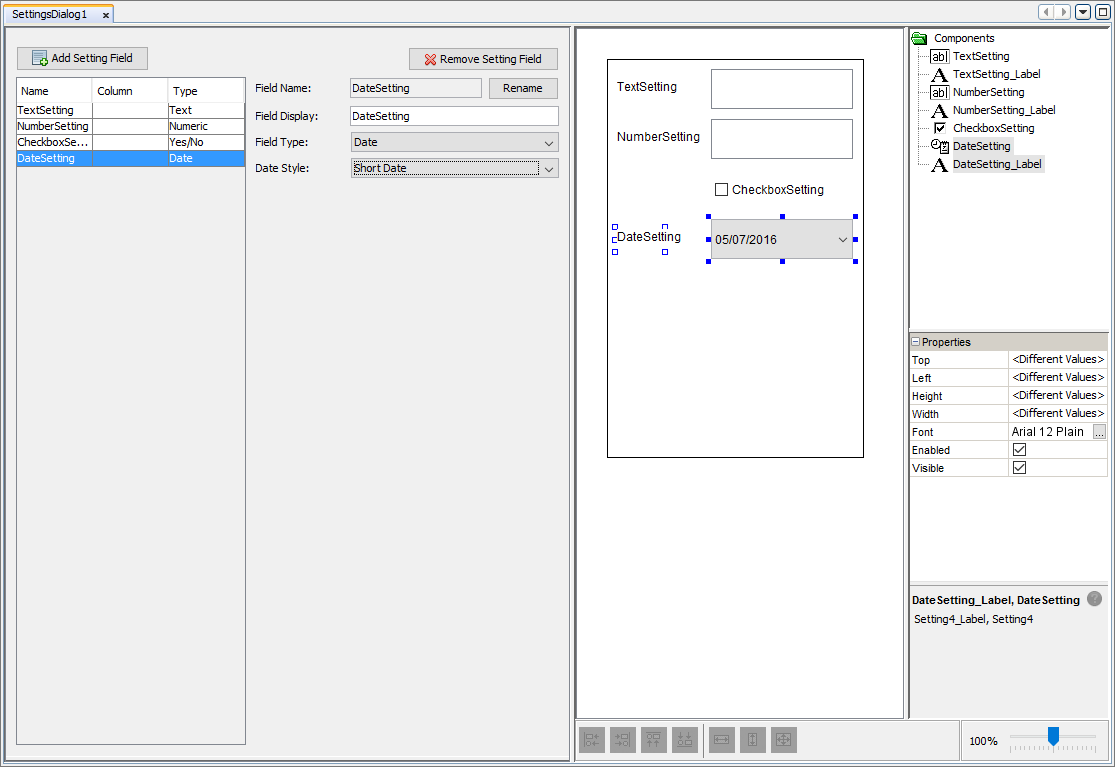
Once settings are added to a settings dialog and saved. The defined settings can be used in the application where the data source tree is available. The data source tree is made available to developer in the BXP designer when a source of data is required.
Using Settings
Settings act similarly as global variables as they have global scope and can be used throughout the application. Within the BXP designer, settings defined in settings dialogs are available where data sources are required such as within form links, calculated phrases and login authentication.
Setting values can be changed through the application by opening the settings dialog form created. The form would have been created through the settings dialog editor with added controls for each setting defined in the dialog. The purpose for each control will be to correspond to the value for a setting. When the form is opened, all the controls will be populated with the settings current value. However if the application is brand new and never been opened before all settings will be initialised as empty or having no value by default. However for settings with type 'Yes/No', they do have the option of being ticked or 'Yes' as their default value.
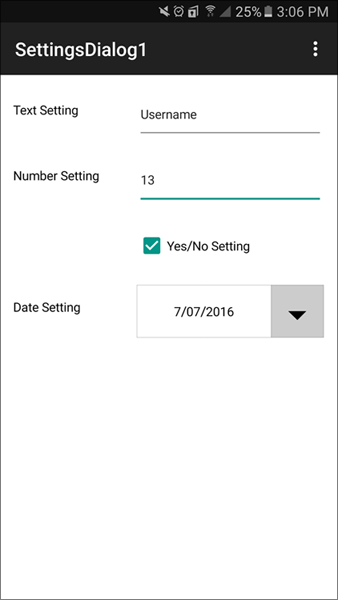
Through the form, the values of the settings can be changed in accordance to the settings type (i.e. if setting has 'Numeric' type can only be changed to numbers). What is entered into the fields are automatically saved, even if BrightForms were to close.
Data Sources
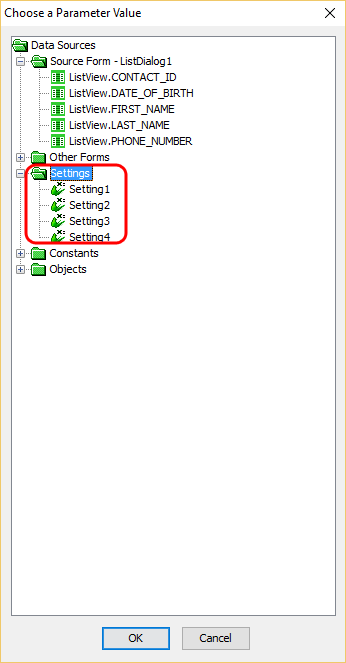
Settings can be used as data sources for form links and calculated phrases. Each data source tree will have a Settings branch which is populated with all the settings available in the applications. These settings are all defined within settings dialogs.
Settings can be used when giving context to a form link. Opening a dialog with context sometimes requires more information. This information can be set through the various data sources available to the project. Settings are one of those data sources that can be used to provide more information to the form link.
Another need for data source is for calculated phrases. Calculated phrases are created through the available data sources in the project and the operators made available. A data source that can be used are settings.
It should be noted, if the persisted value for these settings are to be used, the data sources shown under the Settings branch should be used and NOT the form values provided under the settings dialogs branch under the 'Other Forms' branch. These form values are only the local values from when the settings dialog is opened and hence not the global persisted values. The form values from the settings dialog branch should only be used when the settings dialog is the source form in which the form values would have been instantiated with values.
Login Authentication
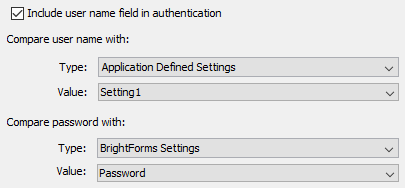
Settings can also be used in validating the login credentials entered. By setting the authentication type and value to a setting defined in a settings dialog, that setting will be used to check the credential is correct. If the application is to use the application defined settings as part of authentication, the initial login for user name and password will be nothing (i.e. an empty string). Once logged in once, it is advised to edit the settings to hold the current values for authentication.
Exercise
Using the provided starting project (SettingsAuthentication.bxp) change the application to include two new text settings. Using these newly added settings, change the authentication of the application to compare the user name and password with these new settings.
Since these settings will not contain any values, simply press the 'Login' button to log in. Once logged in initially, change the settings to something meaningful and close the application. Open the BrightForms app and check authentication works with the newly entered settings.
Please use check your project with SettingsAuthenticationFinished.bxp to check behaviour is correct.