
How to Capture GPS Data
Contents Hide
Description
This tutorial details how GPS data may be captured on Edit Dialog screens in the Business Application Designer.
Edit Dialog 
The Edit Dialog is designed to show or capture user data on the device. This is achieved by using Fields in the Edit Dialog, which may be configured for display purposes, calculations and/or have their value saved to/loaded from the database. As with other dialogs, it is created by dragging and dropping the Edit Dialog icon onto the application canvas of the Applications node in the BXP project.
Within the Edit Dialog, the GPS Latitude and GPS Longitude field types may be used to capture GPS data.
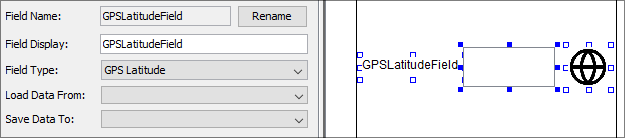
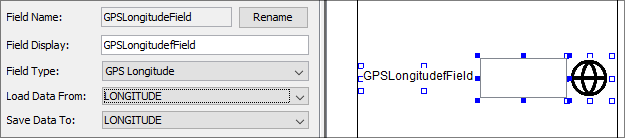
The 'Add Display Field' button in the Edit Dialog may be used to create a new field. This will open up a dialog for the initial type, where GPS Latitude and GPS Longitude may be specified. Existing fields may also be changed to GPS Latitude/Longitude types by changing the 'Field Type' in the Field editor. This would need to be performed if initially loading a table with default types.
The field appearing in the layout will consist of a label, image control and locator button. These controls may be resized, rearranged and/or set to be hidden to the user, if required.
When running the application on the device, the user may tap the locator button for either field to get their respective values loaded as text. If 'Save Data To' or 'Load Data From' values are assigned, the values may be saved and loaded from the local database.
Exercise
The initial state is an Asset List application which does not have its GPS fields configured. In the EditAsset form, set the GPS_LAT and GPS_LON fields to 'GPS Latitude' and 'GPS Longitude' respectively.
Once complete, publish the application to a BrightServer Instance. After publishing, retrieve the application, then use the Edit screen to add records with GPS data on the device.
A sample solution completed with the Edit Dialog is provided with the BxpGpsFinished.bxp file.