
Project Validation
Contents Hide
The Business Application Designer, being a simplified interface, will typically keep all nodes up-to-date with any changes to values in the project, such as the renaming of data sources, or table column names. However, there are certain scenarios where values cannot easily be inferred, such as when components are initialised and have their values undefined, or when elements are removed from the project. In these scenarios, validation is used to highlight any values which require fixing in the BXP for the project to run without errors.
Validation is performed in real-time, with via red borders utilised to highlight errors on the BXP's Application Panel and throughout Form Dialogs. This creates a trail which may be used to quickly identify and address any errors which may prevent the BXP from running as expected.
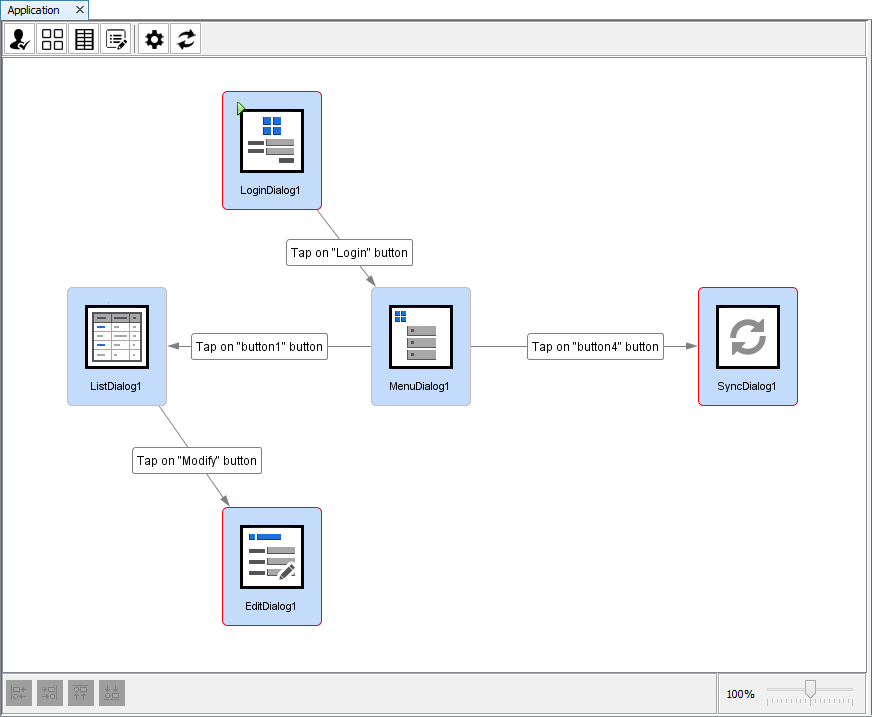
Having no nodes or links with red borders in the Application Panel means that all BXP components have been defined and are linked correctly, with no missing or invalid values, and thus no errors for the project.
If a project with errors is validated or attempted to run, the following
dialog will appear to the user:
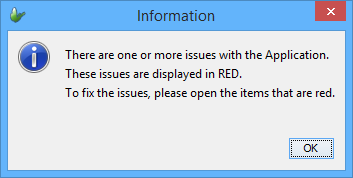
Errors may typically be rectified by navigating through the nodes in the Application Panel and modifying Form Dialog/Link definitions, then correcting any highlighted values. This chapter will explain typical errors which may occur in a project, and how to navigate and rectify these errors in the BXP designer.
 Only
projects without errors may be deployed to BrightServer. Projects
with errors may be executed, but may result in incomplete/unexpected
behaviour from BrightForms.
Only
projects without errors may be deployed to BrightServer. Projects
with errors may be executed, but may result in incomplete/unexpected
behaviour from BrightForms.
Form Link Errors
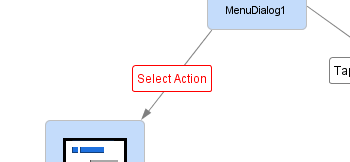
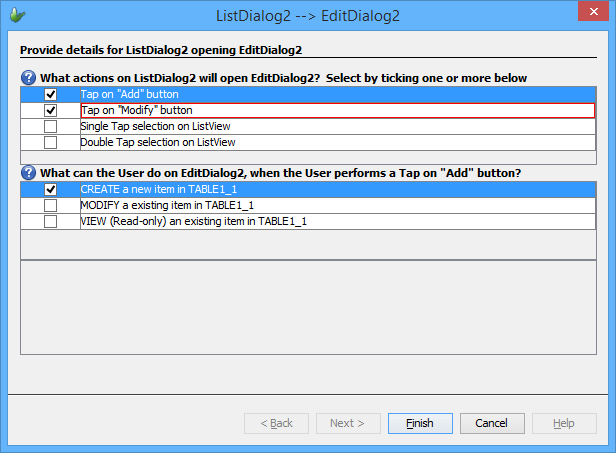
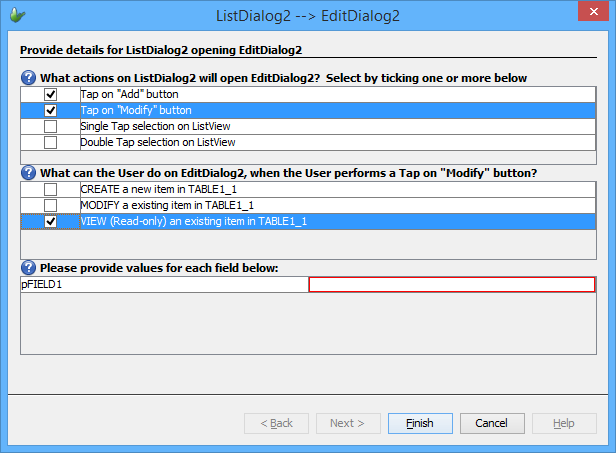
Form links will initially appear in red for the user to select the action to open the attached form. In this state, as no action has been selected, the form link will appear with red highlighting and display the text 'Select Action'. Double clicking on the form link and defining the action through the Form Link dialog will address this error.
If at least one opening action has been assigned, the form link will appear with this value on the canvas. However, if the opening action or actions assigned to the link are incorrect, such as if data sources are omitted for mandatory fields, or data sources do not exist anymore, then the form link will display in red.
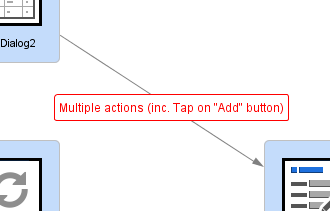
These errors may be navigated to through the Form Link's opening actions, options and values sections of the panel appearing in red, then rectified in their respective section.
Form Dialog Errors
Form Dialogs with errors may be opened via double clicking them in the Application Panel. This will open the Dialog Editor, whose Dialog Properties Panel will be highlighted in red for any areas which needs modifying. This may be a single field, such as the table drop down in the List Dialog, or multiple fields, such as the Save/Load fields for more than one Edit Dialog Fields. In these situations, each cell with errors will be highlighted and new values may be selected to complete the project.
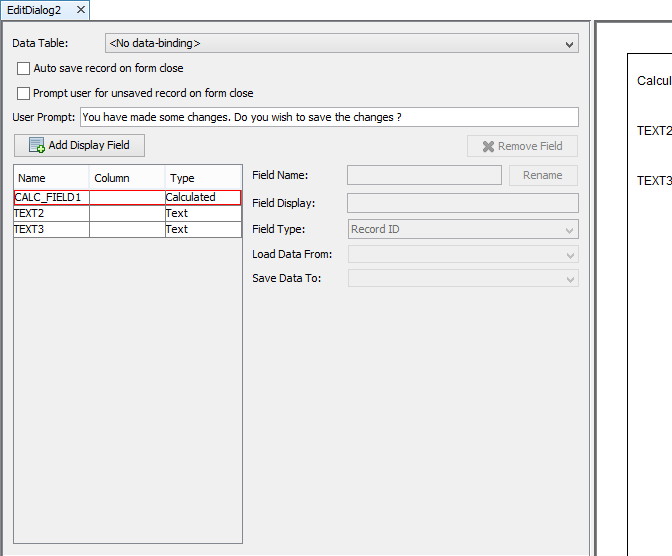
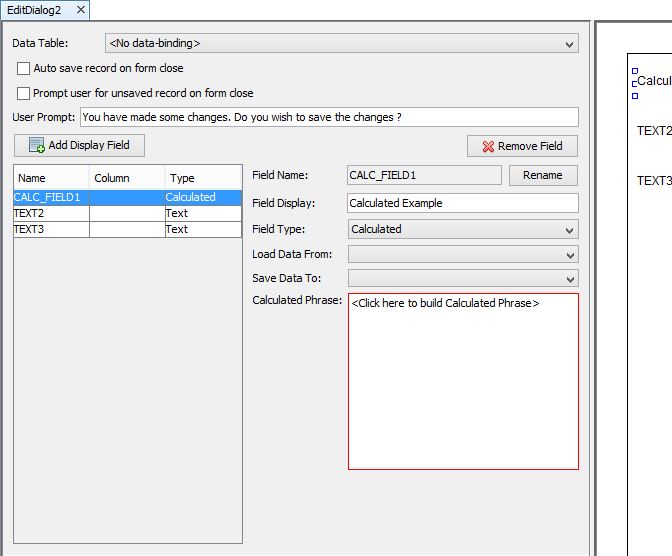
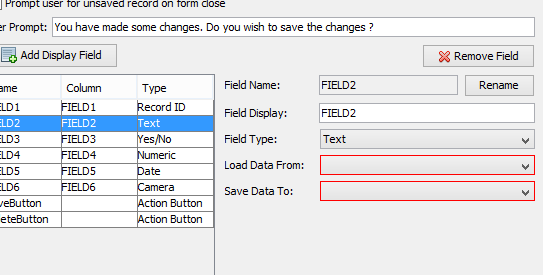
Typically, if a value does not exist anymore, the field will display as blank with red highlighting. This indicates that a new value must be specified for the project to be valid. In the example below, the table column 'FIELD2' was removed from the project, affecting the Load Data From and Save Data To columns for the field selected. Selecting a new value, or restoring this missing field would rectify the issue.
Condition Panel Errors
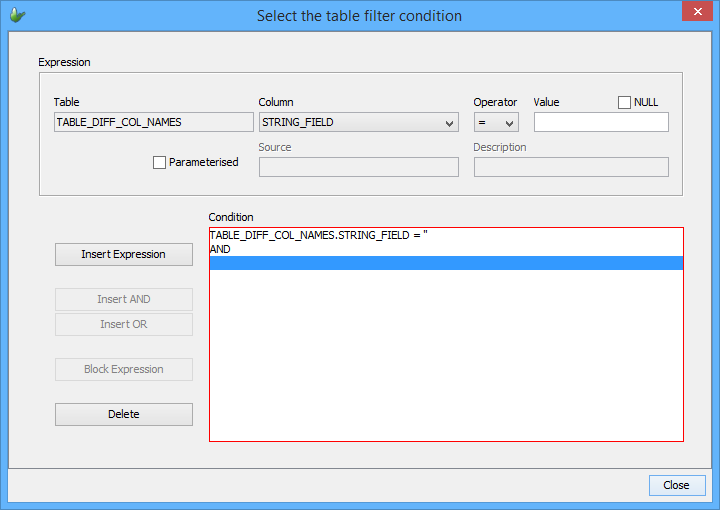
When creating a condition, the panel will highlight the statement field as a whole if the statement as a whole is incorrect. This may occur if the expression syntax or blocking is incomplete or invalid, and may be fixed by modifying the condition to have correct syntax.
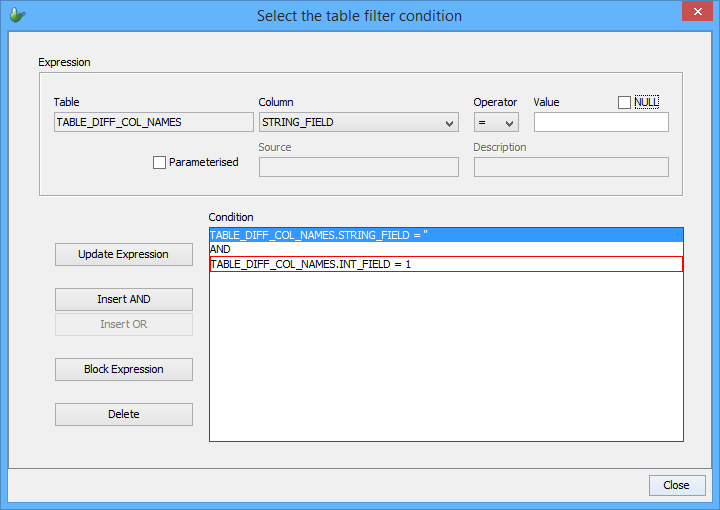
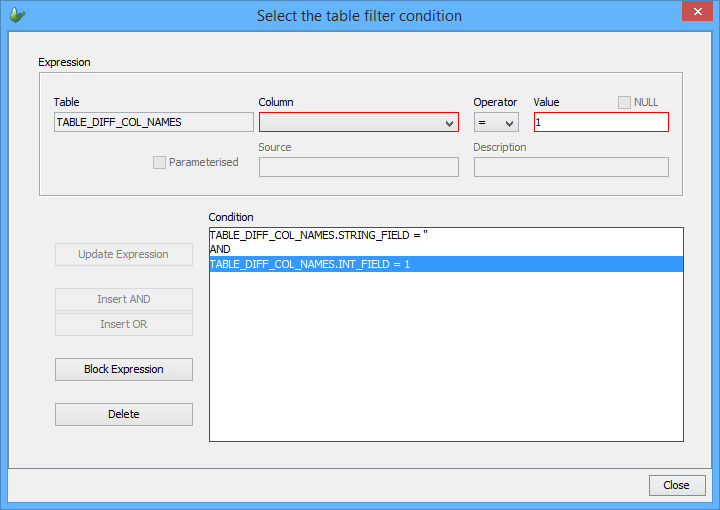
In addition to this, incorrect lines will be highlighted individually in this condition field. This would typically occur when table columns change type, are removed, or the data source they are read from have changed. In this scenario, the invalid row may be selected, and the condition line modified via the 'Update Expression' button in the condition panel dialog.
 Note:
Columns which change type must be modified as any conditions
which use these columns will become invalid. For example,
if a string column COLUMN1 is compared against a string constant
or parameter, if the type is changed to integer, this line
will become invalid. In some of these cases, it is important
to note that this may only be indicated by the 'Update Expression'
button appearing in red to tap on selection.
Note:
Columns which change type must be modified as any conditions
which use these columns will become invalid. For example,
if a string column COLUMN1 is compared against a string constant
or parameter, if the type is changed to integer, this line
will become invalid. In some of these cases, it is important
to note that this may only be indicated by the 'Update Expression'
button appearing in red to tap on selection.