BrightBuilder Commands
Contents Hide
This section will discuss the different commands that are available to build applications in BrightBuilder.
Menu Commands
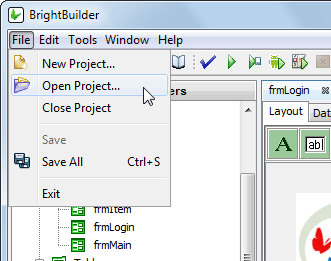
BrightBuilder's main window has the following menus: File, Edit, Tools, Window and Help. Select menu options by clicking them with the mouse pointer.
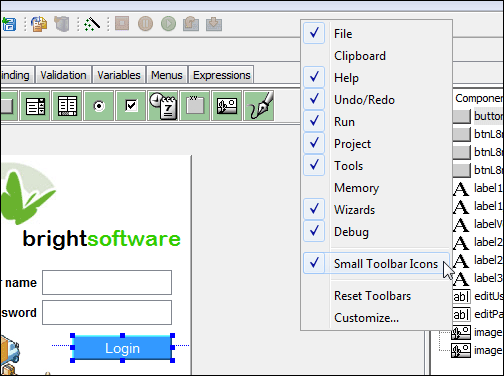
The toolbar provides a faster way to activate the most frequently used commands.

See the topic on each drop-down menu to view the different options available and their respective actions.
File Menu
| Command | Function |
| New Project.. | Opens the New Project dialog to create a new project in the folder specified. |
| Open Project... | Opens the Open Project dialog to open the project selected from the folder specified. |
| Close Project | Closes currently selected project. |
| Save | Saves the project currently in focus on the Projects window. |
| Save All | Saves all projects that have been modified. |
| Exit | Exits BrightBuilder development environment, verifying save before closing. |
Edit Menu
| Command | Function |
| Undo | This option will undo the changes made to the Form or Report Layout in focus. |
| Redo | This option will redo the last undo made to the Form or Report Layout in focus. |
Tools
| Command | Function |
| Auto Form | This option allows the user to create an form automatically using the table definitions available in the project. For more information, please refer to Tables > Auto Form. |
| Today's BrightForms Settings Password | Displays the password to view and modify BrightForms Help Settings. |
| Query Analyser Tool | Opens the Query Analyser Tool, which allows developers to connect and query server or local SQLite databases. For more information, please refer to BrightBuilder > Query Analyser Tool. |
| Request Dropbox Access Token | Opens a step-by-step process to simplify the generation of Dropbox tokens. Completing this process will register and grant full Dropbox access to the 'BrightServer Xpress Client' App, and generate a token which may be used for the account. Please refer to the Generating Dropbox Access Token topic for more information. |
| Options | View and Edit all BrightBuilder settings and configurations. Refer to the Appendix for more information. |
Window
| Command | Function |
| Properties | Opens the Properties Window if not currently opened, otherwise it will set focus on the Properties Window. |
| Projects | Opens the Projects Window if not currently opened, otherwise it will set focus on the Projects Window. |
| Servers | Opens the Servers Window if not currently opened, otherwise it will set focus on the Servers Window. |
| Output | Opens the Output Window if not currently opened, otherwise it will set focus on the Output Window. |
| - Validation | Opens the Validation Window if not currently opened, otherwise it will set focus on the Validation Window. |
| - Execute | Opens the Execute Window if not currently opened, otherwise it will set focus on the Execute Window. |
| - Debug | Opens the Debug Window if not currently opened, otherwise it will set focus on the Debug Window. |
| - Watches | Opens the Watches Window if not currently opened, otherwise it will set focus on the Watches Window. |
| Navigator | Opens the Navigator panel, used to navigate through BrightServer script code. |
| Editor | Sets focus on the Editor Window. |
| Find Usages Results | Opens the Find Usages Window if not currently opened, otherwise it will set focus on the Find Usages Window. |
| Close Window | Closes currently focused window. |
| Maximize Window | Maximizes currently focused window. |
| Undock Window | Undocks the currently maximized window. |
| Reset Windows | Resets the original size windows size and locations |
Help
| Command | Function |
| Bright Software User Manual | Opens the Bright Software User Manual in the default web browser. |
| Object Definitions Reference Manual | Opens the Bright Software Objects Definitions Reference Manual in the default web browser. |
| Welcome Page | Displays the BrightBuilder Welcome Page, providing quick links to create and define projects. |
| Take a Tour | Displays the 'Take a Tour' dialog, which detailsBrightBuilder and the BrightXpress mobility suite. |
| About | Displays the About dialog, containing the BrightBuilder application's information. |