
This article details the configuration of a Microsoft SQL Server instance (2005 and higher), such that it may be used as a data source for BrightServer.
Out of the box, a simple connection to Microsoft SQL Server products may be defined for BrightServer via SQL Server authentication. This setting must be activated under the server instance's properties panel under the 'Security' node. Under the Server authentication heading, SQL Server and Windows Authentication must be selected for the connection.
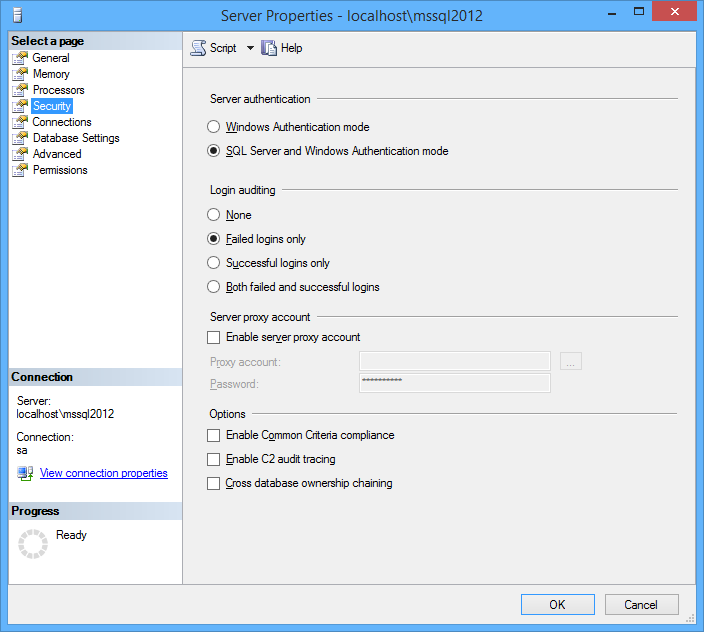
This setting may also be configured when installing a new server instance.
Provided they have access, user credentials configured to use SQL Server Authentication under the 'Security' node of the SQL Server instance, or any SQL user's credentials may be used when specifying connections to databases in BrightBuilder. Windows/Integrated Authentication may also be used to connect to the server, by using the checkbox in the dialog.

For more complex connections, including those which utilise
In versions prior to 9.1, specifying a Microsoft SQL Server JDBC Connection URL with the Custom database type may be used to define the connection as using Windows/Integrated Authentication.
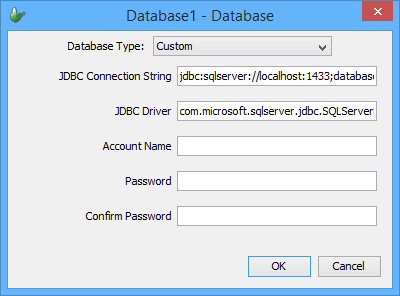
In the above dialog, Windows Authentication is used for the database on localhost. The entries are as follows:
JDBC Connection String: jdbc:sqlserver://localhost:1433;databaseName=<DB NAME>;integratedSecurity=true;
JDBC Driver: com.microsoft.sqlserver.jdbc.SQLServerDriver
Account Name: <Empty>
Password: <Empty>
In addition to this custom string, to support Windows Authentication, the folder containing the sqljdbc_auth.dll file for the correct architecture must be registered as a java.libary.path system property. By default, this file is bundled with BrightServer for its respective architecture, located in the 'lib' folder. The following flag (in green) must be present when starting BrightServer from the command prompt/run.bat:
... -Dserver.dir=%DIRNAME% -Djava.library.path=lib -cp .;conf\log4j.xml;lib\* ...
If running BrightServer as a service, the following line in green must also be present in the wrapper.conf file:
# Java Library Path (location of Wrapper.DLL or libwrapper.so)
wrapper.java.library.path.1=lib
wrapper.java.library.path.2=../lib
These flags are pre-configured automatically in BrightServer 9.1 and above, but must be added manually in versions prior. After adding the flags, the change will take effect the next time BrightServer is started.
For more information, please refer to the following articles:
Connections to SQL Server instances by BrightServer is performed via the JDBC library, which require TCP/IP protocols to be enabled on the instance. These settings are disabled by default, and must thus be enabled for any new server instance.
A port number must also be configured, which will also be used when connecting to the instance.
Both these settings may be configured using the SQL Server Configuration Manager, using the steps below:
Open SQL Server Configuration Manager, then under the 'SQL Network Configuration', select the SQL Server instance name which will be used with BrightServer.
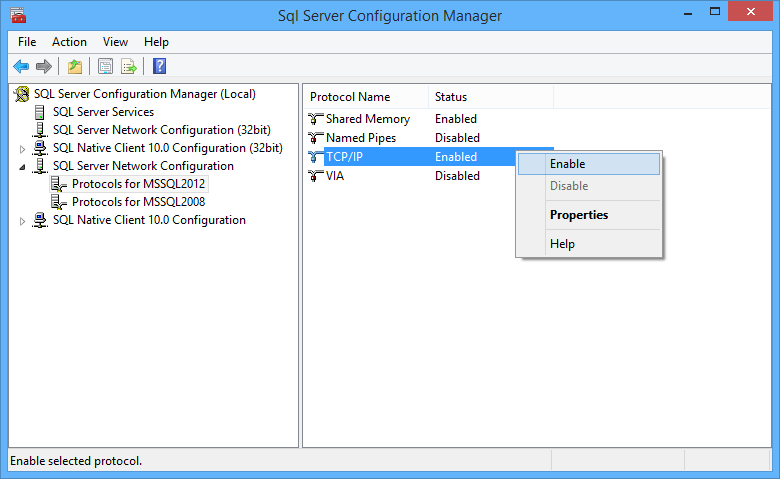
In the right panel, a list of protocols for the instance will display. Right click TCP/IP in this panel, then select 'Enable'.
Proceed to double click this TCP/IP row, which will open the properties panel.
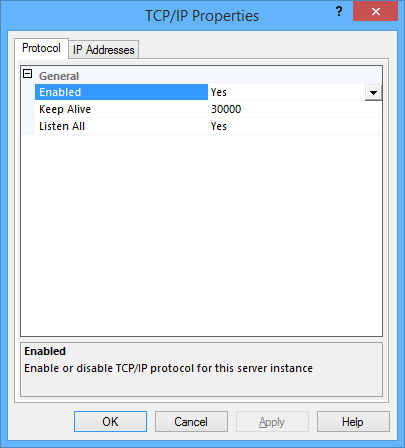
Note the value of the 'Listen All' item:
If the value of 'Listen All' is Yes, the TCP/IP port number for this server instance is the value of the TCP Dynamic Ports item under IPAll.
If the value of 'Listen All' is No, the TCP/IP port number for this server instance is the value of the TCP Dynamic Ports item for a specific IP address.
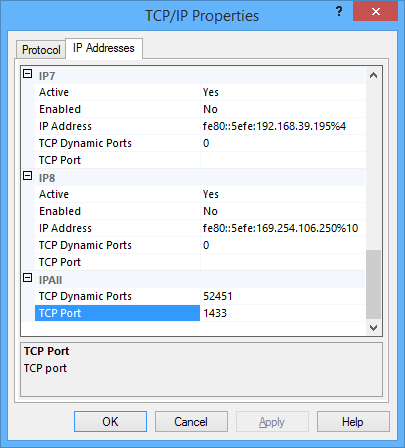
In the TCP/IP Properties dialog box, under the IP Addresses tab, several IP addresses appear in the format IP1, IP2, up to IPAll. One of these are for the IP address of the loopback adapter, 127.0.0.1. Additional IP addresses appear for each IP Address on the computer. Modify each item as follows:
For each enabled IP address, if the TCP Dynamic Ports value is 0, this indicates that the Database Engine is listening on dynamic ports. Disable this by deleting the 0 value in this field.
In the IP<n> Properties area box, in the TCP Port box, type the port number you wish this IP address to listen on, and then click OK.
After enabling the TCP/IP under server protocols, and configuring the ports, restart the server. This may be performed by locating the server instance under 'SQL Server Instances' and right clicking on it and selecting 'Restart'.
Microsoft SQL Server instances' databases may be used to configure BrightServer, in place of the default internal configuration. This process is detailed under the Server Settings > System Databases chapter of BrightServer.
BrightServer requires these system databases to be configured to support reading during database transactions. By default, this is not enabled for MSSQL2005 and above. To enable this feature, the following query for the database must be run on the SQL Server instance:
ALTER DATABASE dbName
SET READ_COMMITTED_SNAPSHOT ON
GO
In SQL Server 2012 and above, this setting may be set when creating the database, and is exposed via the 'Options' tab of the database's properties panel. If this flag is turned off, simultaneous synchronisations from users on BrightServer will not be possible, and there will be delays in synchronising large sets of data.
For further information, please consult the Microsoft SQL Server Knowledge Base articles.
Database Engine Tutorials
- Lesson 2: Connecting from Another Computer
https://msdn.microsoft.com/en-us/library/ms345343.aspx
Configure a Server to Listen
on a Specific TCP Port (SQL Server Configuration Manager)
https://msdn.microsoft.com/en-AU/library/ms177440.aspx
Configure the Windows Firewall
to Allow SQL Server Access
https://msdn.microsoft.com/en-us/library/cc646023.aspx